How to share a countdown with your partner on iPhone
Updated
To share a date with someone on iPhone, put it in a shared iCloud calendar in Calendar, so it appears on both phones and either of you can change it. Calendar shows the date, though, not the days left. To see the same countdown on both phones, pair with your person in a countdown app such as Shared Countdown and share the event there.
iOS steps below were checked against Apple’s iPhone User Guide for iOS 26 and iOS 27.
Share an iCloud calendar
A shared calendar suits the dates you both keep track of, like trips, visits and family birthdays. The person you invite needs an email address in your contacts.
- Open Calendar and tap the Calendars button. On iOS 26, it’s at the bottom of the screen.
- To start a new calendar for the two of you, tap Add Calendar, tap Add Calendar again, enter a name, then tap the Done button.
- Tap the Info button next to the iCloud calendar you want to share.
- Tap Add Person, then enter a name or email address, or tap the Add button to choose from your contacts.
- Tap the Done button.
The other person receives an invitation to join the calendar. To let them add and change events, or to stop letting them, tap the Calendars button, tap the Info button next to the shared calendar, tap their name, then turn Allow Editing on or off.
When someone changes a calendar you share, you get a notification. If that’s too many, go to Settings › Notifications › Calendar, tap Customize Notifications and turn off Shared Calendar Changes.
For a single event instead of a whole calendar, open the event, tap Edit, tap Invitees and add the person. They can accept, decline or reply Maybe.
Share a countdown with Shared Countdown
Shared Countdown lets you pair with one person, such as a partner, a close friend or a family member. After that, any event you share shows on both phones with the same number of days left, and either of you can edit it.
Pairing needs Sign in with Apple. It’s the only sign-in the app has, and it’s only needed to pair. Events you keep to yourself don’t need an account.
Invite your person
- Open the app (it’s called Countdown on the Home Screen), go to the Settings tab and tap Partner.
- On Count down together, tap Invite my person and sign in with Apple.
- Under Your invite code, you’ll see an 8-character code. It’s valid for 7 days.
- Tap Share invite link, or Copy code or Copy link to send it your own way. The app shows Waiting for them to join until they do.
The invite link only opens if your person already has the app installed. If they don’t, send the code too.
Join with the code
- Install the app. During setup, tap I have an invite. If you’ve already set it up, go to Settings › Partner and tap Enter a code.
- Enter the code your person shared with you, and sign in with Apple.
- Tap Connect with and your person’s name. When you see You’re connected, you’re paired.
Share an event
When you create an event, under Who can see this, choose Shared with and your person’s name instead of Only me, then tap Save & share. It shows up on both phones, and either of you can edit it.
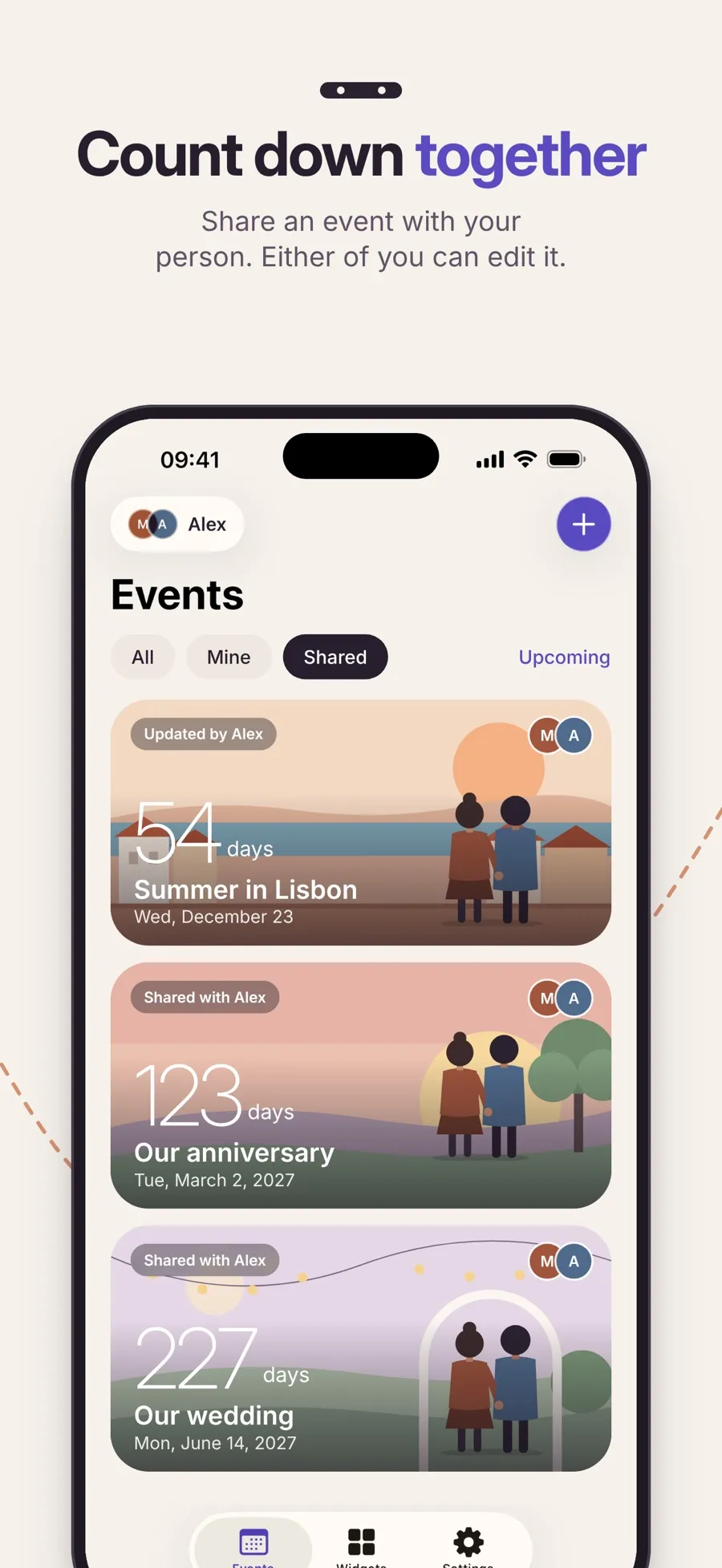
To share an event you made as Only me, edit it and change Who can see this. It doesn’t work the other way: a shared event can’t be made private again, except by disconnecting.
What you share, and what stays yours
- Shared: the event’s name, date and time, the theme and the cover photo. If you both change the same thing, the app asks which version to keep.
- Yours alone: your widget style and your reminders. Changing them doesn’t change your person’s.
- Updates: your person’s changes appear on your phone in real time while you’re both online. You don’t get a notification when they edit something.
- Offline: your own events work fully. Shared events stay visible, but creating, editing or deleting one needs a connection. The app says Sharing needs a connection.
- Deleting: for a shared event, the menu says Delete for both…, and it’s removed from both phones.
Disconnecting
To unpair, go to Settings › Partner › Manage connection, tap Disconnect from your person’s name, then Disconnect. You each keep a private copy of your shared events, and changes made after that don’t reach the other person. You can pair with one person at a time, so to pair with someone else, disconnect first.
Pairing and sharing events are free. Premium is a yearly subscription for widgets, reminders, cover photos and more looks, and one subscription also covers the person you’re paired with, for as long as you’re paired. When you disconnect, Premium you were getting through your person’s subscription ends.
On privacy: events you keep as Only me stay on your device. Shared events, including their name, date, look and cover photo, are stored in the app’s cloud database (Google Firebase) so both phones can show them.
If you live apart, see how to count down to your next visit in a long-distance relationship.
Quick answers
How do I share a countdown with my partner on iPhone?
In Shared Countdown, one of you taps Settings › Partner › Invite my person and sends the code. The other enters it with Enter a code. Then choose Shared with your person under Who can see this when you create an event.
Can a shared iCloud calendar show a countdown?
No. A shared calendar shows the event on both phones, and you can let the other person edit it, but Calendar shows the date, not how many days are left.
Can I share a countdown with more than one person?
Not in Shared Countdown. You pair with one person at a time. To pair with someone new, disconnect first. A shared iCloud calendar can be shared with several people.
Will I be notified when my partner changes a shared event?
Not in Shared Countdown. Their changes appear on your phone while you’re online, without a notification. Calendar does notify you when someone changes a calendar you share.
Does my partner need Premium too?
No. One Premium subscription covers both of you while you’re paired. Sharing events is free either way.
