Long-distance relationship countdown to your next visit
Updated
When you live apart, the most useful countdown is one you both look at. Make the next visit a single shared event that either of you can edit, set it to the time the plane or train arrives, in the time zone of the place it arrives, and you’re both counting to the same moment. A countdown app made for two does this. A shared iCloud calendar keeps the date on both phones, but doesn’t count down.
iOS steps below were checked against Apple’s iPhone User Guide for iOS 26 and iOS 27.
Option 1: a shared calendar for your visits
If you want every visit, flight and call in one place, share an iCloud calendar between you. In Calendar, tap the Calendars button, tap the Info button next to the calendar, tap Add Person and enter your partner’s name or email. They get an invitation to join, and you can turn on Allow Editing so they can add and change events too. See how to share a countdown with your partner for the full steps.
When you add a visit, set the arrival in the right time zone. Tap the event’s start and end times, tap Time Zone, then search for the arrival city. Calendar notifies you when your partner changes the shared calendar.
What it won’t do is show the number you both keep working out in your heads: how many days are left.
Option 2: one shared countdown with Shared Countdown
Shared Countdown lets you pair with one person and share events, so the next visit sits on both phones with the days left, and either of you can change it when plans move.
Pair once
One of you goes to Settings › Partner, taps Invite my person, signs in with Apple and sends the 8-character code or invite link. The code is valid for 7 days. The other installs the app, taps I have an invite (or Settings › Partner › Enter a code), signs in with Apple and taps Connect with their partner’s name. The invite link only opens if the app is already installed.
Create the visit
- Tap the plus button, Create event, and name the visit, for example “Lisbon, finally.”
- Choose the Date category, or Vacation if you’re traveling somewhere together.
- Under When, tap Choose a date and pick the day you arrive.
- Tap Add a time, set the arrival Time, then tap Time zone and search for the city where you arrive.
- Under Countdown display, choose Days, hours & minutes if the last few days call for it.
- Under Who can see this, choose Shared with your partner, then tap Save & share.
Because the time is set in the arrival city’s time zone, it points to one moment. You count down to it from your time zone, your partner from theirs, and you both reach it together.
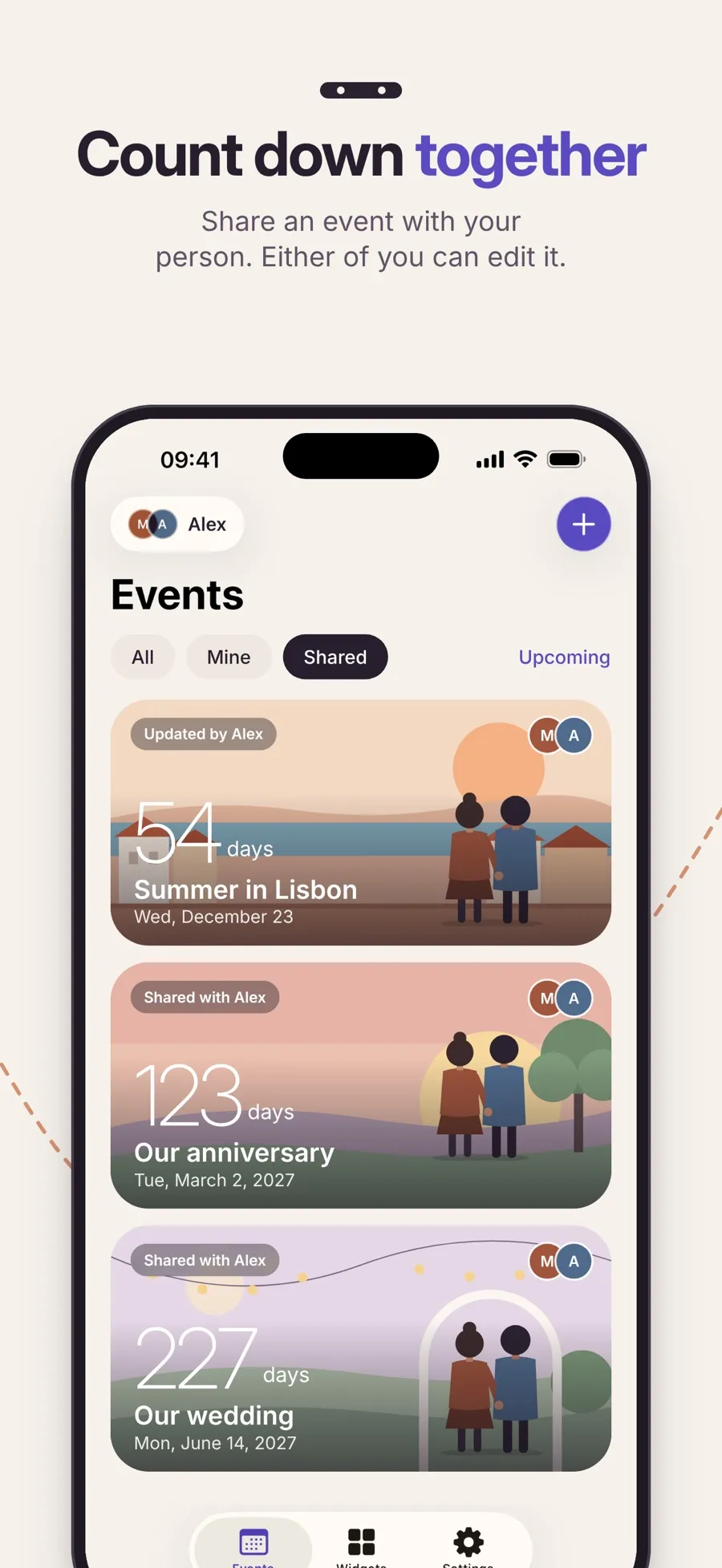
When plans change
Flights get moved. Either of you can open the event, tap Edit and change the date or time, and the change appears on the other phone in real time while you’re both online. Two things to know:
- No notification for edits. The app doesn’t send a notification when your partner changes an event, so if you move the date, tell them too.
- A connection is needed for shared changes. Offline, you can still see shared events, but creating, editing or deleting one has to wait until you’re back online. If you both change the same thing, the app asks which version to keep.
After the visit
On arrival day, the countdown shows It’s here from the arrival time until the end of the day. Then the event shows Event ended and moves to Past. Open it and tap Plan the next one to start the next visit with the same name, look and sharing. Only the date is left for you to pick.
Keep it in view
With Premium, add the Countdown widget to your Home Screen. The Together look shows both of your initials next to the days left, and each of you picks your own widget style. Premium also adds reminders 30, 7 and 1 day before, which are personal: yours don’t change your partner’s.
Pairing and shared countdowns are free. Premium is a yearly subscription, and one subscription covers both of you while you’re paired, so only one of you needs it. The app runs on iPhone and iPad with iOS 18 or later.
Shared events, including their name, date, look and cover photo, are stored in the app’s cloud database (Google Firebase) so both phones can show them. Events you keep as Only me stay on your device.
Quick answers
How do we both see the same countdown to our next visit?
Pair in Shared Countdown with an invite code, then create the visit and choose Shared with your partner under Who can see this. It appears on both phones, and either of you can edit it.
Which time zone should we use when we’re in different ones?
The time zone of the place where the moment happens, usually the arrival city. With the time tied to that time zone, you both count down to the same moment.
Will my partner know if I change the date?
They’ll see the new date on their phone once they’re online, but Shared Countdown doesn’t send a notification for edits. Tell them yourself if it’s a big change.
Do we both need to pay for Premium?
No. One Premium subscription covers the person you’re paired with too, for as long as you’re paired.
What happens to our shared countdowns if we disconnect?
You each keep a private copy of the shared events. Changes made after that don’t reach the other person, and Premium that one of you got through the other’s subscription ends.
