How to count the days until a date on iPhone
Updated
iPhone doesn’t have a “days until” counter built in. Calendar shows you the date and the events around it, so you can count the days in Month view, but it doesn’t give you a number. For an exact count that updates every day, add the date to a countdown app. Shared Countdown does this for free.
iOS steps below were checked against Apple’s iPhone User Guide for iOS 26 and iOS 27 and the Shortcuts User Guide.
Check the date in Calendar
If the date is already in Calendar, you can see what’s coming without another app:
- Open the Calendar app.
- In Day view, tap the Day view icon and choose List to see a complete list of upcoming events.
- Or, in Month view, tap the Month view icon and choose Details to see event titles on each day.
That tells you when, not how long. For something two weeks away, counting squares in Month view is easy enough. For a wedding next June, it isn’t.
What about Shortcuts?
The Shortcuts app can describe a date relative to now, but Apple’s guide says that format gives only the most significant unit, with results like “5 days from now” or “3 months from now.” So for a date months away, you get months, not the exact number of days. Building a shortcut that counts exact days takes several actions that Apple doesn’t document step by step, so it isn’t covered here.
Count the days with Shared Countdown
Shared Countdown shows how many days are left until each date you add, and recounts every day. Counting down is free, and you don’t need an account to use it on your own.
- Open the app (it’s called Countdown on your Home Screen) and tap the plus button, Create event.
- Type an Event name, up to 80 characters.
- Choose a Category: Wedding, Vacation, Birthday, Date or Special Day.
- Under When, tap Choose a date. A one-time event needs a date that hasn’t passed yet.
- If the moment has a time, tap Add a time, then set the Time and, if it’s somewhere else, the Time zone.
- Under Countdown display, choose Days, or Days, hours & minutes.
- Leave Who can see this on Only me to keep it private, then tap Save event.
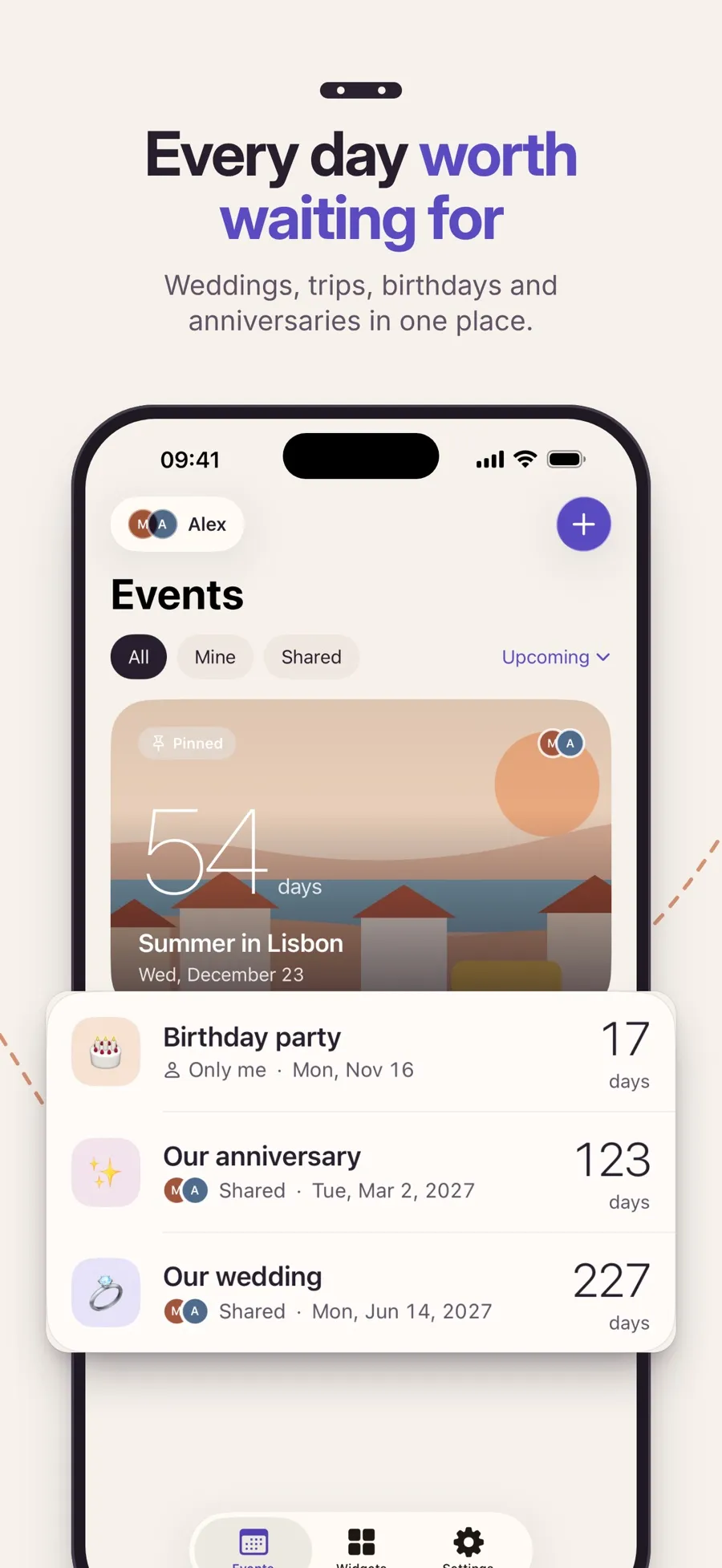
Your events are listed with the days left, nearest first, under Upcoming. To keep one at the top, touch and hold it and tap Pin to top. You can pin one event at a time.
What the count shows on the day, and after
- On the day: an all-day event shows Today. An event with a time shows It’s here from that time until the end of the day.
- Never negative: once a one-time event has passed, it shows Event ended and moves to Past. From there, Plan the next one starts a new event with the same name and look.
- Every year: for the Birthday and Special Day categories, turn on Repeat yearly, and the count rolls over to next year’s date. There’s no monthly or weekly repeat.
The app counts down only. It doesn’t count up, so it can’t tell you how many days have passed since a date.
Adding, editing and pinning events, the yearly repeat and sharing an event with one person are all free. Premium, a yearly subscription, adds Home Screen widgets, reminders before the day, cover photos and three more looks. The app runs on iPhone and iPad with iOS 18 or later.
To keep the number in view without opening the app, see how to put a countdown widget on your Home Screen.
Quick answers
How do I see how many days until a date on iPhone without an app?
There’s no built-in day counter. In Calendar, you can see upcoming events in List view and count the days in Month view, but Calendar doesn’t show a number of days left.
Can Shortcuts count the days until a date?
Apple’s Shortcuts guide describes a date format that says how far away a date is, but only in its largest unit, such as “3 months from now.” For an exact number of days, a countdown app is simpler.
Is Shared Countdown free?
Yes. Creating events, counting down, the yearly repeat and sharing are free. Widgets, reminders, cover photos and some looks are part of Premium, a yearly subscription.
Can it count the days since a date?
No. It counts down to a date. After a one-time event passes, it shows Event ended and moves to Past, without counting up.
Can I count hours and minutes too?
Yes. Choose Days, hours & minutes under Countdown display when you create or edit the event. Adding a time makes the count more precise.
