How to make a vacation countdown on iPhone
Updated
For a vacation countdown on iPhone, add the trip to a countdown app with the Vacation category and the day you leave. If you want it to count to the minute, add your departure time and set the time zone of the place you’re leaving from. Calendar is still the right place for the itinerary itself, and it can pick up flight and hotel bookings from your email.
iOS steps below were checked against Apple’s iPhone User Guide for iOS 26 and iOS 27.
Put the trip in Calendar
Let Calendar suggest your bookings
Siri can suggest events found in Mail, Messages and Safari, such as flight reservations and hotel bookings, so you can add them to Calendar quickly. To turn this on, go to Settings › Apps › Calendar, tap Siri, then turn on Show in App.
Schedule a flight in another time zone
Calendar shows events in the time zone where you are. A flight home from abroad, though, leaves at a local time somewhere else. You can schedule it in that place’s time zone:
- Open Calendar and, in Day view, tap the Add button.
- Enter the title and other details.
- Tap the start and end times, then tap Time Zone.
- Search for the city, tap it, then tap the Done button.
You can change an event’s time zone later too. If you’d rather see your whole calendar in your destination’s time while you plan, go to Settings › Apps › Calendar, tap Time Zone Override, turn it on, then choose a city. Apple notes that it only changes the time zone shown in Calendar.
Calendar shows the date of the trip, not how many days are left.
Count down to the trip with Shared Countdown
Shared Countdown shows the days left until you go, and if someone is coming with you, the same countdown can be on their phone too.
- Open the app (it’s called Countdown on your Home Screen) and tap the plus button, Create event.
- Name the trip, for example “Summer in Lisbon,” and choose the Vacation category.
- Under When, tap Choose a date and pick the day you leave.
- To count to the minute, tap Add a time and set your departure Time.
- Tap Time zone and search for the city you’re leaving from, if it isn’t where you are now.
- Under Countdown display, choose Days, or Days, hours & minutes for the final stretch.
- To share it with your partner, choose Shared with them under Who can see this and tap Save & share. Otherwise, keep Only me and tap Save event.
The time zone matters most when you leave from somewhere other than home, or when the person you share it with lives in a different time zone. The countdown follows the time where the moment happens, so you’re both counting to the same departure. If you don’t add a time, the trip is an all-day event and the count goes by days.
Get reminded before you go
With Premium, each event has Your reminders: 30 days before, 7 days before and 1 day before, all on by default, at the time you set under Remind me at (9:00 AM in your local time unless you change it). They arrive as notifications, such as “7 days to go” with “Summer in Lisbon is 7 days away.” That’s a good moment to check your passport or book the airport transfer.
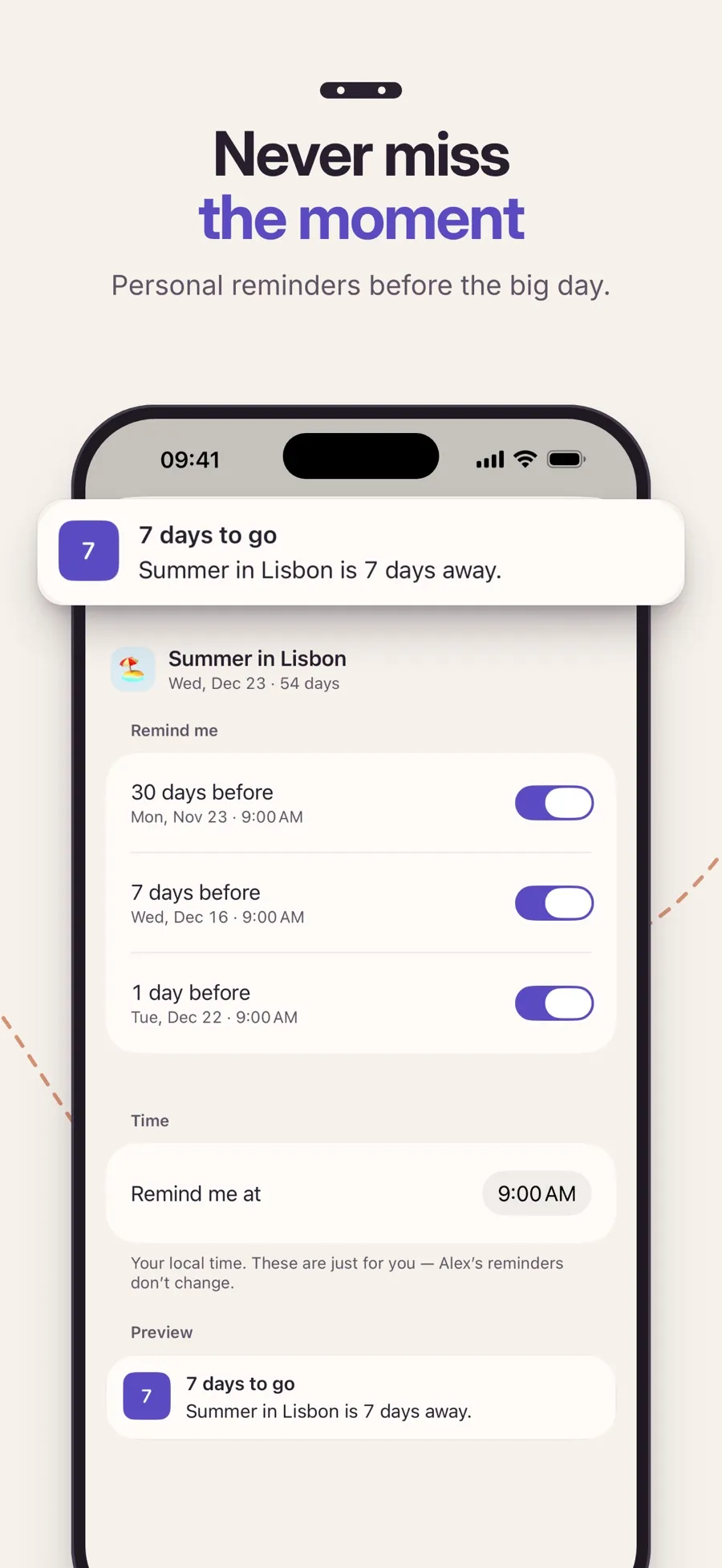
Reminders are personal. If you share the trip, your reminder settings don’t change your partner’s, and theirs don’t change yours.
When the day comes
With a departure time, the countdown shows It’s here from that time until the end of the day. After that, the trip shows Event ended and moves to Past. When you’re ready for the next one, open it and tap Plan the next one. It starts a new event with the same name and look, and you pick the new date.
The countdown is to the start of the trip. There’s no trip length or return date in the event, so for the way back, add a second event.
Trip countdowns, the time zone and sharing are free. Premium, a yearly subscription, adds the reminders above, Home Screen widgets, cover photos and more looks. One subscription covers you and the person you’re paired with. The app runs on iPhone and iPad with iOS 18 or later.
To see the trip on your Home Screen, see how to put a countdown widget on your iPhone.
Quick answers
How do I make a countdown to my vacation on iPhone?
In Shared Countdown, create an event with the Vacation category and the day you leave. Add your departure time and its time zone if you want to count down to the minute.
Which time zone should I choose for a flight?
The time zone of the airport you leave from, because departure times are local. In Calendar, set it under Time Zone when you tap the event’s start and end times. In Shared Countdown, set it under Time zone after Add a time.
Can Calendar add my flight automatically?
Calendar can suggest events it finds in Mail, Messages and Safari, such as flight reservations and hotel bookings. Turn on Show in App under Settings › Apps › Calendar › Siri.
Can the person I’m traveling with see the same countdown?
Yes, if you pair with them in Shared Countdown and share the event. You can pair with one person, and either of you can edit the trip.
Can I get a reminder a week before my trip?
Yes, with Premium. Shared Countdown reminds you 30, 7 and 1 day before, at a time you choose. You can turn each one on or off.
