How to put a countdown widget on your iPhone Home Screen
Updated
iPhone doesn’t come with a countdown widget. Apple’s widgets show information from Apple’s apps, such as your calendar, the weather or your reminders, but none of them shows how many days are left until a date you pick. To see “54 days” on your Home Screen, you need an app that offers a countdown widget, then add that widget the same way you add any other.
iOS steps below were checked against Apple’s iPhone User Guide for iOS 26 and iOS 27.
What you can do without another app
If you just want the date in view, put the event in Calendar and add Calendar’s widget to your Home Screen. It keeps your schedule in sight, but it shows dates and events, not a number of days counting down.
Adding a widget works the same way for Apple’s widgets and for widgets from apps you download:
- Go to the Home Screen page where you want the widget.
- Touch and hold the background until the apps begin to jiggle.
- Tap Edit, then tap Add Widget. On iOS 26, Edit is at the top of the screen.
- Scroll or search to find the widget you want, tap it, then swipe through the size and style options.
- When you see the size you want, tap Add Widget.
- While the apps are still jiggling, drag the widget where you want it, then tap the Done button.
To change what a widget shows later, touch and hold it, tap Edit Widget, choose options, then tap Done. Apple also notes that not every app offers every widget size.
Add a countdown widget with Shared Countdown
Shared Countdown counts the days until a wedding, a trip, a birthday or any day you’re waiting for. Its Home Screen widget is part of Premium. On your Home Screen, the app is called Countdown.
First, create the event in the app:
- Open the app and tap the plus button (Create event).
- Type an Event name, choose a Category, then tap Choose a date under When.
- Under Countdown display, choose Days, or Days, hours & minutes if you want the hours too.
- Tap Save event.
Then put it on your Home Screen:
- Touch and hold an empty spot on your Home Screen until the apps jiggle.
- Tap Edit, then Add Widget.
- Search for Countdown and pick Small or Medium.
- Tap the widget while the apps are still jiggling, and choose your event.
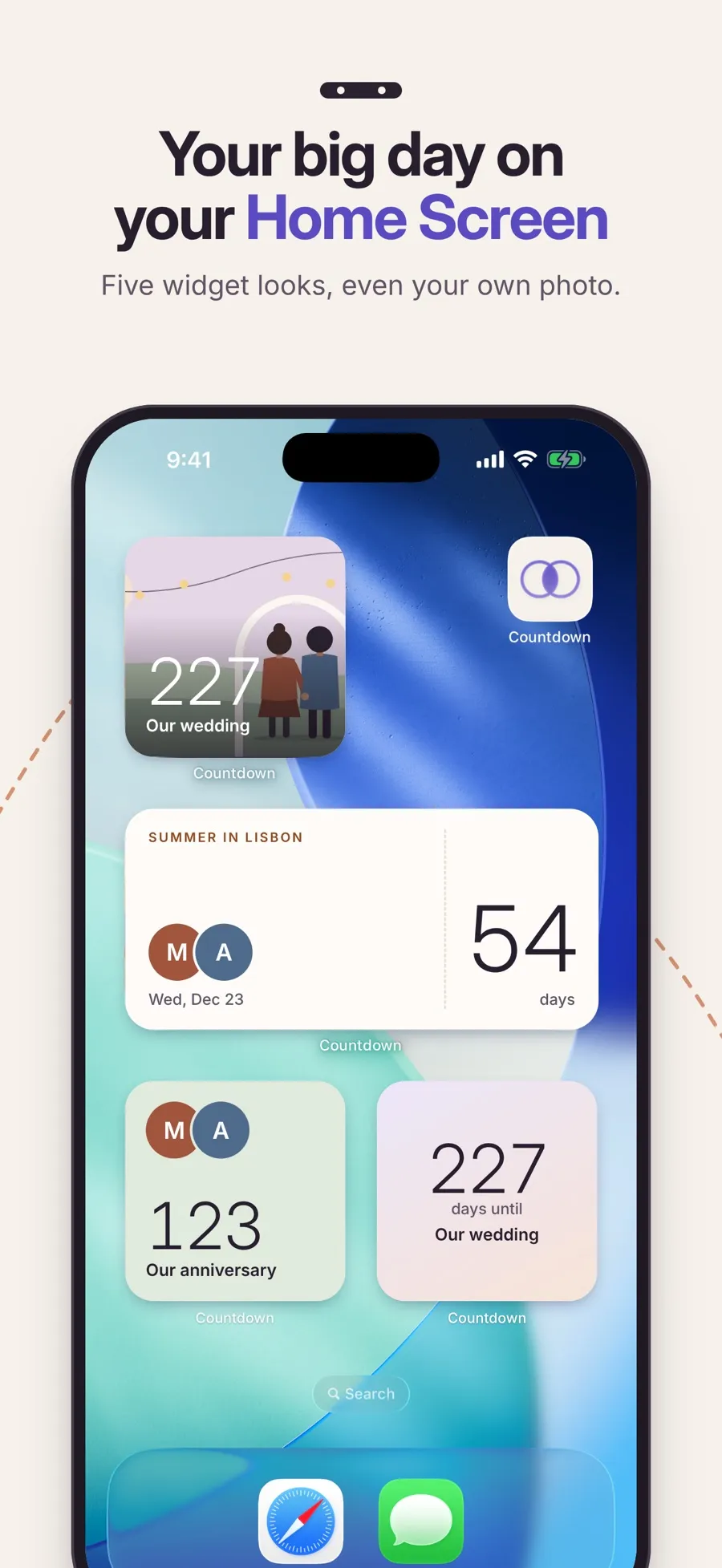
The widget comes in five looks: Paper, Essential, Soft light, Together and Photo. To change the look, touch and hold the event in the app’s list, tap Customize widget, pick a Widget style, then tap Save widget style. You can also start from the Widgets tab.
A few things to know before you set it up:
- View only. Tapping the widget opens the app. You change the event in the app, not on the widget.
- Sizes. Small and Medium. There’s no Large widget and no Lock Screen widget.
- On the day. An all-day event shows Today. An event with a time shows It’s here once that time arrives. The count never goes negative.
- Shared events. If you share an event with a partner, each of you picks your own widget style. The event itself, its photo and its theme are the same on both phones.
Creating events, counting down and sharing them are free. The widget isn’t: Home Screen widgets, in all five looks, come with Premium, a yearly subscription that also adds reminders, cover photos and more looks for your events. If you’re paired with someone, one subscription covers both of you. The app runs on iPhone and iPad with iOS 18 or later.
For a widget you both look at, see how to share a countdown with your partner. Planning a wedding? See how to make a wedding countdown on iPhone.
Quick answers
Does iPhone have a built-in countdown widget?
No. Apple’s widgets show information from Apple’s apps, such as Calendar, Weather and Reminders, but none counts down the days to a date you choose. For that you need an app with a countdown widget.
Can I put a countdown on my iPhone Lock Screen?
Not with Shared Countdown. Its widget works on the Home Screen only, in Small and Medium sizes.
Is the Shared Countdown widget free?
No. Widgets are part of Premium, a yearly subscription. Counting down, sharing events and the Essential look inside the app are free.
How do I choose which event the widget shows?
While your Home Screen apps are jiggling, tap the widget and pick the event. Each widget shows one event, so add a second widget for a second countdown.
Can my partner and I use different widget looks for the same event?
Yes. The widget style is personal, so each of you picks your own. The event’s cover photo and theme are shared.
