How to keep a medication log on iPhone
Updated
The easiest way to answer “Did I already take it?” is to record each dose the moment you take it. On iPhone, the Health app does this: open Medications, select a day, tap the medication under Log, then tap Taken or Skipped. Later, the log shows what you recorded for each day.
iOS steps below were checked against Apple’s iPhone User Guide for iOS 26 and iOS 27 and Apple Support’s article on adding and logging medications.
Why a log helps
Daily doses blur together. A log turns “I think I took it” into a record with a time next to it. It only shows what you recorded, though. If you didn’t log a dose and can’t remember whether you took it, don’t guess from the log: check the leaflet or ask your pharmacist or doctor what to do.
Log doses in the Health app
First add your medications and a schedule in Health. See how to set medication reminders on iPhone.
- Open the Health app.
- On iOS 27, tap Browse, then tap Medications. On iOS 26, tap the Search button at the bottom right, then tap Medications.
- Select a day.
- Tap the name of a medication in the list below Log, then tap Taken or Skipped below it.
- Tap Done.
For a medication you take only when needed, tap As Needed Medications below Log, then tap Taken below the medication.
Log from the reminder. When Health reminds you to log a scheduled medication, touch and hold the notification, then choose an option.
Check your history. In Medications, tap a medication in your list to see how often you took or skipped it.
If you use Health on more than one device, Apple notes that they need to be signed in to the same Apple Account, connected to the internet and up to date for Health data to sync.
Keep a dose log with Daily Pill Reminder
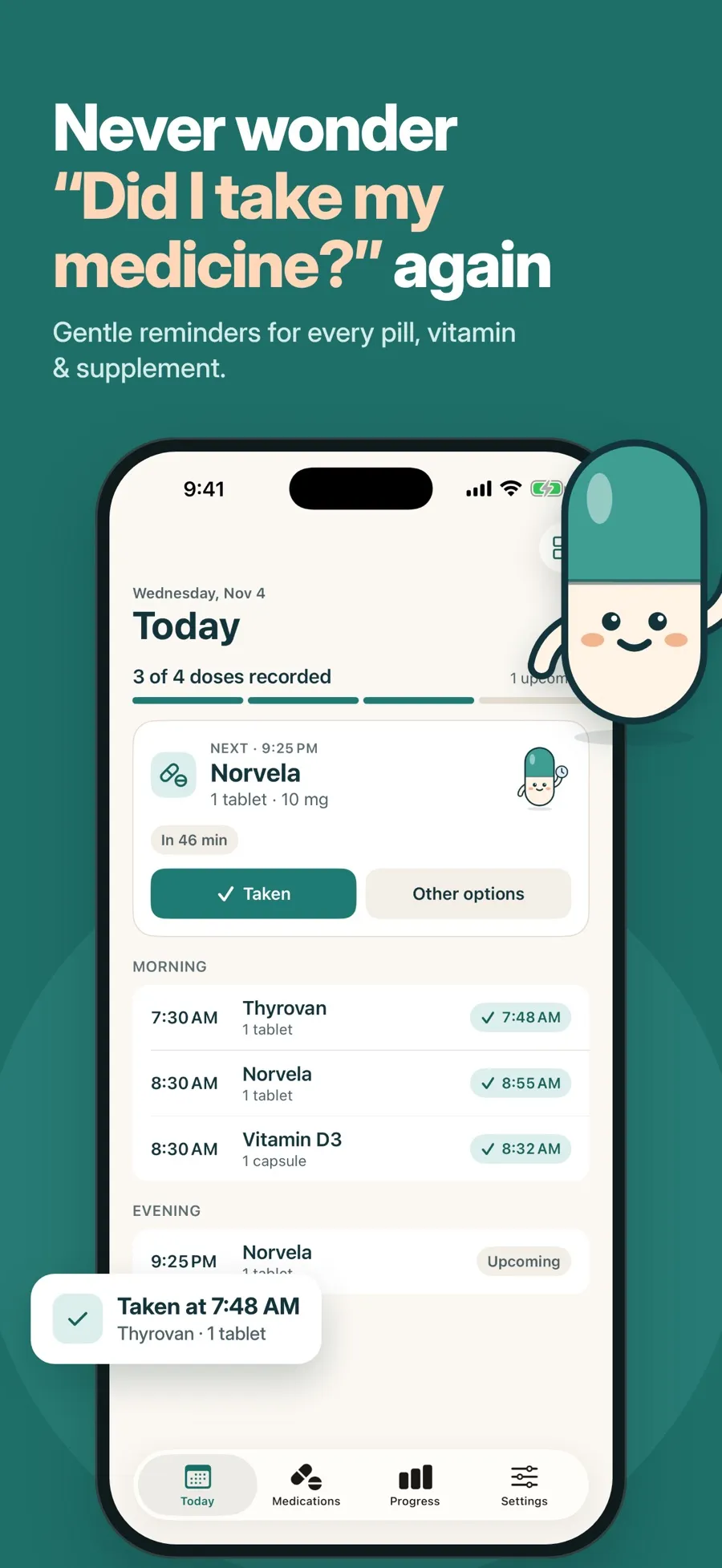
Daily Pill Reminder puts the log front and center. The Today tab shows your next dose and every dose for the day, with the time you recorded each one.
Record a dose
- From the notification: tap Taken. The dose is recorded without opening the app.
- From Today: tap Taken on the next-dose card.
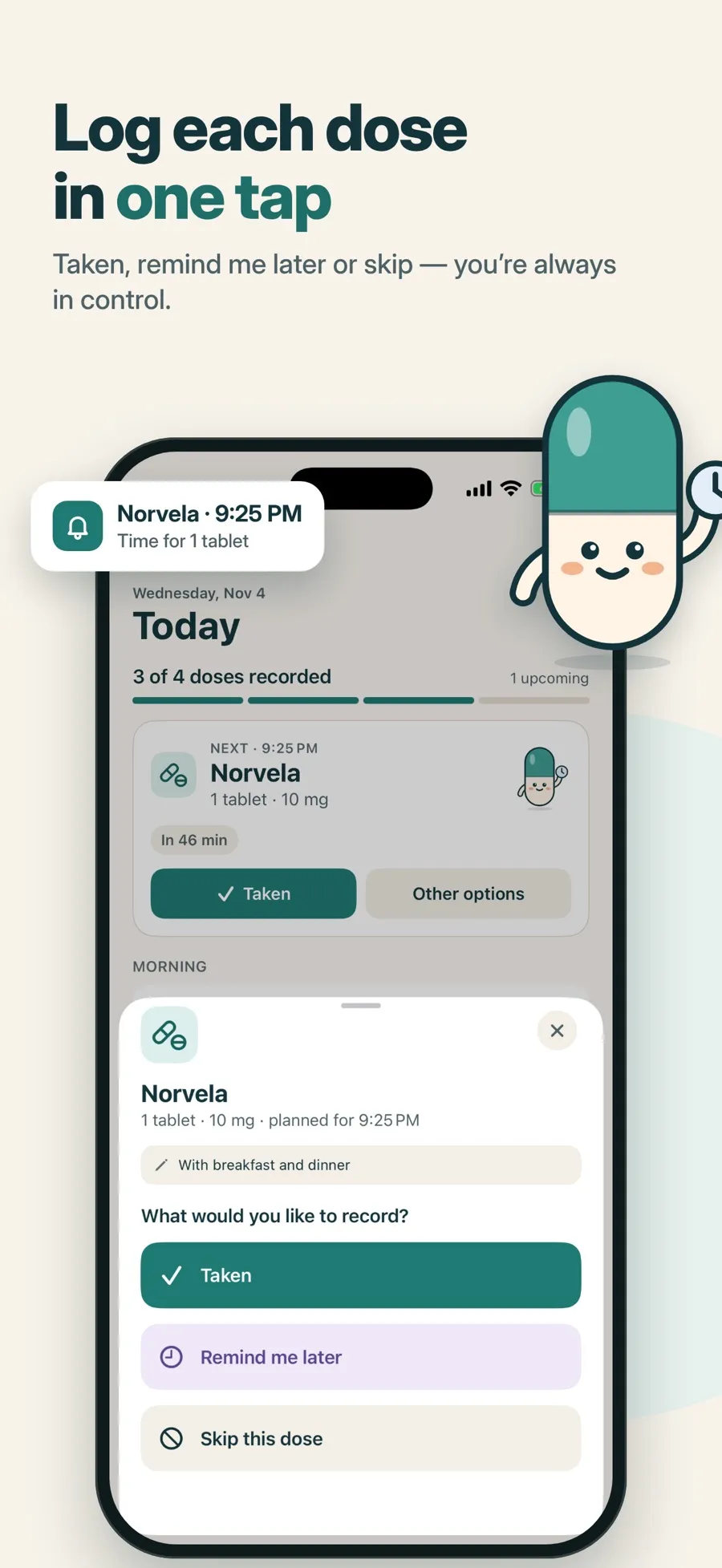
- Something else: tap Other options. Under “What would you like to record?” choose Taken, Remind me later or Skip this dose. Skipping asks you to confirm with Skip dose, and you can add a note.
After you record a dose, a message appears with Undo and Edit, so a wrong tap is easy to fix.
Add a dose you forgot to record
If you took a dose but didn’t log it, you can add it afterwards.
- On Today, find the dose marked No record yet and tap Record now. For an earlier day, open Progress, open the day, then tap the dose.
- In the Record dose sheet, under “What happened?”, choose I took it or Mark as skipped.
- If you took it, set Taken on and Taken at with Choose time, or choose I don’t remember the time.
- Add a Note (optional) if you like, then tap Save.
To correct a record later, open it and tap Edit record or Remove record.
See your week and month
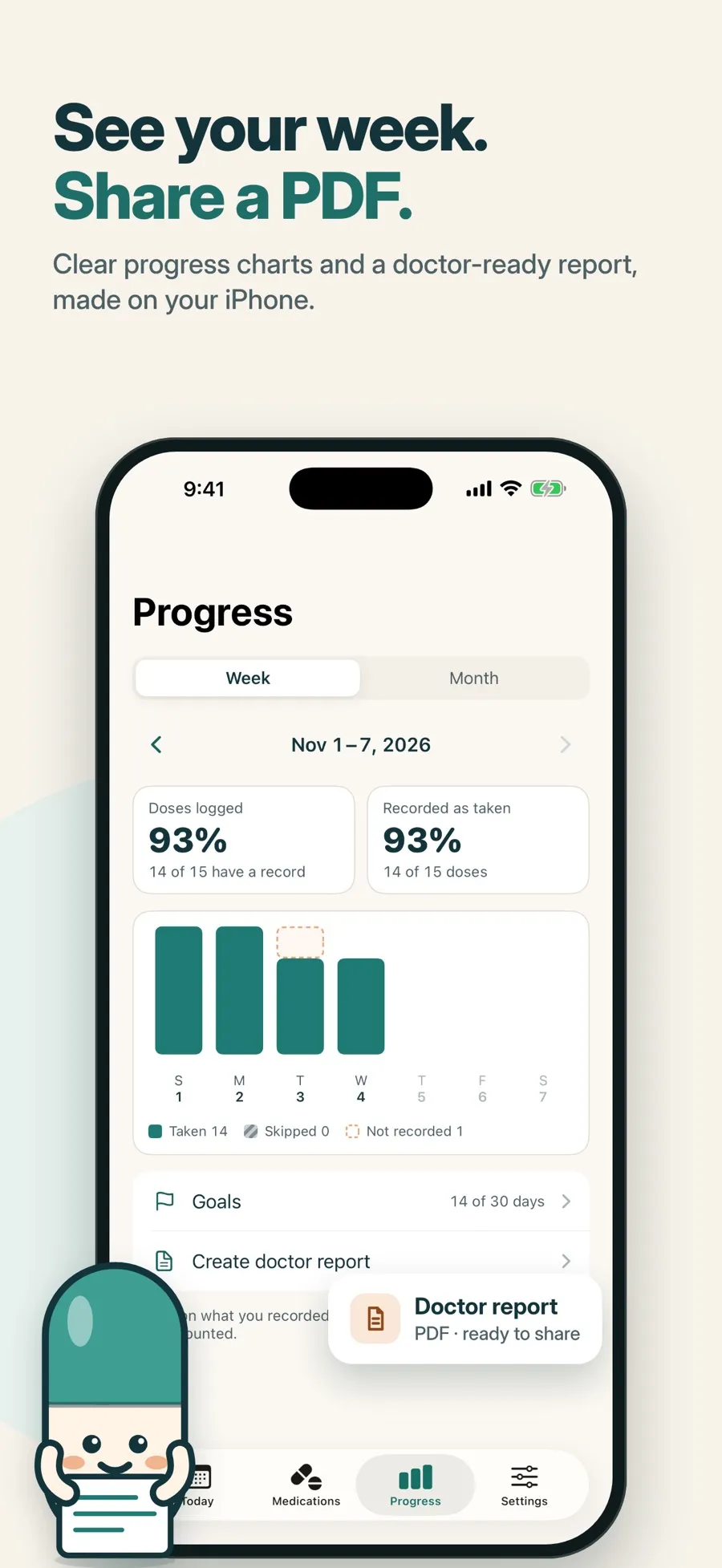
Progress shows Week and Month charts of the doses you recorded as taken, skipped or not recorded. Optional goals, such as “Log every scheduled dose” over 3, 7 or 30 days, count any days and never reset. A skipped dose counts as logged, because the goal is an honest record. You can turn goals off in Settings > Goals & celebrations.
To keep a copy of your log, go to Settings > Privacy > Export my data. It creates two CSV files, one for records and one for medications, and a JSON file that you can save or share. Export is free.
The download is free and includes one medication with reminders, the dose log and progress charts. Premium, a weekly or yearly subscription, adds more medications, alarms, widgets and a doctor PDF report. There’s no account. Your medications and dose records are stored on your device, and there’s no iCloud sync.
Health app or Daily Pill Reminder?
- You already use the Health app: log your doses there. It’s free, works with Apple Watch, and supports as-needed medications.
- You want to log straight from the notification, fix a forgotten dose with its real time, and see a simple Today list: try Daily Pill Reminder.
To show your log to a doctor, see how to make a medication list for your doctor.
Quick answers
How can I check if I already took my medication today?
Only a record tells you. If you log each dose in the Health app’s Medications or in Daily Pill Reminder, the day’s list shows what you recorded and when. If you didn’t record it and aren’t sure, check the leaflet or ask your pharmacist or doctor.
Can I log a medication from the notification?
Yes. For a Health app reminder, touch and hold the notification, then choose an option. In Daily Pill Reminder, tap Taken on the notification to record the dose without opening the app.
How do I record a dose I forgot to log?
In the Health app, select the day in Medications, tap the medication and choose Taken or Skipped. In Daily Pill Reminder, tap Record now on the dose, or open the day in Progress, then choose I took it and the time, or I don’t remember the time.
Can I undo a dose I logged by mistake?
In Daily Pill Reminder, tap Undo right after recording, or open the record later and tap Edit record or Remove record.
Can I export my medication log?
Daily Pill Reminder exports your records and medications as CSV and JSON files from Settings > Privacy > Export my data, for free. The Health app can export a PDF of your current medications list.
