How to sign an email attachment on iPhone and send it back
Updated
To sign an email attachment on iPhone, open the email in Mail, tap the attachment, then tap the Markup button. Tap the Add button, tap Add Signature, and sign with your finger or pick a saved signature. Drag it onto the signature line, tap Done, and choose to reply to the sender to send the signed copy back.
iOS steps below were checked against Apple’s iPhone User Guide for iOS 26 and iOS 27.
Before you start
Check what kind of signature is needed. Markup and the app in this guide both place an image of your handwritten signature on the page. Some documents need a certificate-based digital signature instead. Whether a signature added on a phone is accepted depends on the document and the country, so if you’re unsure, ask whoever sent it.
Look for every place to sign. Contracts and forms often need a signature or initials on more than one page. Scroll through the whole attachment first so you don’t send back a copy that’s only half signed.
Sign the attachment in Mail and reply
Mail lets you draw and write on a PDF, photo or video attachment and send it straight back, without saving anything first.
- Open the email in Mail and tap the attachment.
- Tap the Markup button.
- In the Markup toolbar, tap the Add button, then tap Add Signature.
- Tap a saved signature, or sign with your finger and tap Done.
- Drag the signature onto the signature line. To resize it, drag any blue dot around it.
- Tap Done, then choose to reply to the sender.
Mail starts a reply to the person who sent the attachment, with your signed copy attached. Add a short note and send it.
When you tap Done, you can also start a new message, if the signed copy should go to someone else, save the annotated attachment to your files, or discard it and start over.
Signing in more than one place
Repeat steps 3 to 5 for each spot. Your iPhone saves your signature the first time, so after that you only tap it.
If the document asks for initials, save them as a second signature. Tap the Add button, tap Add Signature, tap Add or Remove Signature, then tap the Add button. Choose a label such as initials next to New Signature, sign, and tap Done. For more on saved signatures and signing PDFs in Files, see how to sign a PDF on iPhone.
When the attachment is a form to fill out
If the attachment has blank fields for your name, address or date, Mail can fill them in and send the form back.
- Open the email in Mail and tap the attachment.
- Tap the AutoFill button, then tap Form Filling.
- Tap a blank field and type. Tap the next field to keep going.
- Tap Done, then tap Reply to [name].
Save the attachment to Files
To read the document properly, sign it later, or sign it in another app, save it to Files first.
- Open the email in Mail and touch and hold the attachment.
- Choose Save to Files, then pick a location.
Sign it with your paper signature using eSign Documents
A signature drawn with a fingertip often looks different from the one you write with a pen. If you’d rather send back your real signature, eSign Documents can scan it once and place it on any PDF you’ve saved from an email.
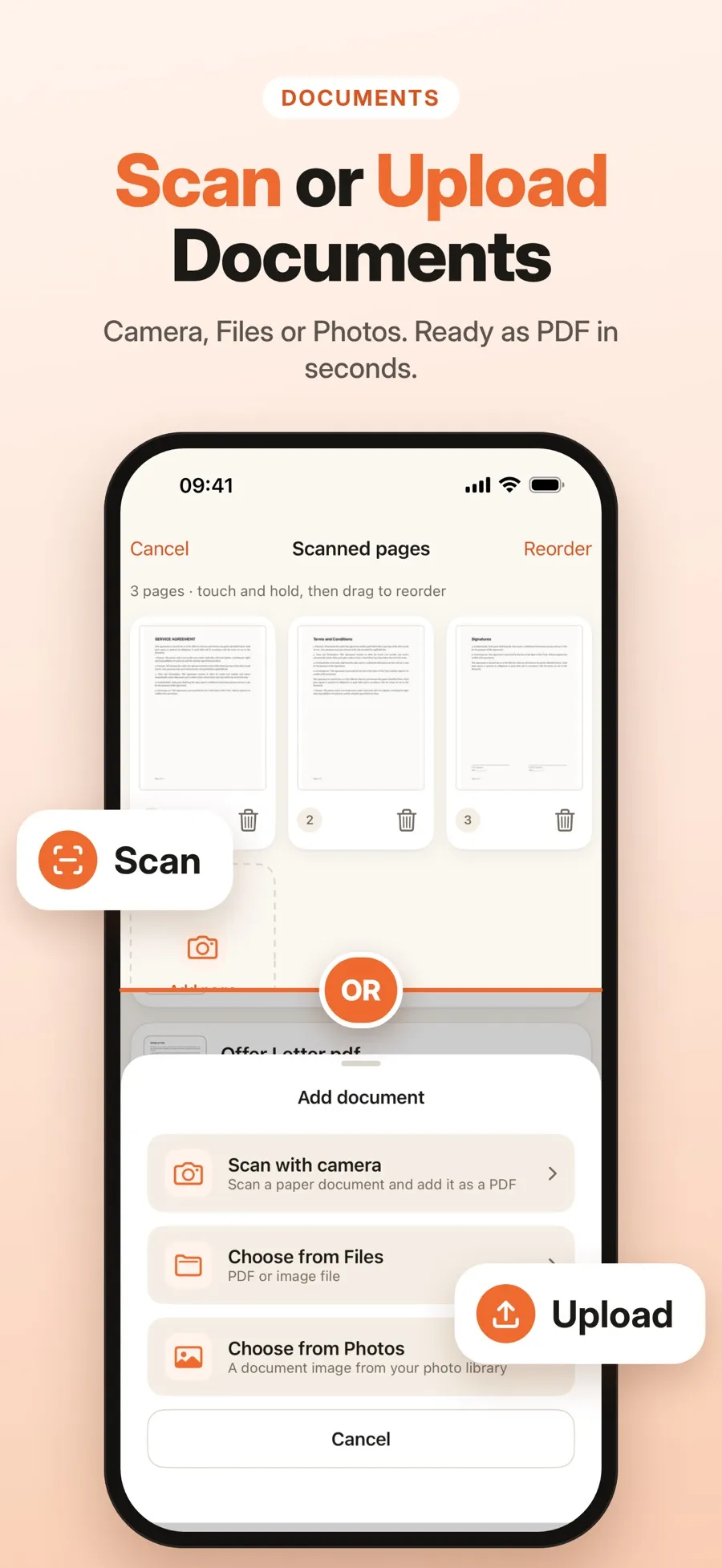
- Scan or draw your signature. Scan the signature you wrote on paper: it’s detected, cropped and its background removed. Or draw it with your finger in black, blue, red or any color, in three line widths.
- Sign every spot. Put your signature on any page, move, resize or rotate it, and add more than one if the document needs it.
- Save the attachment to Files, as above.
- Open eSign Documents and create your signature: scan it from paper, or draw it.
- Add a document and choose the PDF from Files.
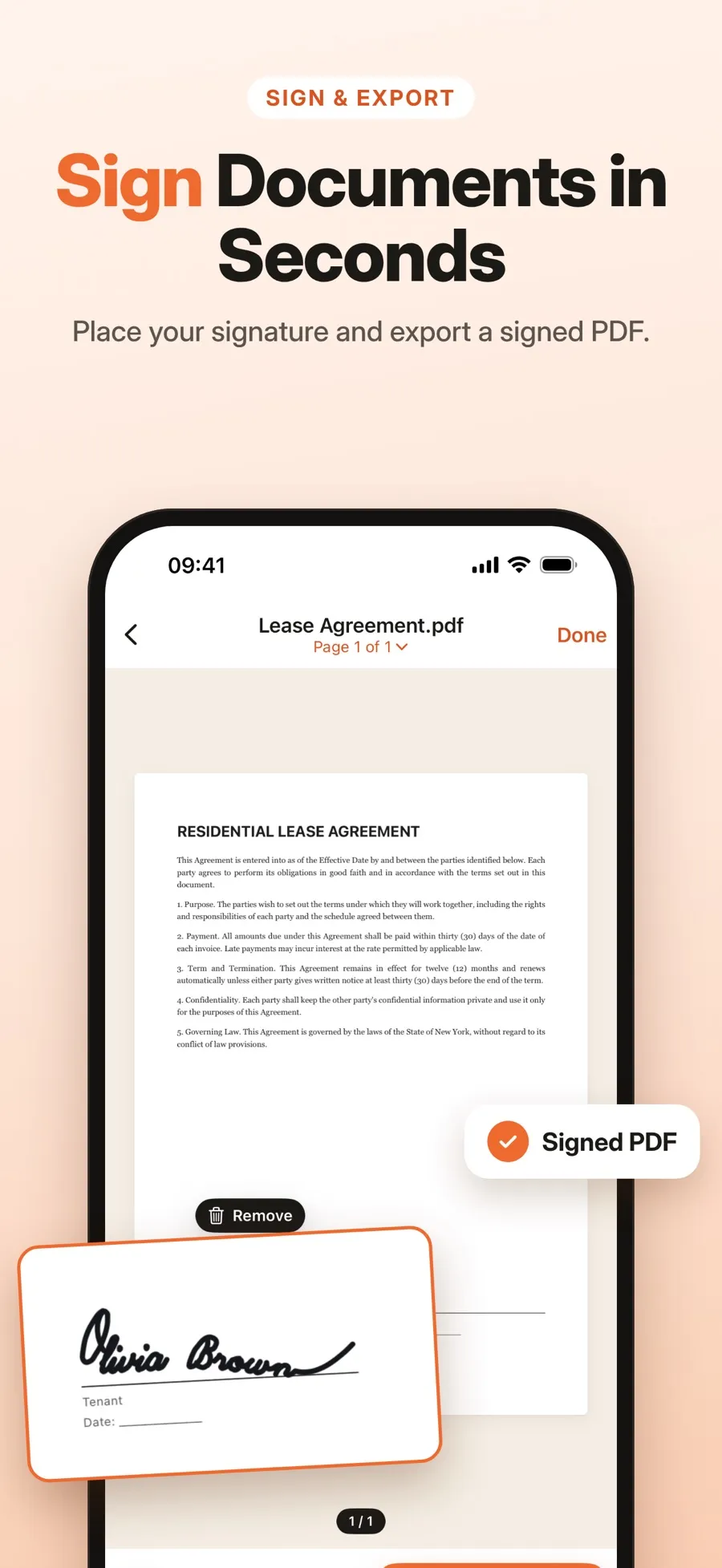
- Place your signature on the page, then move, resize or rotate it.
- Save a signed copy. The original file stays unchanged.
- Share the signed PDF, or save it to Files, to send it back.
What’s free and what isn’t: the download is free, and drawing, scanning, signing and drafts are included. Sharing a signed PDF or saving it to Files, which you need for step 6, is part of Premium, a weekly or yearly subscription. Signed documents stay inside the app until you share them or save them to Files.
There’s no account to create. Your documents and signatures are stored on your iPhone or iPad and aren’t uploaded to a server.
Send the signed copy back as a reply
Once the signed PDF is in Files, reply in the original email thread so the sender sees it next to their request.
- Open the original email in Mail and start a reply.
- Tap in the message, then tap the Insert Attachment Actions button above the keyboard.
- Tap Attach File, then find the signed PDF in Files.
- Add a short note and send.
You can also share the signed PDF from eSign Documents and choose Mail. That starts a new email rather than a reply, so add the sender’s address yourself.
Which way should you sign?
- You need to sign quickly and a finger-drawn signature is fine: use Markup in Mail. It’s free, already on your iPhone, and the reply is ready in one tap.
- The attachment is a form with fields: fill it in with Form Filling in Mail, or sign and fill it in the Files app.
- You want your real pen signature on the page: save the attachment to Files and sign it with eSign Documents.
Quick answers
Can I sign an email attachment on iPhone without an app?
Yes. Tap the attachment in Mail, tap the Markup button, then the Add button and Add Signature. When you tap Done, you can reply to the sender with the signed copy attached.
How do I send a signed document back to the sender?
If you signed it in Mail, tap Done and choose to reply to the sender. If you signed a copy saved in Files, open the original email, start a reply, and attach the file with Attach File.
Can I sign a Word document attachment on iPhone?
Markup in Mail works on PDF, photo and video attachments, and eSign Documents opens PDFs and images. If you were sent another file type, ask the sender for a PDF.
Is a signature added in Mail legally valid?
It depends on the document and the country. Markup and eSign Documents both add an image of your handwritten signature, not a certificate-based digital signature. If you’re not sure, ask whoever requested the signature.
