How to fill out and sign a PDF form on iPhone
Updated
To fill out a PDF form on iPhone, open it in the Files app, tap the AutoFill button, then tap each blank field and type. To sign it, tap the Add button, tap Add Signature, sign with your finger, tap Done and drag the signature into place. For a form attached to an email, tap the attachment in Mail, tap the AutoFill button, then tap Form Filling.
iOS steps below were checked against Apple’s iPhone User Guide for iOS 26 and iOS 27.
Before you start
Complete your My Card. AutoFill takes your name, address and other details from your own contact card. Open Contacts, tap My Card at the top, then tap Edit and fill in what’s missing. If you don’t see My Card, add a contact with your details, then touch and hold it in the list and tap Make this My Card.
Get the form onto your iPhone. A PDF in the Files app or attached to an email works. If your iPhone asks you to open the document in the Files app, do that, then tap Save.
Know what kind of signature this is. Apple’s tools and the app in this guide both place an image of your handwritten signature, not a certificate-based digital signature. Whether that’s accepted depends on the document and the country, so if you’re unsure, ask whoever sent the form.
Fill out a PDF form in the Files app
The Files app can type into the blank fields of a PDF form, with no extra app.
- Open the Files app and tap the PDF to open it.
- Tap the AutoFill button, then tap a blank field.
- Type your answer with the onscreen keyboard.
- Tap the next blank field and keep going until the form is complete.
Let AutoFill enter your details
On supported forms, AutoFill offers the details from your My Card, so you can tap a suggestion instead of typing your name or address. To fill in someone else’s details, such as a child’s or a parent’s, tap Choose other and pick their contact.
In iOS 27, AutoFill suggestions appear above the keyboard as you type. A prompt may also offer to fill several related fields at once. Check the suggested info, tap any field to change it, then tap Fill.
Whatever AutoFill enters, read it over before you send the form.
Add text where there’s no field
Some forms, especially scanned ones, have no fields to tap. You can still type on them.
- Tap the Add button, then tap Add Text Form Box.
- Drag the text box to where it belongs on the form.
- Type your text with the onscreen keyboard.
In iOS 27, you can also use the formatting tools to change the text’s color and font.
Sign the form
When the fields are done, add your signature in the same place.
- Tap the Add button, then tap Add Signature.
- Sign your name with your finger, then tap Done.
- Drag your signature onto the signature line.
Your iPhone saves the signature for next time. To resize it, drag any of the blue dots around it. For more signing options, such as saving your initials, see how to sign a PDF on iPhone.
Save and send the finished form
- iOS 27: Tap the Menu button, then tap Export, Print or the Share button. Tap the Back button to save the document.
- iOS 26: Tap the Share button to send the completed document with Mail, Messages or AirDrop, then tap Done to close it.
Fill out a form you got in Mail
You can fill out a form attachment and send it back without leaving Mail.
- Open the email in Mail and tap the attachment to open the document.
- Tap the AutoFill button, then tap Form Filling.
- Tap a blank field and type. Tap the next field to fill that one.
- Tap Done, then tap Reply to [name].
To keep your own copy, touch and hold the attachment in the email, choose Save to Files, and fill it out in the Files app as above.
Sign with your paper signature using eSign Documents
A signature drawn with a fingertip often doesn’t look like the one you write with a pen. If you want your real signature on the form, eSign Documents can scan it from paper and place it on the page.
One thing to know first: eSign Documents doesn’t type into form fields or add text. It places signatures. So fill in every field with Apple’s tools first, save the completed form in Files, and then use eSign Documents for the signature.
- Fill out the form in the Files app and save it.
- Open eSign Documents and create your signature: scan it from paper, or draw it with your finger.
- Add your document: choose the completed PDF from Files.
- Place your signature on the page, then move, resize or rotate it.
- Save a signed copy. The original file stays unchanged.
When you scan a signature, it’s detected, cropped and its background removed. You can add more than one signature to a document.
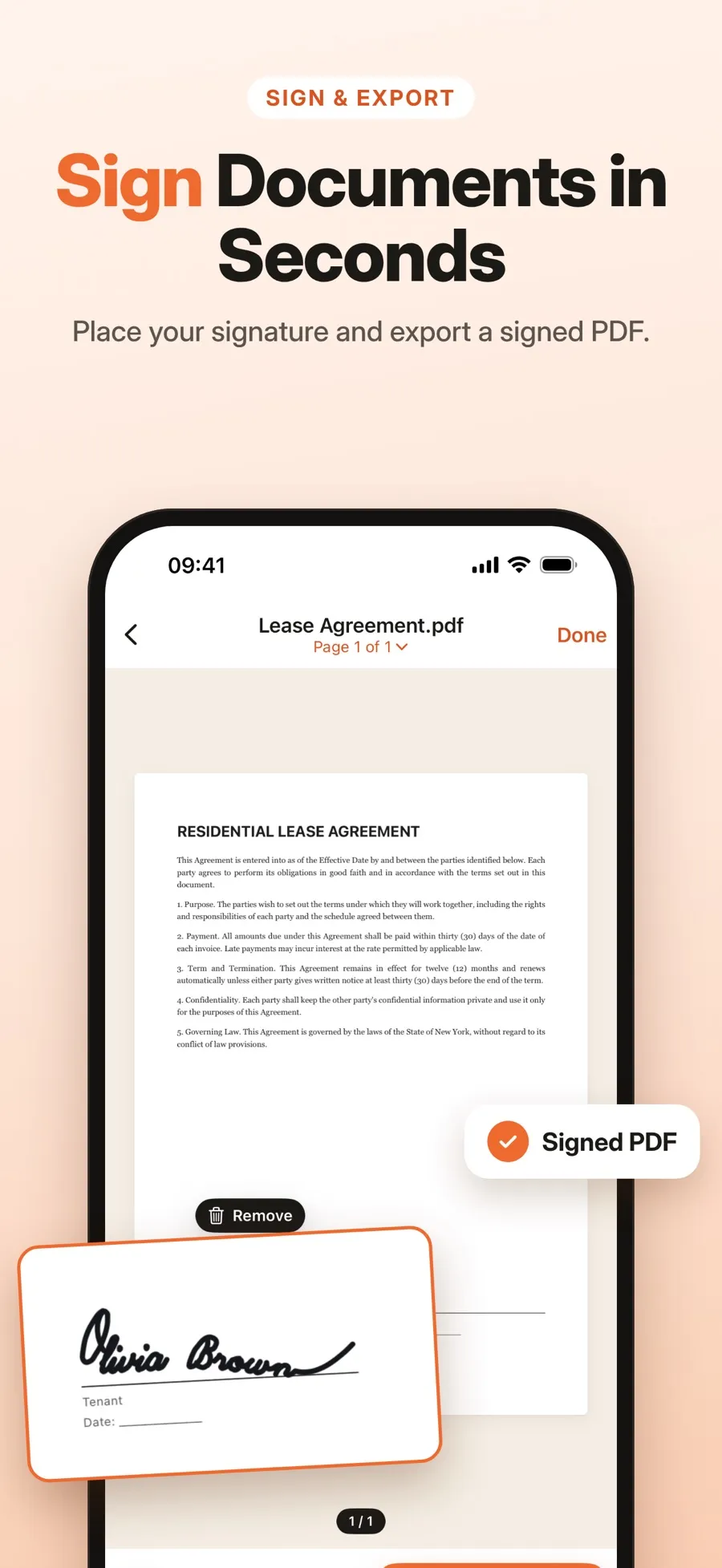
If the form only exists on paper, fill it in by hand, then scan the pages with the app’s document scanner and sign them. See also how to scan a document to PDF on iPhone.
The download is free, and drawing, scanning, signing and drafts are included. Sharing a signed PDF or saving it to Files is part of Premium, a weekly or yearly subscription. There’s no account, and your documents stay on your iPhone or iPad.
Quick answers
Can I fill out a PDF form on iPhone without an app?
Yes. Open the PDF in the Files app, tap the AutoFill button and tap each blank field to type. For an email attachment, tap the AutoFill button in Mail, then tap Form Filling.
Why doesn’t AutoFill fill in my details?
AutoFill uses your My Card in Contacts and only works on supported forms. Check that your card is complete. If a form has no fields to tap, use Add Text Form Box instead.
Can eSign Documents fill in form fields?
No. It places your signature but doesn’t type into fields or add text. Fill out the form in Files first, then open the completed PDF in the app to sign it.
Is a form signed on iPhone legally valid?
It depends on the document and the country. Apple’s tools and eSign Documents both add an image of your handwritten signature, not a certificate-based digital signature. If you’re not sure, ask whoever requested the form.
