How to create a reusable electronic signature on iPhone
Updated
To create an electronic signature on iPhone, open a document or image in a supported app such as Notes or Photos, tap the Markup button, tap the Add button, then tap Add Signature and sign with your finger. Your iPhone saves that signature, so next time you only tap it. If you’d rather use the signature you write on paper, scan it with an app that removes the background and saves it as a transparent image.
iOS steps below were checked against Apple’s iPhone User Guide for iOS 26 and iOS 27.
Electronic signature or digital signature?
An electronic signature is a broad term for signing something electronically. Drawing your name with your finger, placing a picture of your handwritten signature on a PDF, or typing your name into a signing form are all common examples. What you see on the page is an image or text.
A certificate-based digital signature works differently. It’s created with a digital certificate tied to your identity, usually issued through a signing service or an organization. The file itself records who signed it, and software can show whether the document was changed after it was signed.
Everything in this guide creates the first kind: an image of your handwritten signature. Whether it’s enough for a particular document depends on the document and the country. If you’re not sure, ask whoever sent it to you which kind of signature they need.
Save a signature in Markup
Markup is built into iPhone and works in supported apps such as Notes and Photos. After you create a signature, your iPhone saves it for the next time you add a signature with Markup.
- Open a document or image in a supported app, then tap the Markup button or Markup.
- In the Markup toolbar, tap the Add button, then tap Add Signature.
- Sign with your finger. To start over, tap Clear.
- Tap the Done button to save the signature and place it.
Drag the signature to move it, or drag one of the dots on its outline to resize it. Rotating your iPhone gives you more room to sign.
Keep more than one signature
You can save several signatures, for example your full name and your initials. In the signature screen, tap Add or Remove Signature, then tap the Add button to make another one. To label it, tap next to New Signature at the top and pick a label such as given name, nickname or initials.
To remove one you no longer use, tap Add or Remove Signature, then tap the Delete button next to it.
Sign a form you received
When someone sends you a PDF form, open it on your iPhone. If you’re asked to, open it in the Files app and tap Save. Tap the AutoFill button to fill in blank fields, then tap the Add button and Add Signature to place your signature. Drag it where it belongs on the page, then share the completed document.
Make your signature from paper, with a transparent background
A fingertip signature often looks different from the one you write with a pen. To reuse your real signature, start from paper.
Write it well first. Sign on plain white paper with a dark pen, a little larger than usual. Take the photo in even light, straight from above, without your shadow over the page.
Try lifting it out of the photo. iPhone can isolate the subject of a photo from its background. Open the photo in Photos, then touch and hold the signature. If an outline appears around it, tap Copy or Share to use it without the paper behind it. An outline appears only when your iPhone finds a subject in the photo, so this doesn’t work with every picture.
Use a scanner that removes the background. An app made for signatures can find the signature on the page, crop it and remove the background for you, then keep it for later.
Saved signatures and transparent PNGs with eSign Documents
eSign Documents keeps your signatures in one place, ready for any PDF, photo or scanned page. You can draw a signature with your finger, in black, blue, red or any color and in three line widths, with undo and redo. Or you can scan the one you signed on paper.
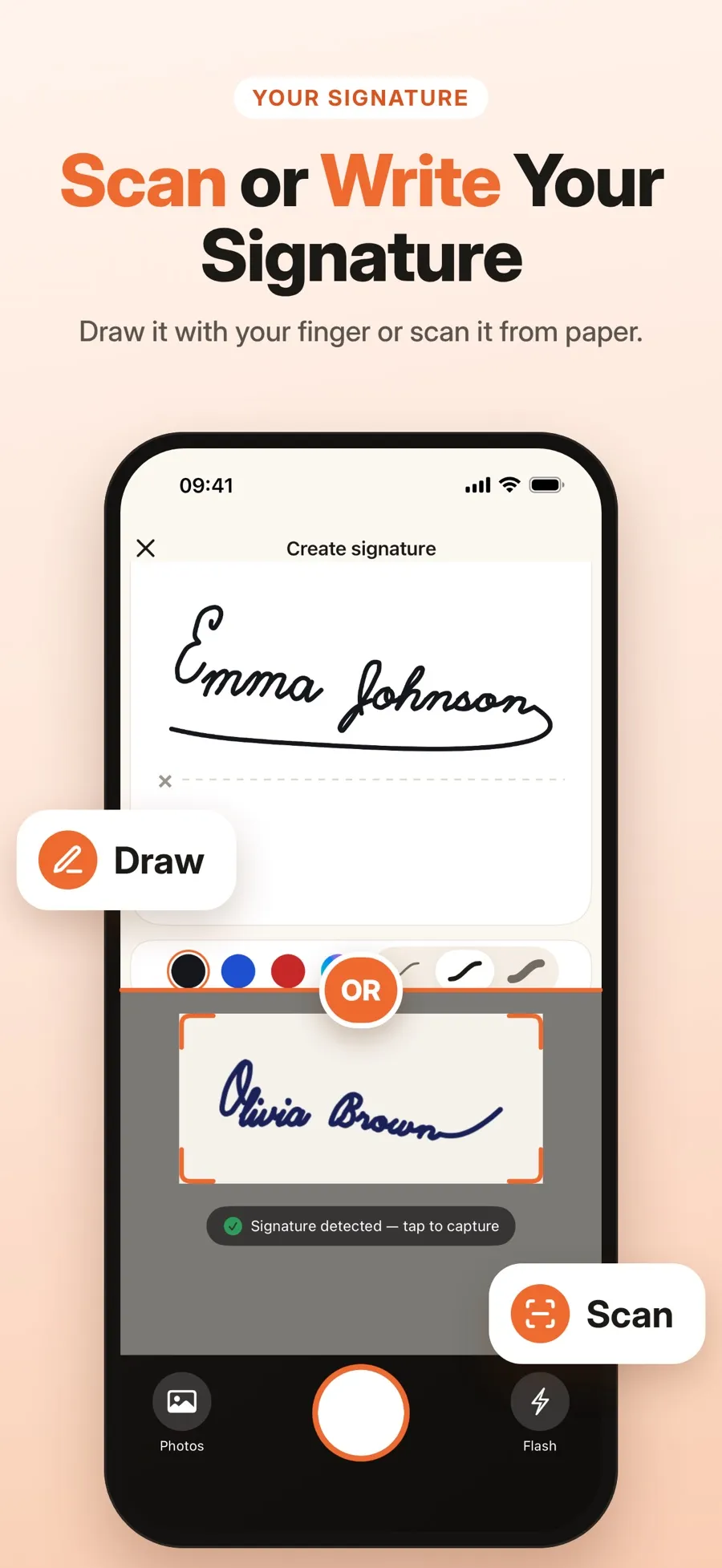
- Open eSign Documents and start a new signature.
- Scan your paper signature with the camera, or import a photo of it.
- The signature is detected and cropped. Keep background removal on.
- Save it to your signature library.
You can keep several signatures in the library and reuse any of them on any document. When you place one on a page, you can move, resize and rotate it, and add more than one signature to the same document. Signing creates a signed copy, so the file you started with isn’t changed.
Export your signature as a transparent PNG. You can share a saved signature as a PNG image. When background removal is on, the PNG is transparent, so it sits cleanly on top of other documents and apps instead of showing a white box around your name.
Drawing, scanning, signing and sharing your signature as a PNG are free. Sharing a signed document or saving it to Files is part of Premium, a weekly or yearly subscription. You don’t need an account, and your documents and signatures are stored on your iPhone or iPad. The app needs iOS 18 or later.
As with Markup, eSign Documents places an image of your handwritten signature on the page. It doesn’t add a certificate-based digital signature.
Quick answers
Where does iPhone save my Markup signature?
Your iPhone keeps it for Markup. The next time you tap the Add button and Add Signature in a supported app, your saved signatures appear and you just tap one.
Can I use my real handwritten signature instead of drawing one?
Yes. Photograph or scan the signature you wrote on paper, then remove the background so only the ink is left. A signature app can do the cropping and background removal for you and save the result for reuse.
Is a signature image the same as a digital signature?
No. A signature image shows your handwriting on the page. A certificate-based digital signature uses a digital certificate to record who signed and whether the file changed afterward.
Is an electronic signature on iPhone legally valid?
It depends on the document and the country. If you’re not sure, ask the person or organization that asked you to sign which kind of signature they accept.
