How to scan a signature and remove the background on iPhone
Updated
To turn your handwritten signature into a transparent image on iPhone, sign on plain white paper with a dark pen, photograph it in even light, then remove the paper behind it. In Photos, you can touch and hold the signature to lift it off the page when your iPhone recognizes it as a subject. A signature scanner can crop it for you, remove the background and save it as a PNG with a transparent background.
iOS steps below were checked against Apple’s iPhone User Guide for iOS 26 and iOS 27.
Why the background matters
A photo of a signature is mostly paper. Put it on a PDF as it is and you get a white or gray box around your name, which stands out on any colored or shaded field. A transparent PNG keeps only the ink, so the signature sits on the page the way pen on paper would.
Sign on paper for a clean scan
Background removal works best when the ink and the paper are easy to tell apart. A minute of preparation saves you a lot of retakes.
Use a dark pen with a medium tip. Black or dark blue ink stands out most clearly against white paper. A very fine pen can leave faint, broken lines, and a marker that bleeds makes the strokes look blurry. A gel or felt-tip pen is a good middle ground.
Use plain white paper. Skip lined, squared or colored paper, and anything with printing on the back that shows through. Lines and grids can be picked up as part of the signature.
Sign a little larger than usual, a few times. A bigger signature keeps more detail when it’s scaled down. Sign three or four times, leave space around each one, and pick your best.
Get even, soft light. Daylight from a window works well. Avoid overhead light that throws your phone’s shadow across the page, and skip the flash.
Shoot straight from above. Hold your iPhone parallel to the paper, with the signature filling most of the frame. Tap the signature on screen so it’s in focus before you take the photo.
Lift the signature in the Photos app
Your iPhone can isolate the subject of a photo from its background, then copy or share it. This works in Photos, Safari, Quick Look and more.
- Open the photo of your signature in full screen.
- Touch and hold the signature.
- When an outline appears around it, tap Copy or Copy Subject, then paste it into an email, text message or note.
Instead of copying, you can also tap Share to send the lifted signature with AirDrop, Mail or another sharing option, or tap Add Sticker to save it as a sticker.
The catch is that an outline only appears when your iPhone recognizes something in the photo as a subject, which is less predictable with thin ink lines than with a person or a pet. If no outline appears, or parts of the signature go missing, retake the photo with a darker pen and better light, or use a tool made for signatures.
Scan and export a transparent PNG with eSign Documents
eSign Documents has a signature scanner built in. Point the camera at the signature you wrote on paper: it’s detected, cropped and its background removed. You can also import a photo of a signature you already took.
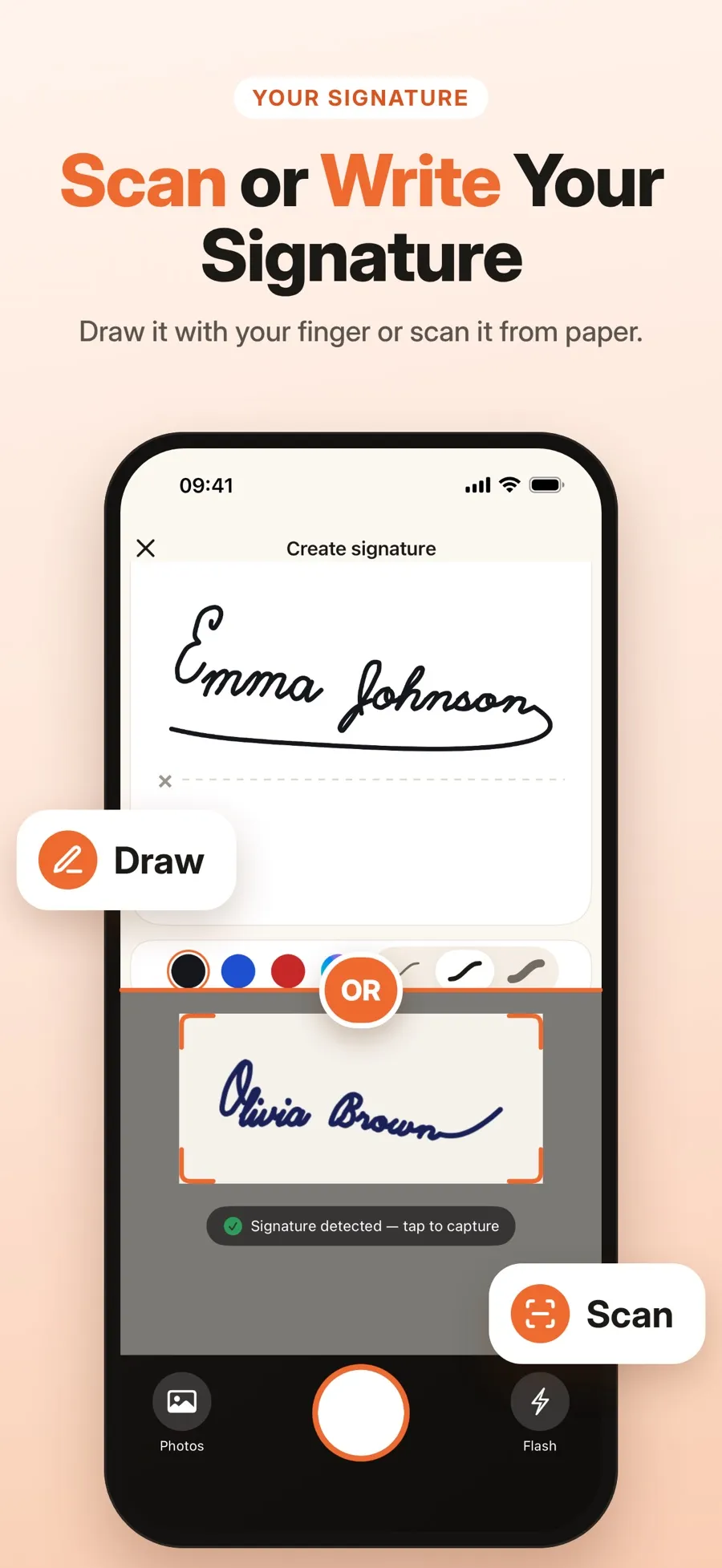
- Open eSign Documents and start a new signature.
- Scan your paper signature with the camera, or import a photo of it.
- The signature is detected and cropped. Keep background removal on.
- Save it to your signature library.
- Share the saved signature as a PNG.
Step 3 is the one that matters for transparency. The PNG you share is transparent only when background removal is on. Turn it off and the paper stays in the image.
Once your signature is in the library, you can also place it straight onto a PDF, a photo or a scanned page inside the app, then move, resize or rotate it. You can keep several signatures and reuse any of them. If you’d rather draw one with your finger, or want the bigger picture on saving a signature for reuse, see how to create a reusable electronic signature on iPhone.
Scanning a signature and sharing it as a PNG are free. Sharing a signed document or saving it to Files is part of Premium, a weekly or yearly subscription. You don’t need an account, your signatures are stored on your iPhone or iPad, and the app needs iOS 18 or later.
Check your signature before you use it
A transparent signature can look perfect on a white screen and still have problems you only see on a colored background.
- Paste it somewhere colored. Leftover paper shows up as a pale box or speckles around the strokes.
- Look at the edges. A gray halo usually means a shadow or uneven light. Rescan in softer light.
- Check for missing pieces. Faint loops or the dot over an “i” can disappear if the ink was too light. A darker pen fixes this.
- Keep the PNG private. A signature image can be pasted onto anything, so only send it to people you trust.
Keep in mind that a signature image is just that: a picture of your handwriting. It isn’t a certificate-based digital signature. Whether an image signature is enough depends on the document and the country, so if you’re not sure, ask whoever requested the signature.
Quick answers
Why does my signature have a white box around it?
The image still contains the paper. Remove the background so only the ink is left and save it as a PNG with transparency. A JPEG can’t store transparency, so the background always comes back as a solid color.
Can iPhone remove the background from a signature without an app?
Sometimes. In Photos, touch and hold the signature. If an outline appears, you can copy or share it without the paper behind it. Thin ink lines aren’t always recognized as a subject, so it doesn’t work with every photo.
What’s the best pen for scanning a signature?
A black or dark blue gel or felt-tip pen on plain white paper. It gives solid strokes that separate cleanly from the background.
Is a transparent signature PNG legally valid?
It depends on the document and the country. A PNG places an image of your handwritten signature on the page; it doesn’t add a certificate-based digital signature. Ask the person or organization that sent the document which kind they accept.
