How to stop doomscrolling on your phone
Updated
To stop doomscrolling, make the scroll harder to start and give yourself something else to do when the urge hits. Notice the moments that send you to your phone, move the apps that pull you in off your Home Screen, silence their notifications, and set time limits with Screen Time. Then replace the habit with a short physical break, like a few push-ups or squats, before you decide whether to open the app at all.
iOS steps below were checked against Apple’s iPhone User Guide for iOS 26 and iOS 27.
Notice what starts the scroll
Doomscrolling rarely starts as a decision. It starts with a small moment: you finish a task, you’re waiting for something, you’re in bed, or a notification lights up the screen. Before changing anything, spend a day or two noticing those moments.
- When does it happen? First thing in the morning, after work, late at night?
- What were you doing just before? Waiting, avoiding a task, winding down?
- Which apps? Usually it’s one or two, not your whole phone.
Screen Time can help you see the pattern. Open Settings and tap Screen Time. On iOS 27, tap Daily Average to see your daily or weekly summary, including your pickups and notifications. On iOS 26, tap See All App & Website Activity. If Screen Time isn’t on yet, turn on App & Website Activity first.
You don’t need a perfect log. Knowing your two or three usual triggers is enough to aim the next steps.
Add friction before the first swipe
The fewer taps it takes to open an app, the easier it is to open it without thinking. A little friction gives you a moment to choose.
Move the app off your Home Screen. The app stays on your iPhone, in App Library, but it’s no longer the first thing you see when you unlock.
- Go to the Home Screen.
- Touch and hold the app, then tap Remove App.
- Tap Remove from Home Screen.
Turn off its notifications. Open Settings, tap Notifications, tap the app, then turn off Allow Notifications. Now you open the app when you decide to, not when it pings you.
Change where your phone sleeps. Charging your phone outside the bedroom, or across the room, puts a few steps between you and the late-night scroll.
Set app limits with Screen Time
Screen Time lets you set how long you can use certain apps each day. The settings changed in iOS 27, so follow the steps for the version on your iPhone.
On iOS 27: Time Allowances
On iOS 27, you set daily time for categories of apps, like Entertainment, Games or Social Media.
- Open Settings and tap Screen Time.
- Tap Time Allowances.
- Under Time Allowances, tap a category, then drag the slider to set the time.
- To add a category, tap Manage Categories, tap the add button, then select a category.
You can also turn on Screen Time Schedule to choose which categories are available at different times of day, for example keeping social media out of your evening.
On iOS 26: App Limits
- Open Settings and tap Screen Time.
- Tap App Limits, then tap Add Limit.
- Select one or more categories, or tap a category to pick individual apps.
- Tap Next, then set the amount of time allowed.
- To set different limits for different days, tap Customize Days, then save the limit.
Apple notes that by default, Screen Time limits can be ignored once they’re reached. That’s useful when you really need an app, and it also means a limit works best as a reminder to stop and choose. On iOS 26 you can also schedule Downtime, when only calls, messages and the apps you allow are available.
Replace the scroll with a short physical break
Removing a habit leaves a gap, and the phone tends to fill it. It helps to decide in advance what you’ll do instead when the urge shows up.
A short physical break works well because it’s quick and it gets your eyes off the screen:
- Do a few push-ups or squats.
- Hold a plank for as long as feels comfortable.
- Stand up, stretch, and refill your water.
- Step outside or walk to another room.
Keep it small so it’s easy to start. Afterward, ask yourself if you still want to open the app. Sometimes you will, and that’s fine. The point is that you chose to.
Move first, unlock later with Push Up Time
Push Up Time puts the physical break between you and the apps you pick. It blocks them with Apple’s Screen Time, and a quick set of push-ups, squats or a plank earns you time back.
- Choose the apps and websites to block in Apple’s Screen Time picker.
- When you want in, pick push-ups, squats or a plank.
- The camera counts your reps or your hold time.
- Each workout adds unlock time to your balance, which you spend in short sessions on the apps you blocked.
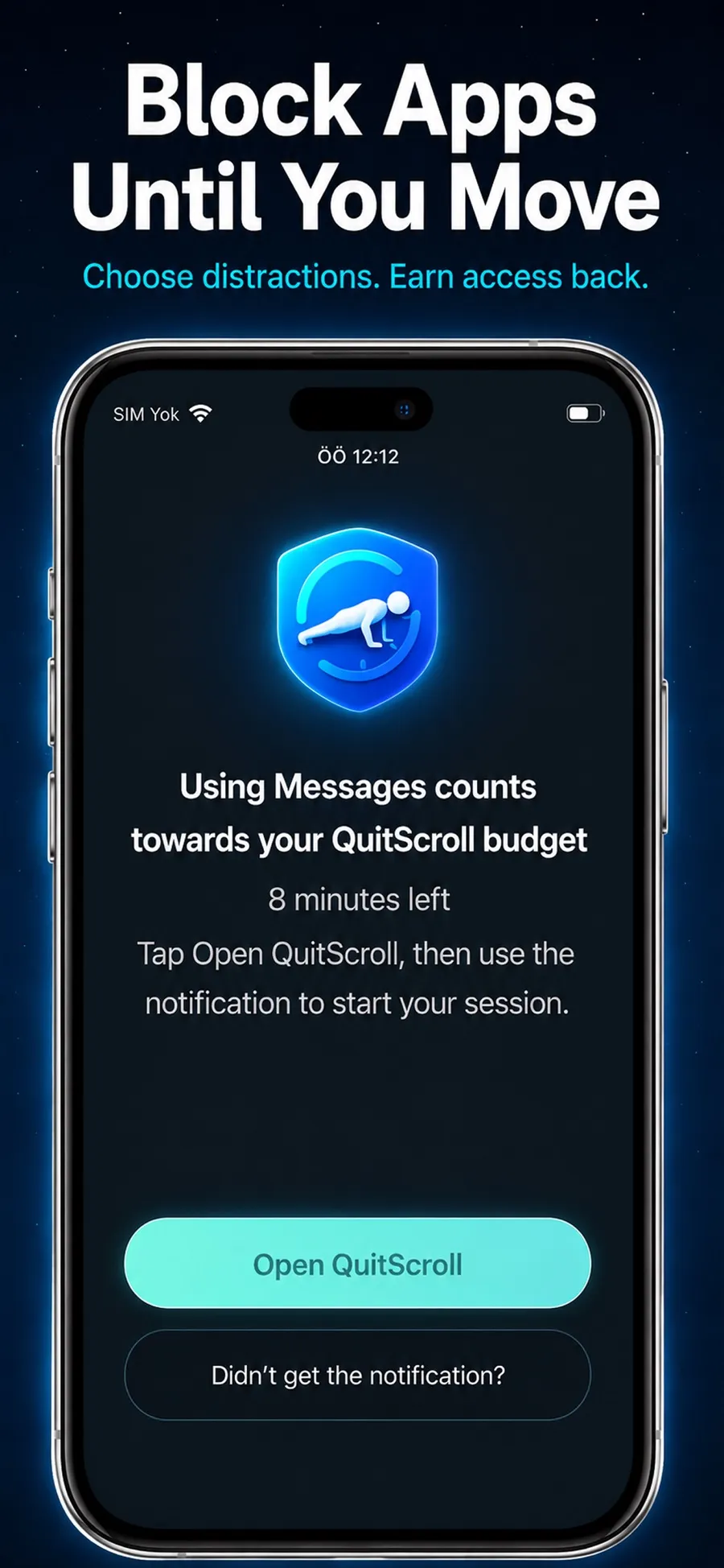
Instead of a limit you can wave away, there’s a small task first. You still decide whether to scroll, you just move before you do.
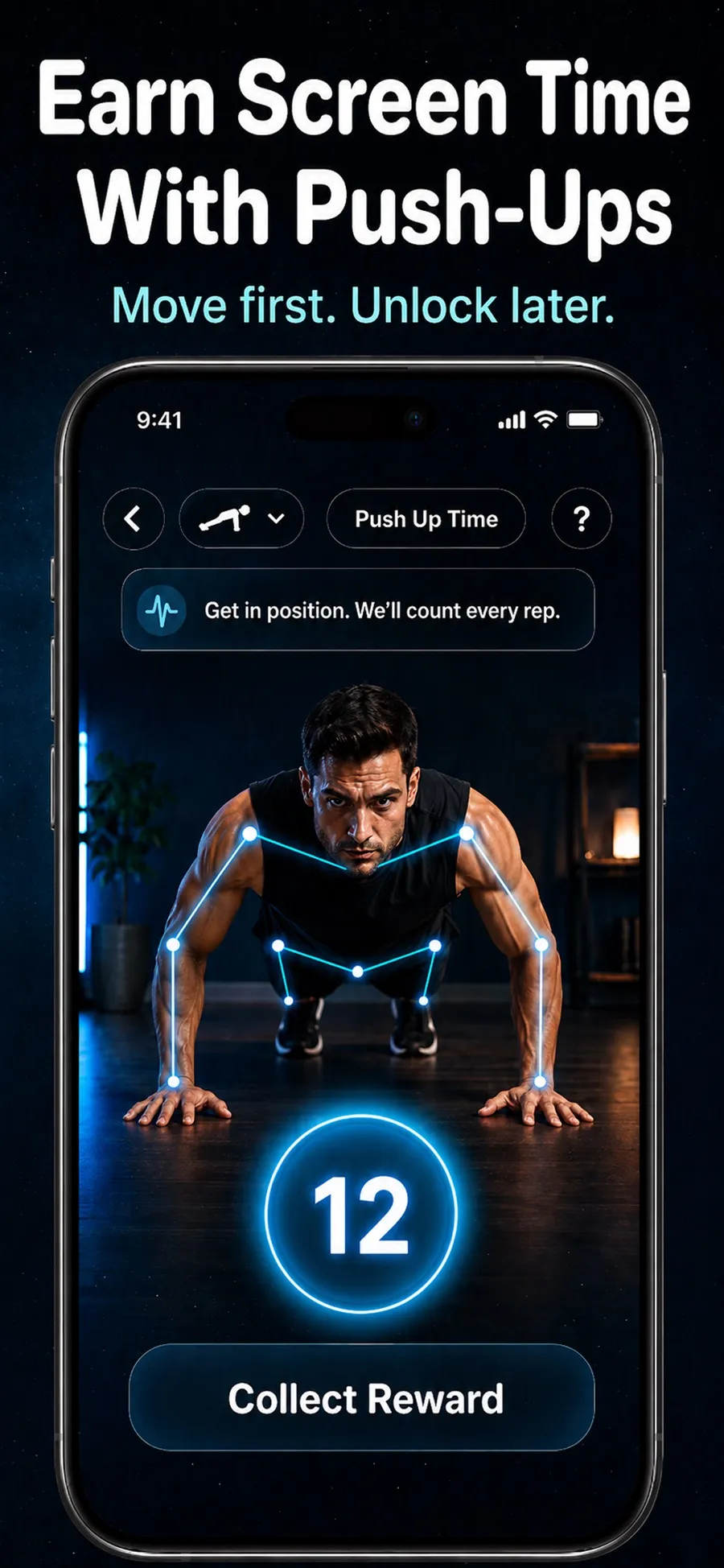
A few things to know:
- The camera doesn’t record you. It only detects movement to count reps or hold time. Video isn’t recorded, stored or uploaded.
- You stay in control. You can change which apps are blocked, or revoke the Screen Time permission in iOS Settings, at any time.
- It isn’t a fitness coaching app. It uses short bursts of movement as a way back into your apps, nothing more.
A journey with levels, badges and a streak gives you something to keep going for. Push Up Time is a free download with in-app purchases, for iPhone with iOS 17 or later. There’s no account to create.
Quick answers
What’s the fastest way to stop doomscrolling right now?
Put your phone down and do something physical for a minute, like a few squats or a short walk. Then move the app you were scrolling off your Home Screen so it’s one step further away next time.
Can I block apps on iPhone without another app?
Yes. Screen Time is built in. On iOS 27, use Time Allowances and Screen Time Schedule. On iOS 26, use App Limits and Downtime. You’ll find them in Settings under Screen Time.
How do I set app limits in iOS 27?
In iOS 27, Screen Time uses Time Allowances to set how long you can use categories of apps each day, and Screen Time Schedule to set when they’re available.
Does Push Up Time work on iPad?
No. Push Up Time is for iPhone with iOS 17 or later.
