How to limit social media time on iPhone
Updated
To limit social media on iPhone, set a daily time limit for your social apps in Settings > Screen Time: on iOS 27 that’s a Time Allowance for the Social Media category, and on iOS 26 it’s an App Limit for the apps you choose. Then turn off the notifications that pull you back in, and move the apps where you won’t open them on autopilot. If a limit alone is too easy to skip, add a small task, like a few push-ups, before the app opens.
iOS steps below were checked against Apple’s iPhone User Guide for iOS 26 and iOS 27. Some Screen Time labels changed in iOS 27, so where they differ, both are shown.
Decide which apps you’re limiting
For one person it’s Instagram, for another it’s TikTok or YouTube. Before you set anything, pick the two or three apps that actually take your time. Your Screen Time report shows them. Open Settings, tap Screen Time, then tap Daily Average on iOS 27 or See All App & Website Activity on iOS 26. Apps near the top of the list, or ones you open more often than you’d like, are the ones to limit.
Set a daily limit with Screen Time
On iOS 27: a Time Allowance for social media
On iOS 27, Time Allowances work by category, and Social Media is one of them.
- Open Settings and tap Screen Time.
- Tap Time Allowances.
- If Social Media isn’t listed, tap Manage Categories, tap the add button, then select it.
- Under Time Allowances, tap the category, then drag the slider to set how much time you get each day.
You can use the apps in that category until you reach either its allowance or your daily total. The allowance is shared by every app in the category, not given to each. According to Apple, if an app declares an associated website, the allowance covers the website too.
On iOS 26: App Limits for individual apps
On iOS 26, App Limits lets you limit a whole category or just the apps you pick.
- Open Settings and tap Screen Time.
- Tap App Limits, then tap Add Limit.
- Tap the category that holds your social apps, then select the apps you want to limit.
- Tap Next, then set the amount of time allowed.
- To set different limits for weekends, tap Customize Days, then save the limit.
If you select several apps, the time you set applies to all of them together. Apple also notes that by default, Screen Time limits can be ignored once they’re reached. To block apps outright at certain hours, and to add a Screen Time passcode, see how to block apps on iPhone.
Turn off the notifications that pull you back
A like or a comment alert is often what sends you back into an app. Turn them off app by app.
- Open Settings and tap Notifications.
- Tap a social app below Notification Style.
- Turn off Allow Notifications.
If you want some alerts but not the rest, keep notifications on. On iOS 27, if the app supports it, tap Customize Notifications on that screen to choose which types you get, or tap the link to the app’s own notification settings at the bottom.
Put social apps out of easy reach
The easier an app is to open, the more often you open it without meaning to. A few changes add a pause.
- Remove it from the Home Screen. Touch and hold the app, tap Remove App, then tap Remove from Home Screen. It moves to App Library and isn’t deleted.
- Lock or hide it. Touch and hold the app, then tap Require Face ID (or Touch ID or Passcode). Choose Require Face ID to lock it, or Hide and Require Face ID, then Hide App, to move it to the Hidden folder at the bottom of App Library. Either way, it takes Face ID, Touch ID or your passcode to open.
- Log out when you’re done. Signing back in each time takes long enough to make you ask whether you really want to.
- Delete it for a while. Touch and hold the app, tap Remove App, then Delete App. You can reinstall it from the App Store later. Make sure you know your sign-in details first.
For Focus and other screen time habits, see how to reduce screen time on iPhone.
Make social apps cost a workout with Push Up Time
A limit tells you when to stop, not whether to start. Push Up Time puts a short workout in that moment: it blocks the apps and websites you pick with Apple’s Screen Time, and a quick set of push-ups, squats or a plank earns you time back.
- Open Push Up Time and select your social apps in Apple’s Screen Time picker.
- When you want to open one, pick push-ups, squats or a plank.
- Place your iPhone so the camera can see you. It counts your reps or your hold time.
- Spend the time you earned in short unlock sessions on the apps you blocked.
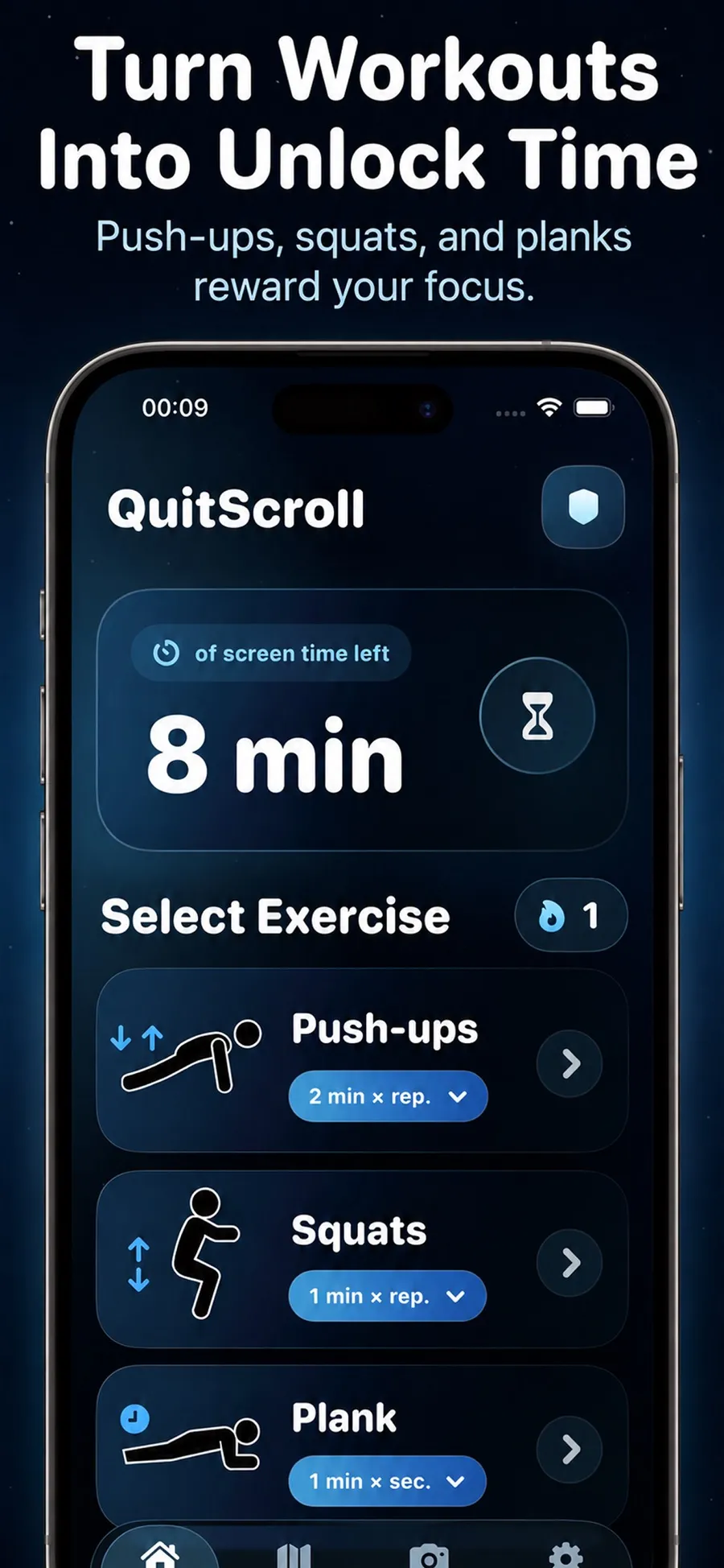
It works alongside Screen Time: keep a daily limit as your ceiling, and let a short set decide whether you open the app at all.
- The camera doesn’t record you. It only detects movement to count reps or hold time. Video isn’t recorded, stored or uploaded.
- You stay in control. You can change which apps are blocked, or revoke the Screen Time permission in iOS Settings, at any time.
- It isn’t a fitness coaching app. It uses short bursts of movement as a way back into your apps.
There’s no account to create, and a journey with levels, badges and a streak helps the habit stick. Push Up Time is a free download with in-app purchases, for iPhone with iOS 17 or later.
Quick answers
Can I set a time limit on just one app, like Instagram?
On iOS 26, yes: in App Limits, tap a category and select only that app. On iOS 27, Time Allowances are set by category, so a Social Media allowance covers all the apps in it together.
Does hiding an app delete it?
No. Hiding moves the app to the Hidden folder at the bottom of App Library, and opening it asks for Face ID, Touch ID or your passcode. Only apps you downloaded from the App Store can be hidden.
Which apps can Push Up Time block?
Any apps and websites you select in Apple’s Screen Time picker. You can change the selection in the app at any time.
