How to block websites on iPhone
Updated
To block a website on iPhone with iOS 26, open Settings, tap Screen Time, then Content & Privacy Restrictions. Turn it on, tap App Store, Media, Web, & Games, then Web Content, select Limit Adult Websites, and add the site below Never Allow. On iOS 27, Apple documents blocking specific websites in the parental controls for a child’s account. For your own iPhone, you can limit time on a site through its app’s Time Allowance, or use an app that blocks the websites you pick.
iOS steps below were checked against Apple’s iPhone User Guide and Apple Support articles for iOS 26 and iOS 27. Screen Time changed a lot in iOS 27, so the two versions are covered separately.
Block a website on iOS 26
On iOS 26, website blocking lives in Content & Privacy Restrictions. You block a site by its address.
- Open Settings and tap Screen Time.
- Tap Content & Privacy Restrictions, then turn on Content & Privacy Restrictions.
- Tap App Store, Media, Web, & Games, then tap Web Content.
- Select Limit Adult Websites.
- Tap Add Website below Never Allow, then enter the address of the site you want to block.
Repeat the last step for each site. The Never Allow list is part of the Limit Adult Websites setting, so that filter is on as well. To set this up on a child’s iPhone from your own, tap your child’s name in Screen Time first.
Block a website on iOS 27
iOS 27 reorganized Screen Time. For your own iPhone, Apple’s iPhone User Guide describes Content & Privacy Restrictions for things like Books, Movies, TV Shows and Music, and Other Features such as AirDrop and Camera. It doesn’t describe a list of websites to block for yourself.
Per-website blocking in iOS 27 is part of the new parental controls, under Apps & Websites in a child’s settings. You need Family Sharing, a Child Account for your child, and upgraded parental controls on your family’s devices.
- Open Settings, tap Family, then tap your child’s name.
- Tap Apps & Websites. Enter your Screen Time passcode if asked.
- Tap the Add button, then enter the name of the website to block.
Blocked websites appear in the Blocked tab, and you can unblock one at any time. To choose how your child browses overall, tap Restrictions in Apps & Websites, then tap Filtering under Websites. Approved Websites Only turns on Ask to Browse, so your child asks you before visiting a new site in Safari and other supported browser apps. Limit Adult Websites limits access to detected adult websites.
Limit time on a website instead
Sometimes you don’t want a site gone, just shorter visits.
On iOS 27, Time Allowances set how long you can use categories of apps, such as Entertainment, Games or Social Media. According to Apple, if an app declares an associated website, its Time Allowance applies to the website too. So limiting a category can also cover the matching sites.
- Open Settings, tap Screen Time, then tap Time Allowances.
- Under Time Allowances, tap the category the app belongs to.
- Drag the slider to set how long you can use it each day.
To decide when the category is available, use Screen Time Schedule.
On iOS 26, App Limits sets a daily limit for app categories or individual apps. Apple’s iPhone User Guide describes it for apps, not for single websites, so for a site you can’t stop visiting, the Never Allow list above is the dependable option.
Keep the block from being undone
Without a Screen Time passcode, anyone holding your iPhone, including you, can remove a site from the list in a few taps. On iOS 27, tap Passcode & Management in Screen Time, then Lock Screen Time Settings. On iOS 26, scroll down in Screen Time and tap Lock Screen Time Settings.
A passcode you set yourself is one you know, so it slows you down more than it stops you. For limits, schedules and the passcode in more depth, see how to block apps on iPhone with Screen Time.
Block websites and earn time back with Push Up Time
Built-in blocking is either on or off. If you’d rather keep a site reachable, just not on autopilot, Push Up Time blocks the apps and websites you choose with Apple’s Screen Time, and a quick set of push-ups, squats or a plank earns you time back.
- Open Push Up Time and choose the websites, and any apps, to block in Apple’s Screen Time picker.
- When you want in, pick push-ups, squats or a plank.
- Place your iPhone so the camera can see you. It counts your reps or your hold time.
- Spend the time you earned in short unlock sessions on what you blocked.
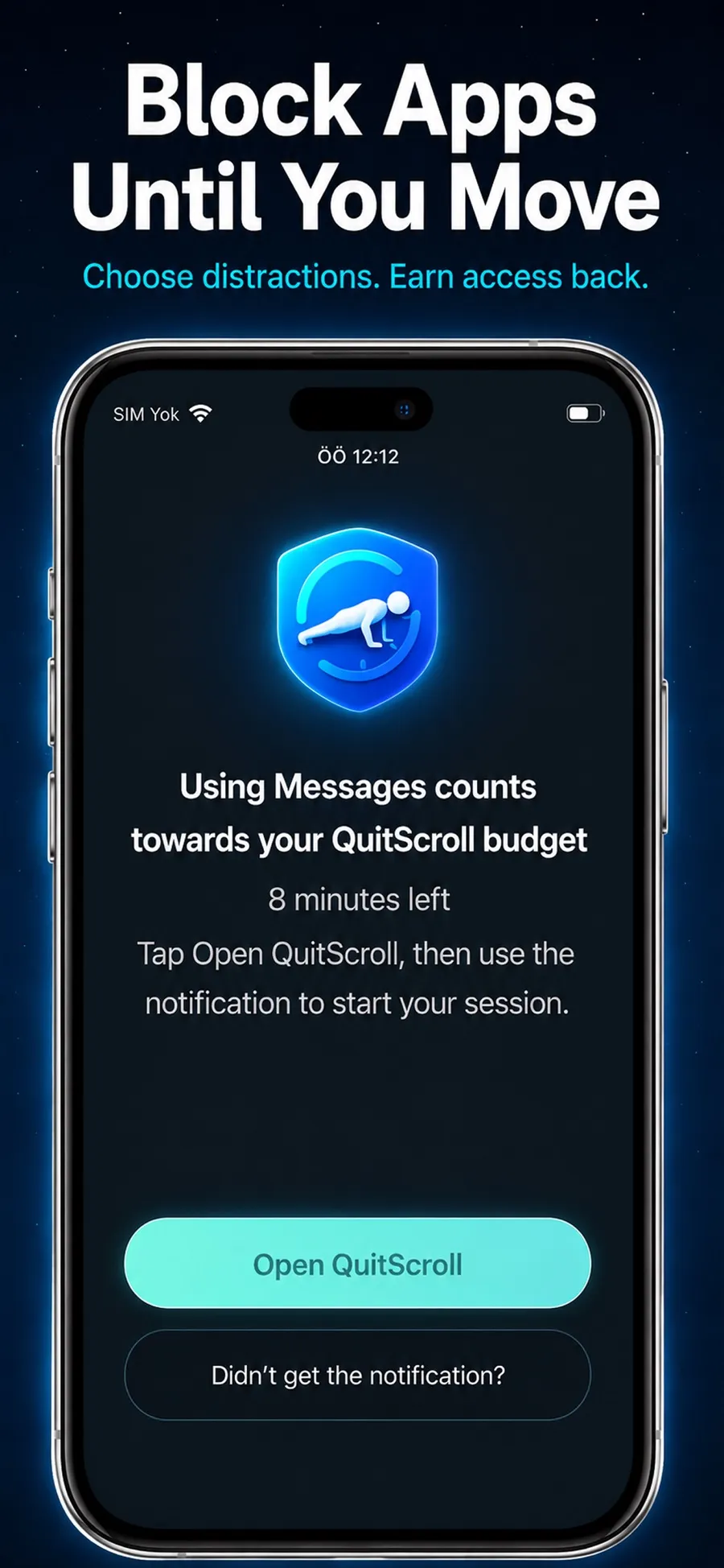
A few things to know:
- The camera doesn’t record you. It only detects movement to count reps or hold time. Video isn’t recorded, stored or uploaded.
- You stay in control. You can change what’s blocked in the app, or revoke its Screen Time permission in iOS Settings, at any time.
- It isn’t a fitness coaching app. It uses short bursts of movement as a way back in.
Push Up Time is a free download with in-app purchases, for iPhone with iOS 17 or later, and there’s no account to create.
Quick answers
Can you block a website in Safari without an app?
Yes, on iOS 26. In Settings > Screen Time > Content & Privacy Restrictions > App Store, Media, Web, & Games > Web Content, select Limit Adult Websites and add the site below Never Allow.
Where is Web Content in iOS 27?
Apple’s iOS 27 guides describe website controls in the parental controls for a child: Settings > Family > your child’s name > Apps & Websites. They don’t describe a website block list for your own Screen Time.
Can I block websites on my child’s iPhone from my own?
Yes. On iOS 27, open Settings, tap Family, tap your child’s name, then tap Apps & Websites. On iOS 26, tap your child’s name in Screen Time, then follow the Web Content steps.
Does Push Up Time block websites as well as apps?
Yes. You choose apps and websites in Apple’s Screen Time picker, and a short workout earns time to use them.
