How to block apps on iPhone with Screen Time
Updated
To block apps on iPhone, use Screen Time in Settings. On iOS 27, set Time Allowances and a Screen Time Schedule. On iOS 26, use App Limits and Downtime. Add a Screen Time passcode too, so the settings can’t be changed without it, and know that by default a limit can be ignored once you reach it.
iOS steps below were checked against Apple’s iPhone User Guide for iOS 26 and iOS 27.
Pick the right Screen Time tool
Screen Time blocks apps in two main ways: time limits cap how long you can use apps each day, and schedules block them at certain times, like during work or at bedtime. Always Allowed keeps the apps you always need available, Content & Privacy Restrictions turns off built-in apps and features, and a Screen Time passcode keeps the settings from being changed.
If Screen Time isn’t on yet, open Settings, tap Screen Time, and tap Turn On App & Website Activity.
Block apps on iOS 27
iOS 27 replaced App Limits and Downtime with Time Allowances and Screen Time Schedule. Time Allowances work by category, such as Entertainment, Games or Social Media.
- Open Settings and tap Screen Time.
- Tap Time Allowances.
- To add a category, tap Manage Categories, tap the add button, then select a category.
- Under Time Allowances, tap the category, then drag the slider to set how long you can use it each day.
You can use apps in a category until you reach that category’s allowance or your daily total. According to Apple, if an app declares an associated website, the allowance covers the website too.
To block a category at certain times of day, set up a schedule.
- In Screen Time, tap Screen Time Schedule, then turn on Schedule.
- Tap Add Schedule, choose the days, then tap the Done button.
- Tap a time window to rename it, change its start and stop times, and choose which Time Allowance categories are available during it.
Back in Time Allowances, turn on Match Screen Time Schedule to use your allowances only during the times in your schedule. To keep apps such as Phone or Maps available no matter what, tap Always Allowed in Screen Time, then tap Add Apps.
Block apps on iOS 26
On iOS 26, App Limits sets a daily time limit for a category or for individual apps.
- Open Settings and tap Screen Time.
- Tap App Limits, then tap Add Limit.
- Select a category, or tap a category to pick individual apps.
- Tap Next, then set the amount of time allowed.
- To set different limits for different days, tap Customize Days. Tap the Done button when you finish.
If you choose several apps or categories, the time limit applies to all of them together.
To block apps at set times, tap Downtime in Screen Time. Tap Turn On Downtime Until Tomorrow for a one-off break, or tap Scheduled, choose Every Day or Customize Days, and set the start and end times. During downtime, only calls, messages and the apps you allow are available. Choose those apps under Always Allowed.
Turn off built-in apps and block websites
Time limits and schedules handle the apps you download. Content & Privacy Restrictions goes further for Apple’s own apps and features.
- On iOS 27: In Screen Time, tap Content & Privacy Restrictions, tap Other Features, then allow or block features like AirDrop and Camera.
- On iOS 26: In Screen Time, tap Content & Privacy Restrictions and turn it on. Tap Allowed Apps & Features, then turn off the apps or features you want to restrict. A built-in app you turn off isn’t deleted. It’s hidden from your Home Screen until you turn it back on.
On iOS 26 you can also block a specific website. In Content & Privacy Restrictions, tap App Store, Media, Web, & Games, then Web Content. Select Limit Adult Websites, tap Add Website below Never Allow, and enter the address.
Lock it with a Screen Time passcode
Without a passcode, anyone holding your iPhone, including you, can change or turn off these settings.
- On iOS 27: In Screen Time, tap Passcode & Management, then Lock Screen Time Settings, and enter a four-digit passcode twice.
- On iOS 26: In Screen Time, scroll down, tap Lock Screen Time Settings, and enter a four-digit passcode twice.
After you set it, you can also set up Screen Time Passcode Recovery, so you can reset the passcode with your Apple Account if you forget it.
On iOS 26, a passcode also unlocks a stricter Downtime. Tap Downtime, then turn on Block at Downtime. Blocked apps then appear dimmed with an hourglass icon and can’t be opened until downtime ends. With it off, you just see a reminder and can keep using the app.
What Screen Time blocking can and can’t do
Screen Time is built in and free. A few things are worth knowing before you count on it:
- Limits can be ignored by default. Apple notes that Screen Time limits can be ignored once they’re reached, unless you set things up to prevent it. That’s handy when you need an app, but it means a limit can be easy to skip.
- A passcode you set yourself is one you know. It slows you down, which is the point, but it can’t stop you if you decide to type it in. Some people ask a partner or friend to set it for them.
- It’s on or off. An app is either available or blocked. There’s no built-in way to earn a few minutes back by doing something first.
Block apps and earn time back with Push Up Time
Push Up Time blocks the apps and websites you choose with Apple’s Screen Time, and a quick set of push-ups, squats or a plank earns you time back.
- Choose the apps and websites to block in Apple’s Screen Time picker.
- When you want in, pick push-ups, squats or a plank.
- The camera counts your reps or your hold time.
- Each workout adds unlock time to your balance, which you spend in short sessions on the apps you blocked.
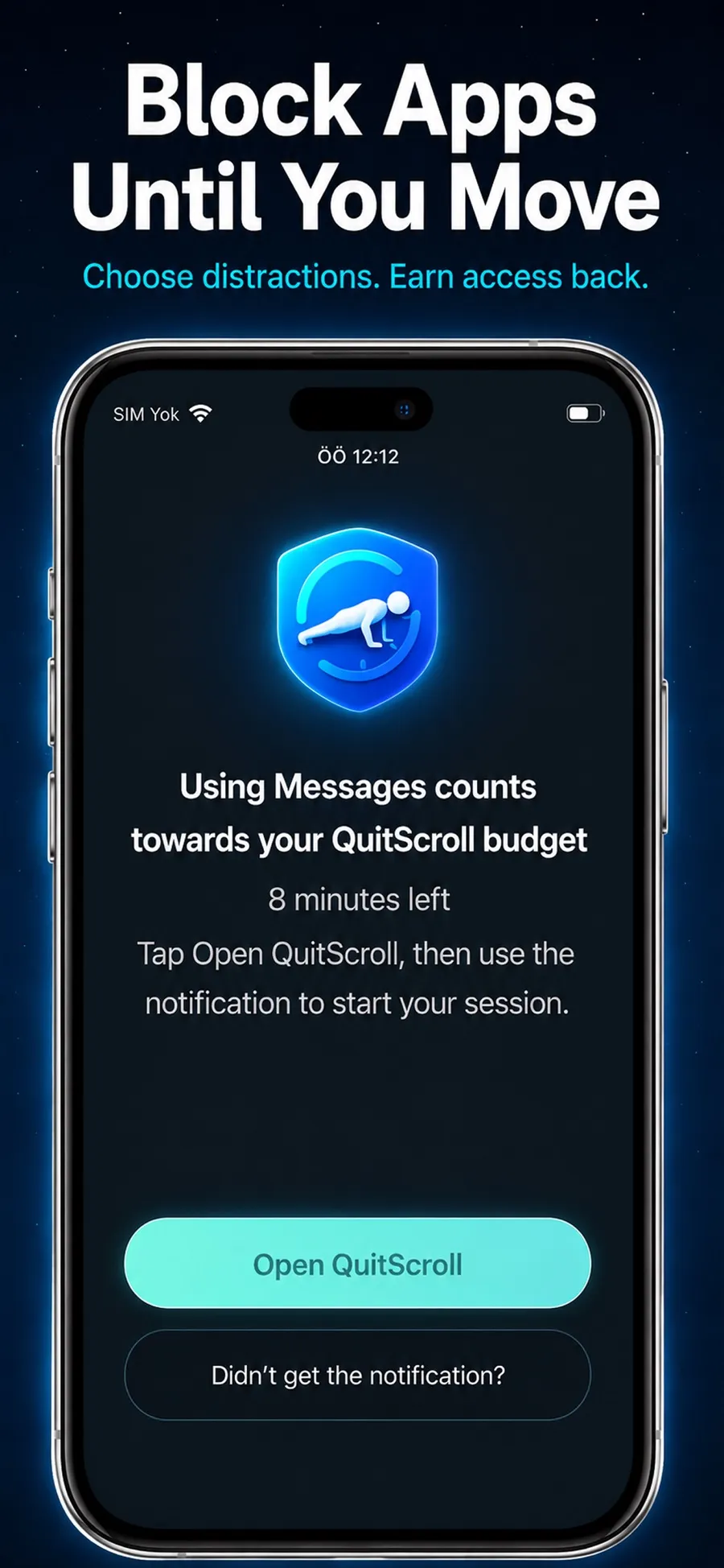
Instead of a limit you can wave away, there’s a small task first.
- The camera doesn’t record you. It only detects movement to count reps or hold time. Video isn’t recorded, stored or uploaded.
- You stay in control. You can change which apps are blocked, or revoke the Screen Time permission in iOS Settings, at any time.
- It isn’t a fitness coaching app. It uses short bursts of movement as a way back into your apps.
Push Up Time is a free download with in-app purchases, for iPhone with iOS 17 or later, and there’s no account to create. For more ways to break the habit, see how to stop doomscrolling.
Quick answers
Can you completely block an app on iPhone?
Screen Time gets you close. Set a time limit or schedule, then add a Screen Time passcode so the settings can’t be changed without it. Built-in apps can also be turned off in Content & Privacy Restrictions.
Where are App Limits and Downtime in iOS 27?
In iOS 27, daily limits are under Time Allowances and scheduled blocking is under Screen Time Schedule, both in Settings > Screen Time. On iOS 26, use App Limits and Downtime.
Why can I still open an app after its limit?
By default, Screen Time limits can be ignored once you reach them. On iOS 26, set a Screen Time passcode and turn on Block at Downtime, so apps can’t be opened during downtime.
Does Push Up Time work on iPad?
No. Push Up Time is for iPhone with iOS 17 or later.
