How to reduce screen time on iPhone
Updated
To reduce screen time on iPhone, start with your Screen Time report in Settings so you know which apps take up your day. Then turn off notifications you don’t need, schedule a Focus and Screen Time limits for the hours you want to stay off your phone, and move tempting apps off your Home Screen. Small bits of friction, like a short workout before an app unlocks, make the new habit easier to keep.
iOS steps below were checked against Apple’s iPhone User Guide for iOS 26 and iOS 27. Some Screen Time labels changed in iOS 27, so where they differ, both are shown.
Check your Screen Time report
Before you change anything, look at where your time actually goes.
- Open Settings and tap Screen Time.
- If Screen Time isn’t on yet, tap Turn On App & Website Activity.
- On iOS 27, tap Daily Average. On iOS 26, tap See All App & Website Activity.
- Tap Week for a weekly summary, or Day for a daily one.
The report shows your most used apps, how often you pick up your iPhone and how many notifications you get. Pick the two or three apps that take the most time, or that you open without meaning to. Those are the ones to work on.
Trim your notifications
A notification is often what gets you to pick up your phone in the first place. Turn off the ones you don’t need, app by app.
- Open Settings and tap Notifications.
- Tap an app below Notification Style.
- Turn off Allow Notifications, or keep them on and turn off Badges.
For apps you want to hear from, just not all day, tap Scheduled Summary in Notifications. Turn it on, choose your times, then tap A to Z and turn on the apps to include. Their notifications arrive together instead of one by one.
Use Focus for the hours that matter
A Focus silences notifications while you work, sleep or spend time with people, and lets through only the people and apps you choose. To quickly silence everything, open Control Center, tap Focus, then turn on Do Not Disturb.
- Open Settings and tap Focus.
- Tap a Focus, for example Do Not Disturb, Personal or Work.
- Tap People and Apps to choose who can still notify you.
- Tap Add Schedule and set a time, a location or an app that turns it on.
You can also link a Focus to a Home Screen page with only the apps you need for that part of your day.
Set a schedule and limits in Screen Time
Focus is about notifications. To decide when and how long you use apps, use Screen Time. The labels depend on your iOS version.
On iOS 27: Time Allowances
In Settings, tap Screen Time, then Time Allowances. Drag the slider to set your daily total, or under Time Allowances, tap a category such as Entertainment, Games or Social Media and set its own time.
To choose when apps are available, tap Screen Time Schedule, turn on Schedule, then tap Add Schedule and pick the days. Tap a time window to change its start and stop times and choose which categories are available during it.
On iOS 26: App Limits and Downtime
In Settings, tap Screen Time, then App Limits, then Add Limit. Select a category, or tap it to choose individual apps, tap Next and set the time.
To take regular breaks, tap Downtime, then Scheduled, choose Every Day or Customize Days, and set the start and end times. During downtime, only calls, messages and the apps you allow are available. By default, limits can be ignored once you reach them, so treat them as a reminder to stop and choose.
On both versions, Always Allowed in Screen Time keeps the apps and contacts you always need available.
Move tempting apps off your Home Screen
If an app is the first thing you see when you unlock, it’s easy to open on autopilot. You don’t have to delete it to make it harder to reach.
- On the Home Screen, touch and hold the app.
- Tap Remove App.
- Tap Remove from Home Screen.
The app moves to App Library. It isn’t deleted: swipe left past your last Home Screen page and search for it when you really want it.
Add friction with small habits
Settings do part of the job. A few habits do the rest:
- Decide before you unlock. Know what you’re picking up your phone for, and put it down when that’s done.
- Put distance between you and your phone. Leave it in another room while you work, eat or sleep.
- Make unlocking cost something. A short pause, or a short workout, between you and the app you open most.
For the endless-feed side of this, see how to stop doomscrolling.
Earn your unlock time with Push Up Time
Push Up Time blocks the apps and websites you pick with Apple’s Screen Time, and a quick set of push-ups, squats or a plank earns you time back. Your Screen Time report tells you what to block first.
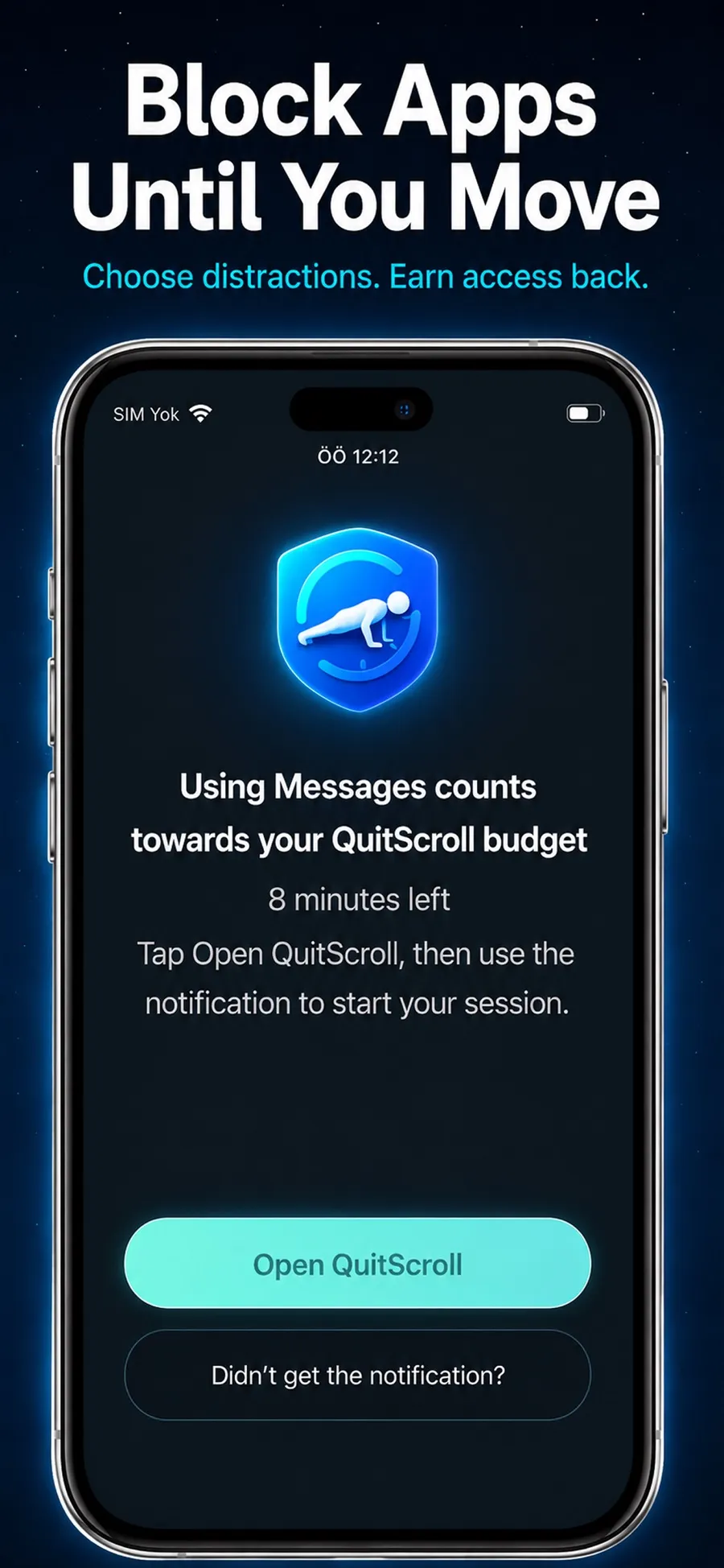
- Open Push Up Time and choose apps and websites to block in Apple’s Screen Time picker.
- When you want time on a blocked app, pick push-ups, squats or a plank.
- Place your iPhone so the camera can see you. It counts your reps or your hold time.
- Spend the time you earned in short unlock sessions on the apps you blocked.
The camera is used only to detect movement. Video isn’t recorded, stored or uploaded. A journey with levels, badges and a streak helps the habit stick, and there’s no account to sign up for.
Push Up Time is a productivity app that uses short bursts of movement, not a medical or fitness coaching app. You can change what’s blocked in the app, or revoke its Screen Time permission in iOS Settings at any time. It’s a free download with in-app purchases, for iPhone with iOS 17 or later.
Quick answers
How do I see my screen time on iPhone?
Open Settings and tap Screen Time. On iOS 27, tap Daily Average. On iOS 26, tap See All App & Website Activity.
Where are Downtime and App Limits in iOS 27?
In iOS 27, Screen Time uses Time Allowances to set how long you can use categories of apps each day, and Screen Time Schedule to set when they’re available.
Does removing an app from the Home Screen delete it?
No. Remove from Home Screen moves the app to App Library, where you can still open it. Only Delete App removes it and its data.
Does Push Up Time record me with the camera?
No. The camera only detects movement to count your reps or hold time. Video isn’t recorded, stored or uploaded.
