How to stop your phone from distracting you while studying
Updated
To stop your phone from distracting you while you study or work, turn on a Focus so only the people and apps you choose can reach you, and turn off notifications you never need. Then put the phone out of reach and work in short, planned sessions. When a break comes, move first, so you don’t pick up your phone and lose half an hour to it.
iOS steps below were checked against Apple’s iPhone User Guide for iOS 26 and iOS 27.
Set up a Focus for study time
A Focus silences notifications while you concentrate and lets through only the ones you allow. You can use a provided Focus such as Work, or make your own and call it Study.
- Open Settings and tap Focus.
- Tap the Add button, then tap Custom.
- Enter a name, choose a color and an icon, then tap Next. On iOS 26, tap Return after you enter the name.
- Tap Customize Focus.
If you’d rather not make a new one, open Settings, tap Focus, and tap Work or Do Not Disturb instead. The options below are the same.
Choose who and what can still reach you
Inside your Focus, decide what gets through. Everything else waits until the Focus is off.
- People: Tap People, tap Allow Notifications From, then tap the Add People button and pick the contacts who should always reach you, like family.
- Apps: Tap Apps, tap Allow Notifications From, then tap the Add Apps button and select only the apps you need for the task, such as your calendar.
- Time Sensitive Notifications: If this is on, any app can send time-sensitive notifications right away. Leave it off for a quieter session.
You can also link the Focus to a Home Screen page that shows only your study apps, so the usual distractions aren’t the first thing you see.
Turn it on when you sit down
To start a Focus right away, open Control Center, tap Focus, then tap the Focus you want. To have it end on its own, tap its button and choose an option such as For 1 hour. You can also ask Siri something like “Turn on the Work Focus.”
If you study at the same times each week, let it turn on by itself.
- Open Settings, tap Focus, then tap your Focus.
- Tap Add Schedule.
- Set the times, a location such as your library, or an app that turns the Focus on.
One thing to know: a Focus silences notifications, but it doesn’t lock apps. You can still open any app during a Focus. To block apps at certain times, use Screen Time, covered in how to block apps on iPhone.
Turn off notifications you never need
Some apps don’t need to reach you at all, Focus or not. Turning them off saves you from deciding again every session.
- Open Settings and tap Notifications.
- Tap an app below Notification Style.
- Turn off Allow Notifications.
For apps you want to hear from later, not during study, Scheduled Summary in Notifications bundles their notifications and delivers them at the times you choose. There’s more on this in how to reduce screen time on iPhone.
Put physical distance between you and your phone
Settings help, but the easiest phone to ignore is one you can’t reach.
- Leave it in another room, or in a bag across the room, while you work.
- Turn it face down if it has to stay on your desk, so a lit-up screen doesn’t pull your eyes over.
- Keep a paper list of things you suddenly want to look up. Write them down and check them on your break instead of grabbing the phone mid-task.
Study in short, planned sessions
Long, open-ended study time is where “just checking one thing” creeps in. Shorter blocks with a clear end are easier to protect.
- Pick one task before you start, like one chapter, one problem set or one draft section.
- Set a timer for a length you can actually finish, such as 25 or 45 minutes. You can use the Clock app or ask Siri.
- Work until the timer ends, and add stray thoughts to your paper list instead of acting on them.
- Take a short break, then start the next block.
Adjust the lengths until they fit you. What matters is a clear stopping time.
Take a “move first, unlock later” break with Push Up Time
Breaks are where the phone tends to win. You reach for it for five minutes, and the next session starts late. Push Up Time blocks the apps and websites you pick with Apple’s Screen Time, and a quick set of push-ups, squats or a plank earns you time back.
- Before you study, choose the apps and websites to block in Apple’s Screen Time picker.
- When your break comes and you want in, pick push-ups, squats or a plank.
- Place your iPhone so the camera can see you. It counts your reps or your hold time.
- Spend the time you earned in a short unlock session, then get back to work.
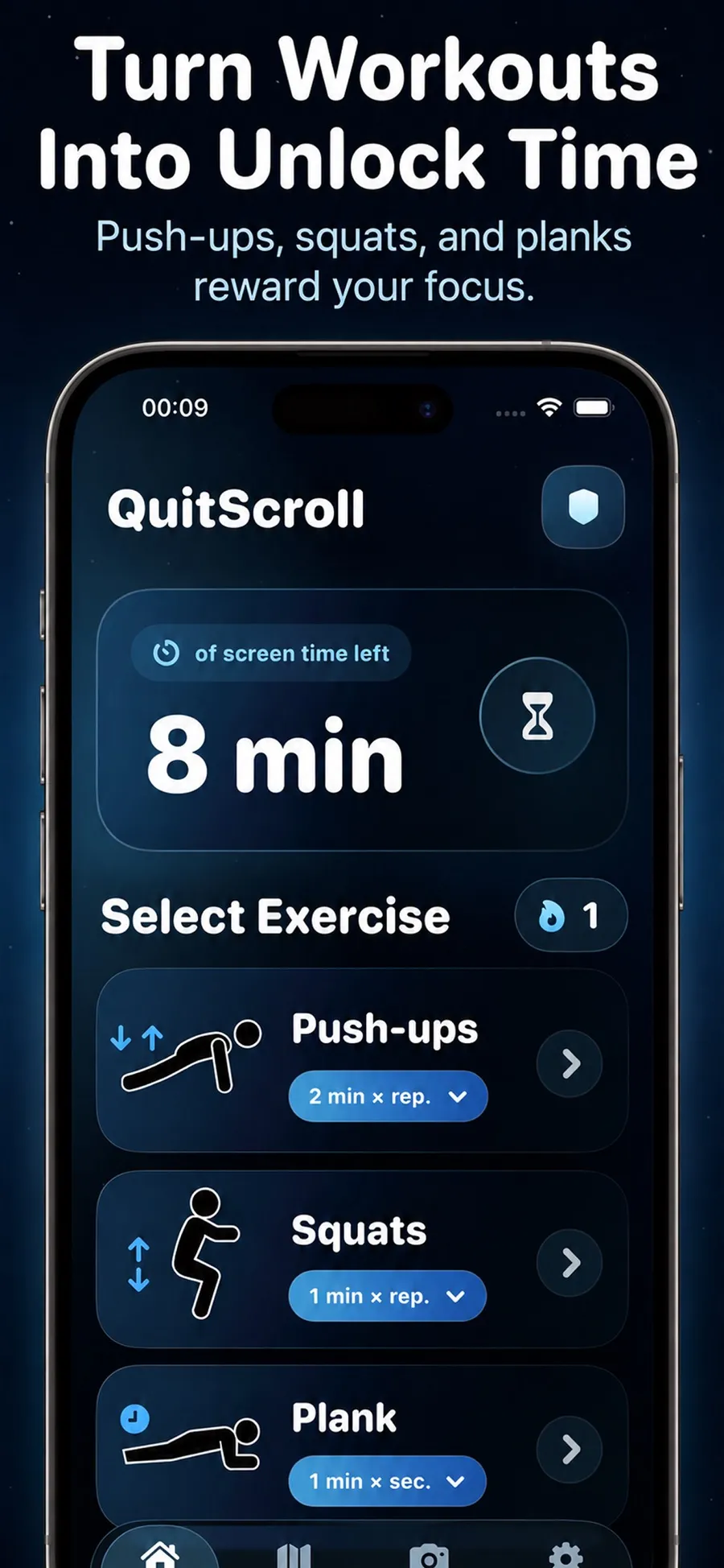
You get up from your desk before you scroll, and the time you spend on blocked apps comes in short sessions instead of open-ended ones.
- The camera doesn’t record you. It only detects movement to count reps or hold time. Video isn’t recorded, stored or uploaded.
- You stay in control. You can change which apps are blocked in the app, or revoke the Screen Time permission in iOS Settings, at any time.
- It isn’t a fitness coaching app. It uses short bursts of movement as a way back into your apps.
Push Up Time is a free download with in-app purchases, for iPhone with iOS 17 or later, and there’s no account to create.
Quick answers
Which Focus should I use for studying?
Any Focus works. You can use Work or make a custom Focus named Study, then allow only the people and apps you need. What matters is who and what you let through, not the name.
Does a Focus block apps on iPhone?
No. A Focus silences notifications, but you can still open any app. To block apps during study hours, use Screen Time limits or a schedule, or an app that works with Screen Time.
Can family still reach me during a Focus?
Yes. In your Focus, tap People, then Allow Notifications From, and add them. You can also turn on options to allow calls from certain groups and repeated calls.
Will people know I have notifications silenced?
If Share Focus Status is on, people who message you may see that you have notifications silenced, and they can still notify you if something is urgent. You can turn it off in Settings > Focus > Focus Status.
