How to turn photos into a PDF on iPhone
Updated
To turn photos into a PDF on iPhone, add them to a note in the Notes app, then tap the Share button and tap Markup. Notes turns the note into a PDF, and you tap the Done button to save it. If your image is already a file, the Preview app can export it as a PDF and add more images as extra pages.
iOS steps below were checked against Apple’s iPhone User Guide for iOS 26 and iOS 27.
Which built-in app to use
Both come with your iPhone. They suit different starting points:
- Notes works straight from your photo library and handles several photos at once.
- Preview works with image files, such as pictures saved in the Files app, and gives you more control over page order, rotation and export settings.
If the pages are still on paper, scanning them gives you a cleaner, straightened PDF. See how to scan a document to PDF on iPhone.
Combine photos into one PDF with Notes
Notes can export a whole note as a PDF, so the trick is to put all your photos in one note first.
- Open Notes and create a new note.
- Tap the Attachments button, then choose photos from your photo library.
- Tap the More button, tap Attachment View, then tap Set All to Large.
- Tap the Share button, then tap Markup. In iOS 27, if you don’t see Markup, tap the View More button first.
- Mark up the pages if you need to, then tap the Done button to save the PDF.
Step 3 matters: the PDF uses the note’s current attachment view, so photos shown as small thumbnails come out small in the PDF too.
Starting from the Photos app instead? Select the photos, tap the Share button, then tap Notes and save them to a new note. Then continue from step 3.
Keep the note simple. Anything else in the note ends up in the PDF too.
Make a PDF from image files with Preview
Preview opens images directly and can export them in another format, including PDF.
- Open Preview, tap Browse, then open the image.
- Tap the Actions Menu button next to the filename, then tap Export.
- Select PDF as the format.
- In iOS 27, tap the Done button, choose a location, then tap Save.
In iOS 27 the export options also include Embed Text, which runs text recognition on the image so you can search the PDF later.
The photo is only in your library? Copy it first: open it in Photos, tap the Share button, then tap Copy Photo. In Preview, tap New Document, then choose New from Clipboard. Preview creates an image from it, which you can export as a PDF the same way.
Add more images as pages
Once you have a PDF, you can add the rest of your images to it in Preview.
- Open the PDF in Preview.
- Show the page thumbnails. In iOS 27, tap the Show Sidebar button. In iOS 26, tap the page count.
- Touch and hold a thumbnail, then tap Insert from File and choose the next image.
- Repeat for each image you want to add.
To change the order, touch and hold a thumbnail, then drag it above or below another page. The same menu has Delete Page, and the More button has Rotate Left and Rotate Right.
When the PDF needs your signature
Often you’re making a PDF from photos because a form has to go back signed. Apple’s Markup tools can add a signature you draw with your finger. If you’d rather use the signature you write with a pen, eSign Documents turns your photos into a document and signs it in one place.
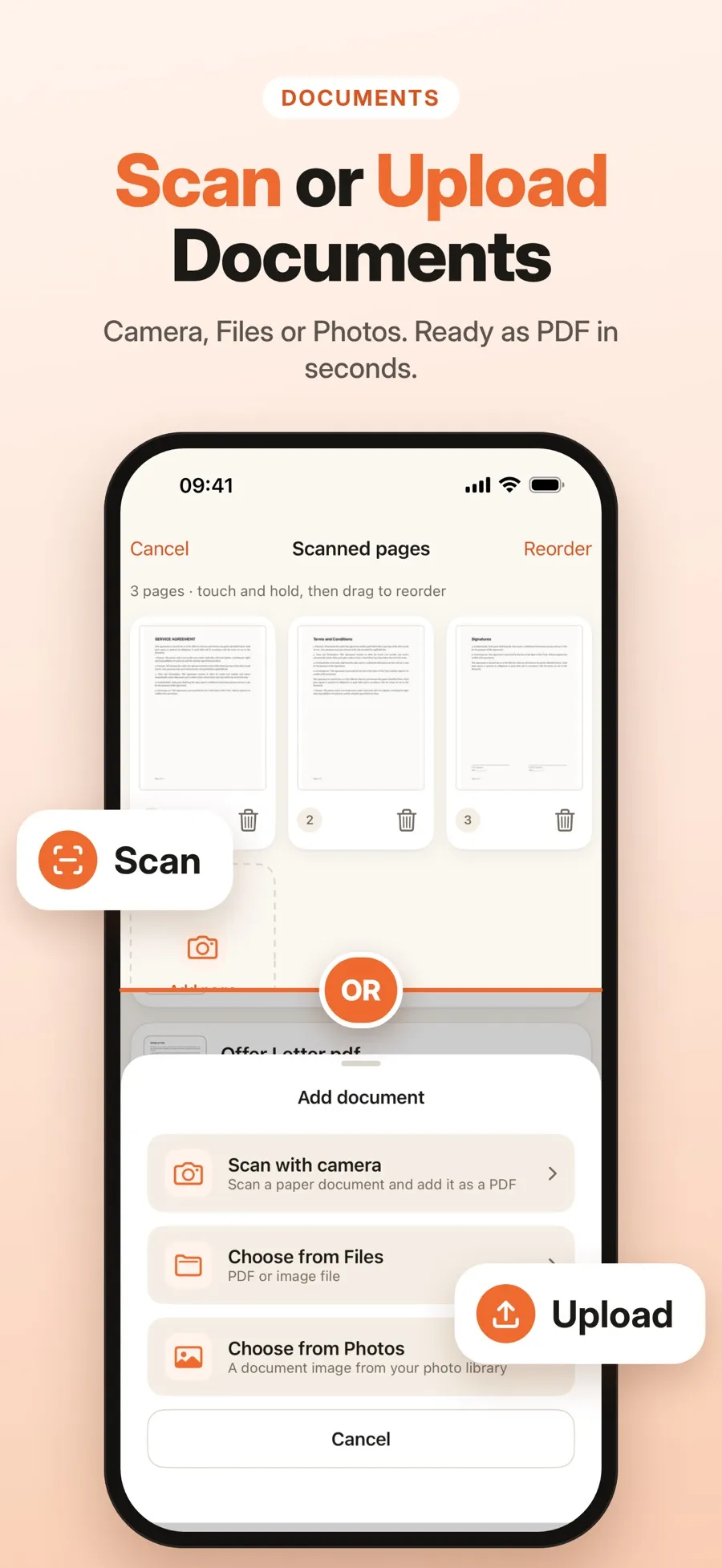
- Pick several photos at once. Choose photos from your library, and they become the pages of one document.
- Your real signature. Draw it with your finger, or scan the one you wrote on paper: it’s detected, cropped and its background removed.
- Place and adjust. Put a signature on any page, then move, resize or rotate it. You can add more than one signature to a document.
- Open eSign Documents and make your signature: draw it, or scan it from paper.
- Add a document, choose photos from your library, and select every page you need.
- Place your signature on the right page, then move, resize or rotate it.
- Save a draft to finish later, or create a signed copy.
The signed copy is a new document, and the original stays as it was. Documents are stored on your device, and you don’t need an account. Drawing, scanning and signing are free. Sharing a signed PDF or saving it to Files is part of Premium, a weekly or yearly subscription. If you only need a PDF of your photos and nothing has to be signed, Notes and Preview do that for free.
The app places an image of your handwritten signature on the page, not a certificate-based digital signature. Whether that’s accepted depends on the document and the country, so if you’re not sure, ask whoever requested it.
Tips for photos that make a readable PDF
- Shoot straight from above. Text photographed at an angle is harder to read on the page.
- Use even light. Avoid your own shadow across the page and glare from glossy paper.
- Crop out the background. In Preview, scroll to the page, tap the Crop button, drag the blue handles, then tap Crop.
- Check before you send. Zoom in on small print and numbers, and retake any blurry photo.
Quick answers
Can I convert a photo to PDF on iPhone without an app?
Yes. Add the photo to a note and export the note with Markup, or open the image in Preview and export it as a PDF. Both apps come with your iPhone.
How do I combine several photos into one PDF?
Put all the photos in one note and export it from Notes, or create a PDF in Preview and add the other images with Insert from File.
Why do the photos look small in my PDF from Notes?
The PDF uses the note’s attachment view. Before exporting, tap the More button, tap Attachment View, then Set All to Large.
Can I sign a PDF I made from photos?
Yes. You can add a drawn signature with Apple’s Markup tools, or use eSign Documents to place your handwritten signature. Whether it’s accepted depends on the document and the country, so check with whoever asked for it.
