How to keep track of multiple aquariums on iPhone
Updated
To keep several aquariums organised on iPhone, give each tank its own schedule and its own record. With Apple’s apps, that means a separate repeating reminder per tank in Reminders, with the tank’s name in the title, and a separate test table per tank in Notes. An aquarium app such as Aquarium Log keeps one care plan, logbook and fish list per tank, and you switch tanks from the tank’s name at the top of the screen.
iOS steps below were checked against Apple’s iPhone User Guide for iOS 26 and iOS 27.
Why each tank needs its own plan
Two tanks rarely need the same routine. The Ornamental Aquatic Trade Association (OATA) notes that how often and how much water you change can vary with the species you keep, the size of the aquarium and the number of fish (OATA: setting up and looking after a freshwater aquarium). A small shrimp tank, a busy community tank and a new tank that’s still cycling can each need a different rhythm. Water test results only make sense when you know which tank they came from.
With Reminders and Notes
Reminders: create one reminder per tank and task, such as “Water change: shrimp tank” and “Water change: living room tank”. For each, tap the Edit Details button, turn on Date and Time, tap Repeat and choose the frequency. That keeps the schedules apart, as long as every reminder has the tank’s name in it.
Notes: keep one note per tank, each with its own water test table. Tap the New Note button, give the note the tank’s name on the first line, then tap the Add Table button. See how to keep an aquarium water test log on iPhone for what to put in it.
This works, but nothing ties a reminder to its log. Moving a schedule after a late water change, or finding last month’s nitrate for one tank, is up to you.
With Aquarium Log
In Aquarium Log, each tank has its own care plan for water changes and tank cleaning, its own reminders, its own logbook of changes, tests and notes, and its own Tank Life list of fish, invertebrates and plants. One tank is free. More than one tank needs Premium.
Add another tank
- Tap the tank’s name at the top of the screen and choose Add tank. You can also go to Settings (the gear icon) › Tanks › Add tank.
- On New tank, enter a Name, choose Freshwater or Saltwater, enter the Volume in L or US gal, and tap Next.
- Under Care schedule, choose Last change or First target date, and pick how often under Repeat.
- Tap Save tank.
Give each tank a name you’ll recognise at a glance, such as “Living room tank” or “Shrimp nano”. It’s used throughout the app and as the title of that tank’s reminders.
Switch between tanks
Tap the tank’s name at the top of the Tank, Logbook or Tank Life tab and pick another tank. The menu shows each tank with its volume and water change status. The tank you pick is the one all three tabs show.
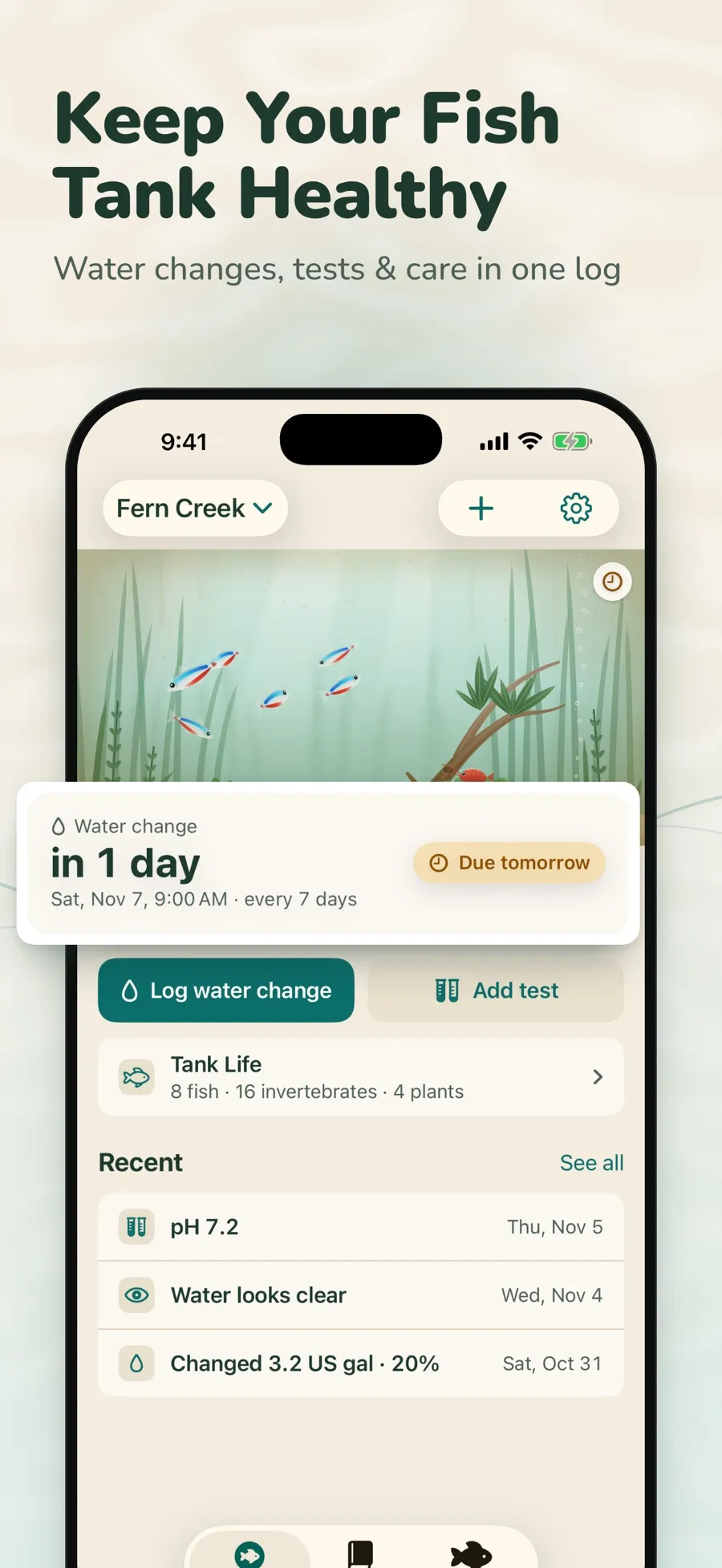
Keep each plan separate
Each tank has its own Care plan, with its own Repeat, next date and Remind me for water changes and for tank cleaning. A reminder notification carries the tank’s name as its title, so you know which tank is due. Logging a water change for one tank moves only that tank’s next date.
When you add a water test, check the Tank field at the top of the form before you save.
Retire a tank without losing its history
Tanks are archived, not deleted. In Settings, under Tanks, tap the tank, then tap Archive tank. In the app’s words: “Archived tanks leave the tank list and the widget. Their logbook is kept.” Fish and plant groups in Tank Life work the same way: when a group is gone, archive it.
What’s free and what isn’t: one tank with its care plan, reminders, logbook, water tests, Tank Life and the species guide is free. Premium, a weekly or yearly subscription, adds more tanks, test trend charts and a Home Screen countdown widget. The widget shows one tank at a time, the one you choose in Settings › Widget. Everything stays on your device: there’s no account, no iCloud sync and no export.
To put one tank’s next water change on your Home Screen, see how to add a water change countdown widget on iPhone.
Quick answers
How do I track water changes for more than one fish tank?
Give each tank its own schedule. In Reminders, create a separate repeating reminder per tank with the tank’s name in the title. In Aquarium Log, each tank has its own care plan, reminders and logbook.
Is more than one tank free in Aquarium Log?
No. One tank is free, with the care plan, reminders, logbook, water tests and Tank Life. Adding more tanks needs Premium, a weekly or yearly subscription.
How do I switch between tanks in Aquarium Log?
Tap the tank’s name at the top of the Tank, Logbook or Tank Life tab and pick another tank. All three tabs then show that tank.
Can I delete a tank in Aquarium Log?
Tanks are archived rather than deleted. In the tank’s settings, tap Archive tank. Archived tanks leave the tank list and the widget, and their logbook is kept.
Can I sync my tanks between my iPhone and iPad?
No. Aquarium Log stores your data on the device you use, with no account, iCloud sync or export in this version.
