How to add a water change countdown widget on iPhone
Updated
iPhone doesn’t have a built-in aquarium widget. The closest free option is to put your water change in Reminders as a repeating reminder and add the Reminders widget to your Home Screen. It lists your reminders but doesn’t count down the days. For a countdown such as “In 1 day” on your Home Screen, use an app with a water change widget, such as Aquarium Log.
iOS steps below were checked against Apple’s iPhone User Guide for iOS 26 and iOS 27.
How to add any widget to your Home Screen
Adding a widget works the same way for Apple’s widgets and for widgets from apps you download:
- Go to the Home Screen page where you want the widget.
- Touch and hold the background until the apps begin to jiggle.
- Tap Edit, then tap Add Widget. On iOS 26, Edit is at the top of the screen.
- Scroll or search to find the widget you want, tap it, then swipe through the size and style options.
- When you see the size you want, tap Add Widget.
- While the apps are still jiggling, move the widget where you want it, then tap the Done button.
To change what a widget shows later, touch and hold it, tap Edit Widget, choose options, then tap Done.
The free option: the Reminders widget
Set up a repeating reminder for your water change in Reminders (see how to set an aquarium water change reminder on iPhone), then add the Reminders widget with the steps above. You can tap an item in the widget to check it off without opening the app.
It keeps the task in view, but it shows reminders, not how many days are left.
Add a water change countdown with Aquarium Log
Aquarium Log has a Home Screen widget that counts down to the next water change or tank cleaning for one of your tanks. The widget is part of Premium.
Choose what it shows
- In Aquarium Log, tap the gear icon to open Settings.
- Under Aquarium, tap Widget.
- Choose the Tank.
- Under Count down to, choose Water change or Tank cleaning.
- Check the Preview.
You can also set this from the tank’s care plan, in the Widget counts down row.
Add it to your Home Screen
- Touch and hold an empty spot on your Home Screen, then tap Edit › Add Widget.
- Search “Aquarium Log”.
- Swipe to Small or Medium, then tap Add Widget.
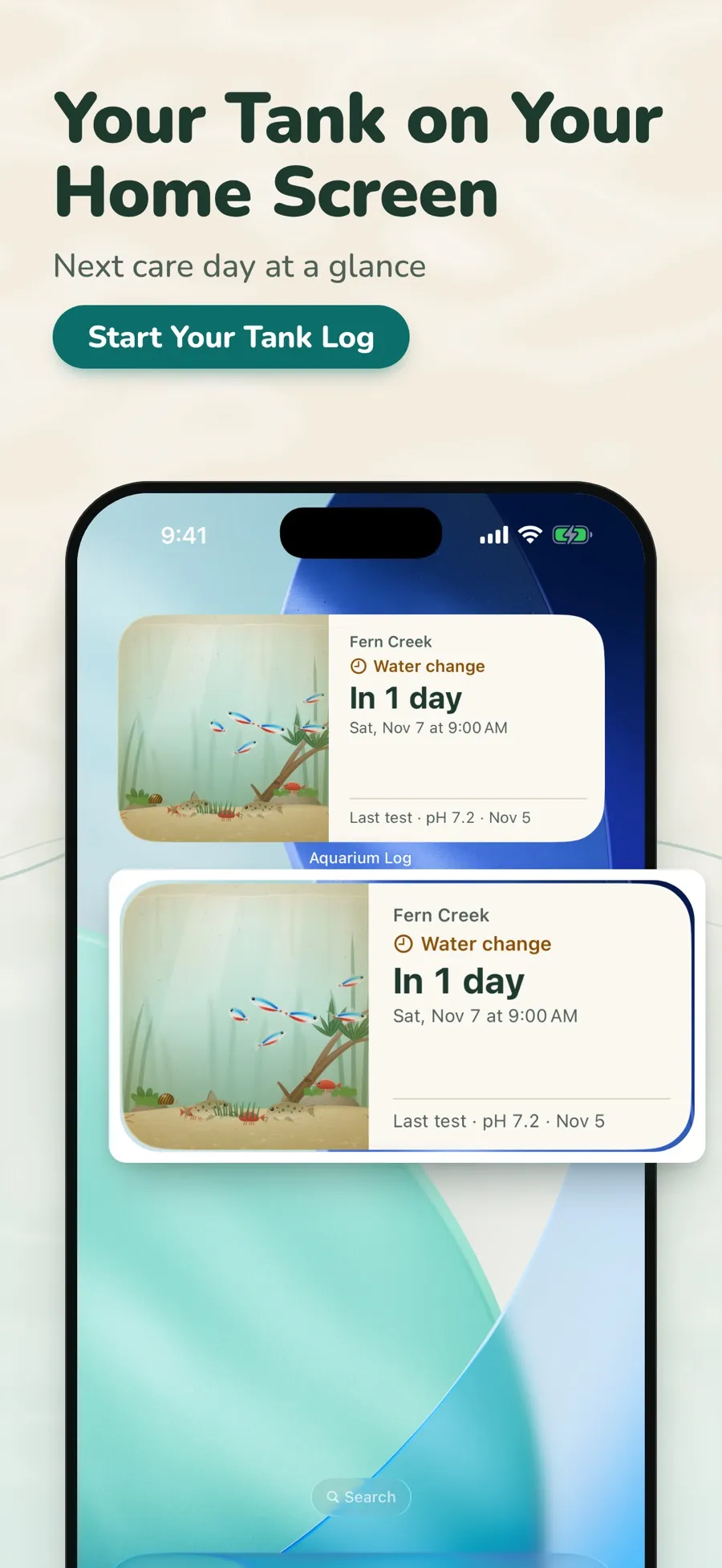
The widget shows the tank’s name, the task and how long until it’s due, such as “In 1 day”. The Medium size also shows the due date and your last test, such as “Last test · pH 7.2”.
What the drawn tank means
The widget shows a drawing of your tank. A film builds up on the drawn glass as time passes since the last water change or cleaning, and it clears when you log one. In the app’s words: “The scene shows your schedule, not a water-quality reading.” It doesn’t know what’s in your water. Only your tests can tell you that.
Good to know
- Sizes: Small and Medium, on the Home Screen. There’s no Lock Screen widget.
- One tank and one task: the widget follows the tank and the task you choose in Settings › Widget.
- It updates when you log: after you log a water change, the countdown moves to the next date.
- Archived tanks leave the widget, as well as the tank list.
What’s free and what isn’t: the countdown on the Tank tab, the care plan and reminders are free for one tank. Premium, a weekly or yearly subscription, adds the Home Screen widget, more tanks and test trend charts. The app runs on iPhone and iPad with iOS 18 or later.
If you keep more than one tank, see how to keep track of multiple aquariums on iPhone.
Quick answers
Does iPhone have a built-in aquarium widget?
No. Apple’s widgets show information from Apple’s apps. The Reminders widget can keep a water change reminder in view, but it doesn’t count down the days.
How do I add the Aquarium Log widget?
Touch and hold an empty spot on your Home Screen, tap Edit › Add Widget, search “Aquarium Log”, swipe to Small or Medium, then tap Add Widget. Choose the tank and task first in the app’s Settings › Widget.
Can the widget count down to tank cleaning instead?
Yes. In Settings › Widget, under Count down to, choose Tank cleaning instead of Water change.
Is the Aquarium Log widget free?
No. The Home Screen countdown widget is part of Premium, a weekly or yearly subscription. The countdown inside the app, the care plan and reminders are free.
Does the cloudy glass on the widget mean my water is dirty?
No. The film on the drawn glass grows with the time since your last water change or cleaning, and clears when you log one. It shows your schedule, not a water-quality reading.
