How to set an aquarium water change reminder on iPhone
Updated
To get reminded about water changes on iPhone, create a reminder in Reminders for the date and time of your next water change, then set it to repeat. Add a second reminder for cleaning the tank or the filter if you do that on a different rhythm. If you’d like the next date to count from the day you actually did the change, and a record of how much water you changed, use an aquarium app such as Aquarium Log.
iOS steps below were checked against Apple’s iPhone User Guide for iOS 26 and iOS 27.
Set a repeating reminder in Reminders
- Open Reminders and create a reminder with the tank in its name, such as “Water change: living room tank”.
- Tap the reminder, then tap the Edit Details button.
- Turn on Date and Time, and set when the next water change is due.
- Tap Repeat, then choose the frequency.
- For a heads-up beforehand, tap Early Reminder and choose how far ahead, such as “2 days before”.
- Tap the Done button.
To make it harder to miss, turn on Urgent in the same details. You then get an alarm when the reminder is due.
For tank cleaning, create a second reminder with its own date and repeat. When you clean the filter, the Ornamental Aquatic Trade Association (OATA) advises rinsing the media in old tank water from a water change, never under the tap, because tap water can kill the beneficial bacteria (OATA: setting up and looking after a freshwater aquarium).
A reminder knows the schedule and nothing else. It doesn’t record how much water you changed, and it doesn’t keep your test results.
Set a care plan in Aquarium Log
Aquarium Log gives each tank a care plan with two separate schedules, one for water changes and one for tank cleaning. When you log a water change, the next one moves forward from the time you finished.
Add your tank
- Open Aquarium Log and tap Add tank.
- On New tank, enter a Name, choose Freshwater or Saltwater under Water, and enter the Volume in L or US gal. Tap Next.
- Under Care schedule, choose Last change to enter when you last changed the water, or First target date to pick the date of the next one.
- Choose how often under Repeat, then tap Save tank. You can also tap Set up later.
Turn on reminders
- Open the care plan. Tap the tank name at the top and choose Care plan, or go to Settings (the gear icon) › your tank › Care plan & reminders.
- Under Water change, tap Repeat and choose every 3, 5, 7, 10, 14, 21 or 30 days, or Never.
- Set the date and time of the next water change.
- Turn on Remind me.
- Do the same under Tank cleaning if you want a cleaning schedule too.
- Tap Save.
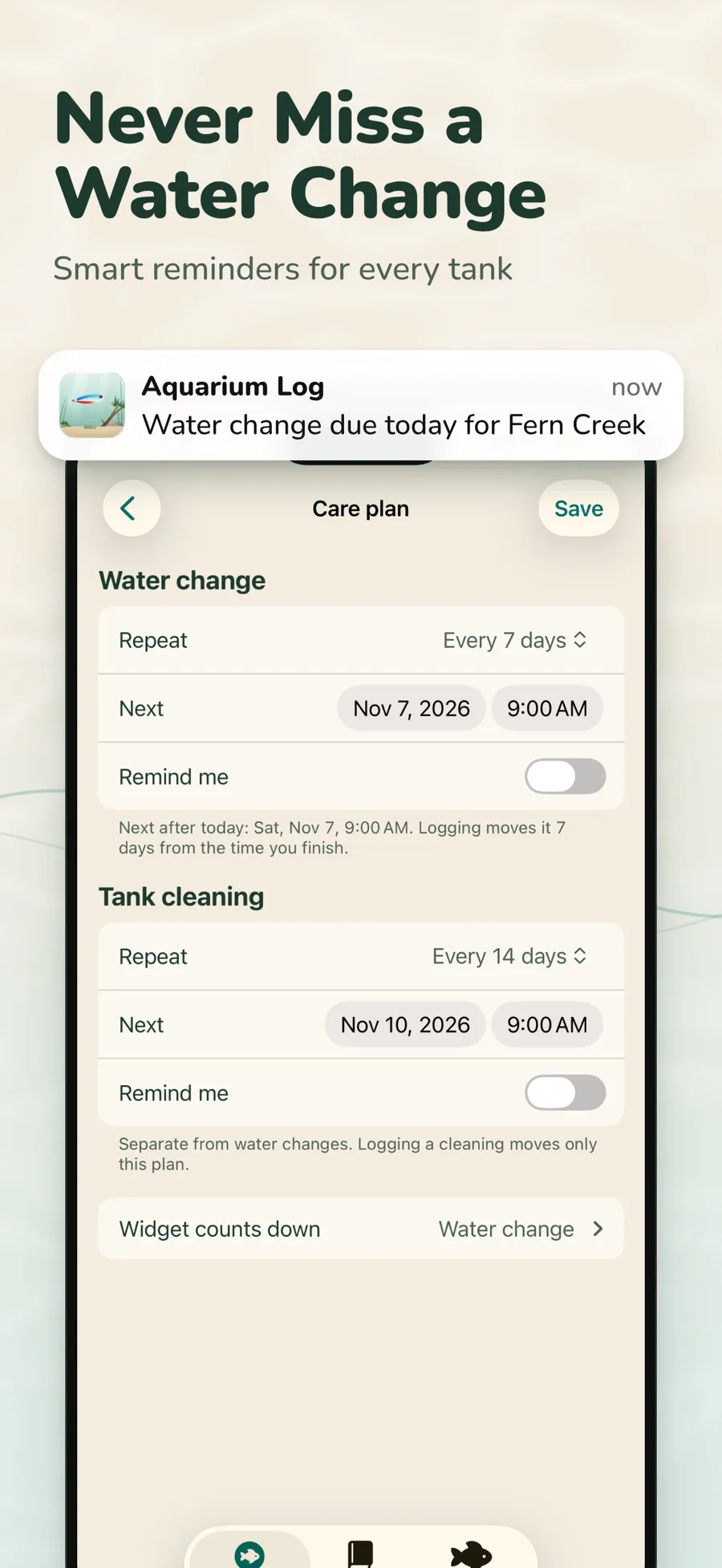
The reminder is a notification at the date and time you set. Its title is the tank’s name, and it says “Water change is due.” or “Tank cleaning is due.” Tapping it opens the app.
The two plans are separate. Logging a cleaning moves only the cleaning plan, not your next water change.
Log the change when you’re done
- On the Tank tab, tap Log water change.
- Check the Finished time and enter the Amount changed in L, US gal or %. It’s needed the first time, then filled in from your last change.
- Add a note if you like, then tap Save change.
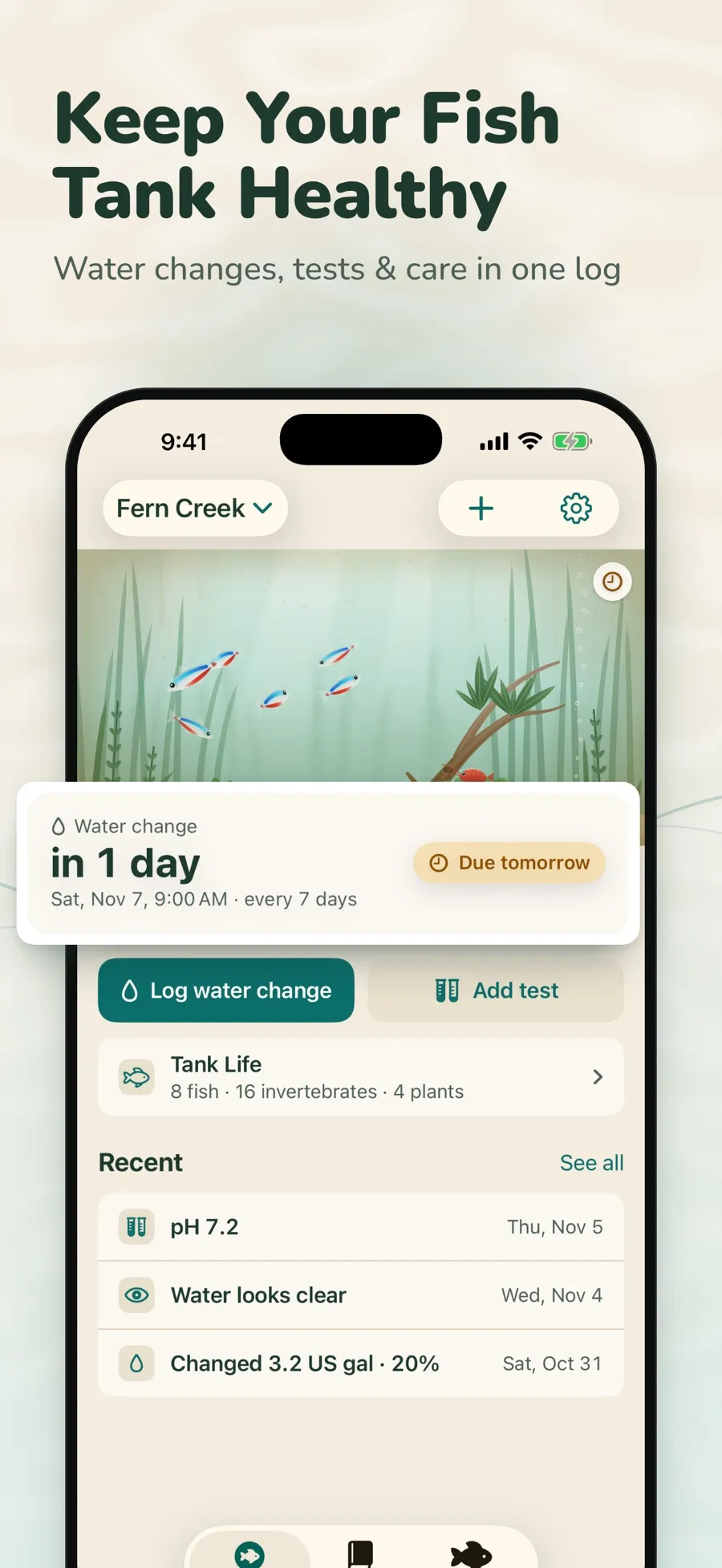
The next date then moves forward by your repeat interval from the time you finished. On the Tank tab, the status reads Due today, Due tomorrow, In N days, Overdue or N days overdue. A few things to know:
- Logging a cleaning: tap the + button, choose Cleaning, note how the water looks if you checked, then tap Save cleaning.
- Backdated entries: if you log a change with an earlier finish time, it goes in the logbook but doesn’t move the next date.
- Mistakes: deleting a water change from the Logbook moves the next date back. Deleting can’t be undone.
- Notifications off: the app shows Notifications are off. Your dates and the countdown on the Tank tab and the widget still work, but you won’t get a notification.
What’s free and what isn’t: the download is free and includes one tank with the care plan, reminders, logbook, water tests, Tank Life and the species guide. Premium, a weekly or yearly subscription, adds more tanks, test trends and a Home Screen countdown widget. The app runs on iPhone and iPad with iOS 18 or later. There’s no account, and your logs stay on your device.
Not sure which interval to pick? See how often to change aquarium water. To keep the countdown in view, see how to add a water change countdown widget.
Quick answers
Can my iPhone remind me to change my aquarium water?
Yes. In Reminders, create a reminder, tap the Edit Details button, turn on Date and Time, tap Repeat and choose the frequency. An Early Reminder gives you a heads-up before the day.
How do I set a tank cleaning reminder separate from water changes?
In Reminders, create a second reminder with its own repeat. In Aquarium Log, the care plan has its own Tank cleaning section with its own Repeat and Remind me, and logging a cleaning moves only that plan.
What happens if I change the water a day late?
In Aquarium Log, the next date is counted from the time you log the change as finished, so your schedule follows what you actually did. A repeating reminder in Reminders follows the dates you set.
Are reminders free in Aquarium Log?
Yes. The care plan and reminders are part of the free version for one tank. Premium adds more tanks, test trends and the Home Screen countdown widget.
Why didn’t I get a water change notification?
Check that notifications are allowed for the app. If they’re off, Aquarium Log shows Notifications are off, and the dates and countdown still work inside the app and on the widget.
