How to hide medication names on the iPhone Lock Screen
Updated
To keep medication names off your iPhone Lock Screen, change Show Previews in Settings > Notifications to When Unlocked or Never. You can do it for every app or just for your reminder app. The notification still arrives, but its details stay hidden until you unlock your iPhone. Some reminder apps can also replace the name itself with a neutral message.
iOS steps below were checked against Apple’s iPhone User Guide for iOS 26 and iOS 27. Where the steps differ, both are shown.
Where your medication names can show up
- Notifications on the Lock Screen, including the text of each reminder.
- Notification Center, which can be opened from the Lock Screen.
- Alarm and reminder labels, such as a Clock alarm named after your medication.
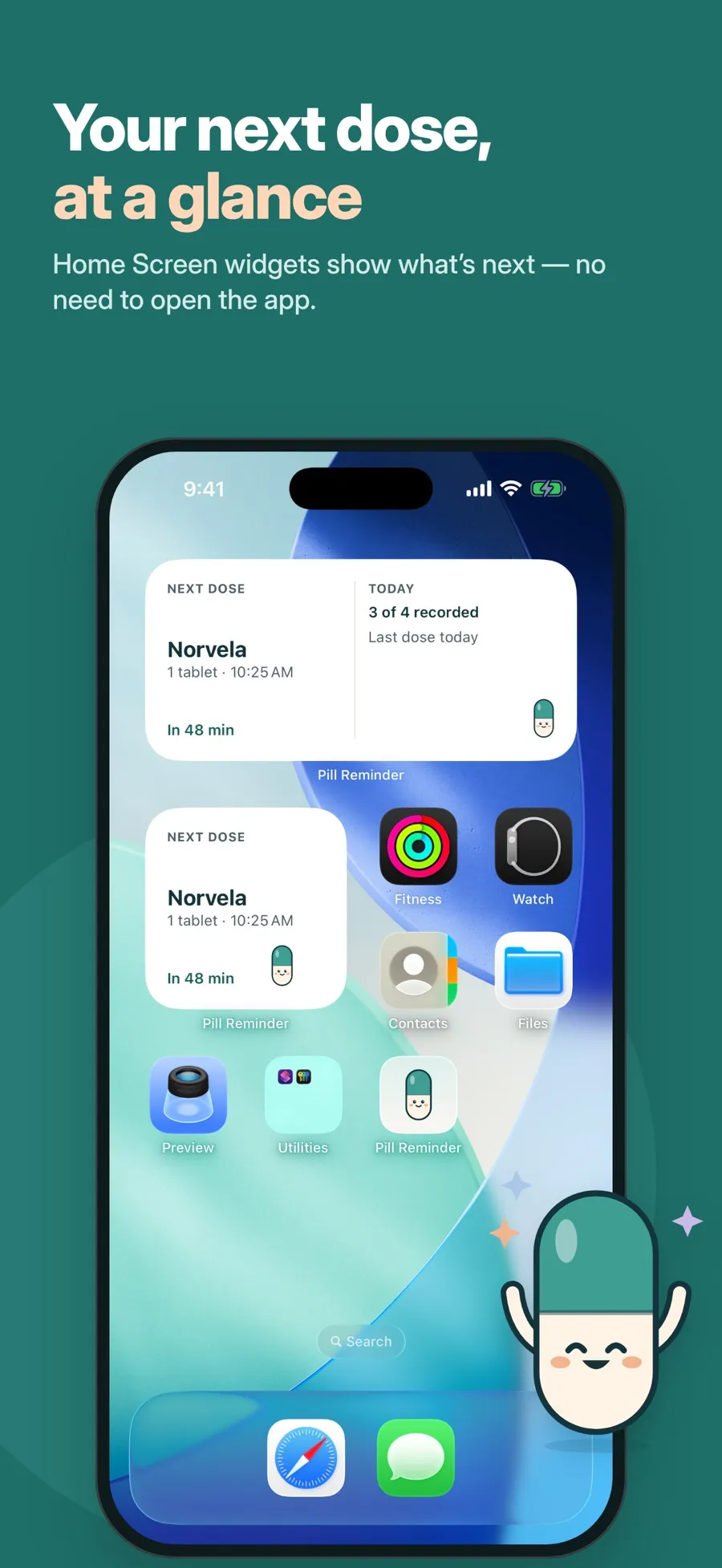
- Home Screen widgets that show your next dose.
- The app itself, if someone picks up your unlocked iPhone.
Hide notification previews
With previews hidden, the Lock Screen shows that a notification arrived and which app sent it, but not what it says.
On iOS 27:
- Open Settings and tap Notifications.
- To change it for every app, tap Show Previews. To change it for one app, first tap the app below Notification Style, then tap Show Previews.
- Choose When Unlocked or Never.
On iOS 26:
- Open Settings and tap Notifications.
- Tap the app below Notification Style.
- Scroll down, tap Show Previews, then choose When Unlocked or Never.
When Unlocked is usually the best balance: the details appear once your iPhone is unlocked. Apple notes that not all apps support notification previews.
Keep Notification Center off the Lock Screen
Notification Center can be opened from the Lock Screen to show earlier notifications. To control that, open Settings, tap Face ID & Passcode (or Touch ID & Passcode), enter your passcode, and under Allow Access When Locked, turn off Notification Center.
Lock the app with Face ID
iOS can lock most apps you choose, so they need Face ID, Touch ID or your passcode to open. Apple notes that information inside a locked app doesn’t appear in other places, including notification previews and search.
- On the Home Screen, touch and hold the app until the quick actions menu opens.
- Tap Require Face ID (or Touch ID or Passcode).
- On iOS 27, tap Require Face ID again to lock it, or tap Hide and Require Face ID to also hide it in a Hidden folder in App Library.
The app locks again after you quit it. To remove the lock, touch and hold the app and tap Don’t Require Face ID.
Use neutral labels for alarms and reminders
Clock alarms and reminders in the Reminders app use the label or title you give them. If you use one for a medication, choose a label you don’t mind others seeing, such as “Morning” or “Evening routine”.
Keep names private with Daily Pill Reminder
Daily Pill Reminder has two privacy settings in its own Settings, both included in the free version.
- Hide names on Lock Screen & widgets. Reminders arrive with the title “Medication reminder” and the text “Open Pill Reminder to see details.” The setting also hides names in alarm titles and in the app’s widgets.
- Require Face ID to open. In Settings > Privacy, turn it on (or the Touch ID or Optic ID equivalent). The app then opens to “Pill Reminder is locked” until you tap Unlock.
There’s no account to create. Your medications and dose records are stored on your device, and there’s no iCloud sync. The download is free and includes one medication with reminders, the dose log, Face ID lock and hidden names. Premium, a weekly or yearly subscription, adds more medications, alarms, widgets and a doctor PDF report.
Which settings should you use?
- You only want details hidden on the Lock Screen: set Show Previews to When Unlocked for your reminder app.
- Your iPhone is shared or often in other hands: also lock the app with Face ID.
- You don’t want the name on screen at all, even unlocked: use Daily Pill Reminder’s Hide names on Lock Screen & widgets.
If hiding previews made you wonder whether reminders still arrive, see why medication reminders aren’t showing up.
Quick answers
How do I hide what my notifications say on the Lock Screen?
Open Settings > Notifications and set Show Previews to When Unlocked or Never. On iOS 26, tap the app below Notification Style first, then Show Previews.
Will I still get my medication reminders if previews are hidden?
Yes. Hiding previews only hides the details, and the notification still arrives. With When Unlocked, the details appear once you unlock your iPhone.
Can I lock a medication app with Face ID?
Yes. On the Home Screen, touch and hold the app and tap Require Face ID. Daily Pill Reminder also has its own Require Face ID to open setting in Settings > Privacy.
What does a reminder look like with names hidden in Daily Pill Reminder?
It says “Medication reminder” and “Open Pill Reminder to see details.” The same setting keeps names out of alarm titles and widgets.
