How to earn screen time with exercise on iPhone
Updated
To earn screen time with exercise, block the apps that pull you in, then make a short set of movement the only way to unlock them for a while. iPhone’s Screen Time can block apps, but it has no way to tie unlock time to exercise. An app like Push Up Time adds that step: you do push-ups, squats or a plank, the camera counts them, and you get temporary unlock time.
The idea: move first, unlock later
Most app limits work like a wall. You hit the limit, and you either stop or find a way around it. Earning screen time works more like a toll. The apps stay blocked by default, and getting in costs a small, physical effort first.
That small effort does two things:
- It adds a pause. A few seconds of getting into position is often enough to notice that you were reaching for your phone out of habit.
- It makes the choice deliberate. If you still want the app after a set, you open it on purpose, for a limited time, instead of drifting into it.
It’s friction, not a ban. The point is to make the easy scroll a little less easy, so it stops being automatic.
What iPhone can do on its own
Screen Time is built into iPhone and free. In Settings > Screen Time, you can set daily time limits and schedules for apps and categories, keep essential apps always available, and lock the settings with a Screen Time passcode. For the full setup on iOS 26 and iOS 27, see how to block apps on iPhone with Screen Time.
What Screen Time doesn’t have is any way to earn time back. An app is either available or blocked, and nothing you do in between changes that. If you want to try the move-first habit with Screen Time alone, you can make it a personal rule: when you reach a limit, do a set before you decide whether to keep going. That works if you stick to it, but nothing checks that you did.
How Push Up Time turns exercise into screen time
Push Up Time blocks the apps and websites you choose with Apple’s Screen Time, and a quick set of push-ups, squats or a plank earns you time back. It runs on iPhone with iOS 17 or later, and there’s no account to create.
- Open Push Up Time and allow it to use Screen Time.
- Choose the apps and websites to block in Apple’s Screen Time picker.
- When you want in, pick push-ups, squats or a plank.
- Get in position where the camera can see you. It counts your reps, or times your plank.
- Each workout adds unlock time to your screen time balance.
- Spend that balance in short unlock sessions on the apps you blocked.
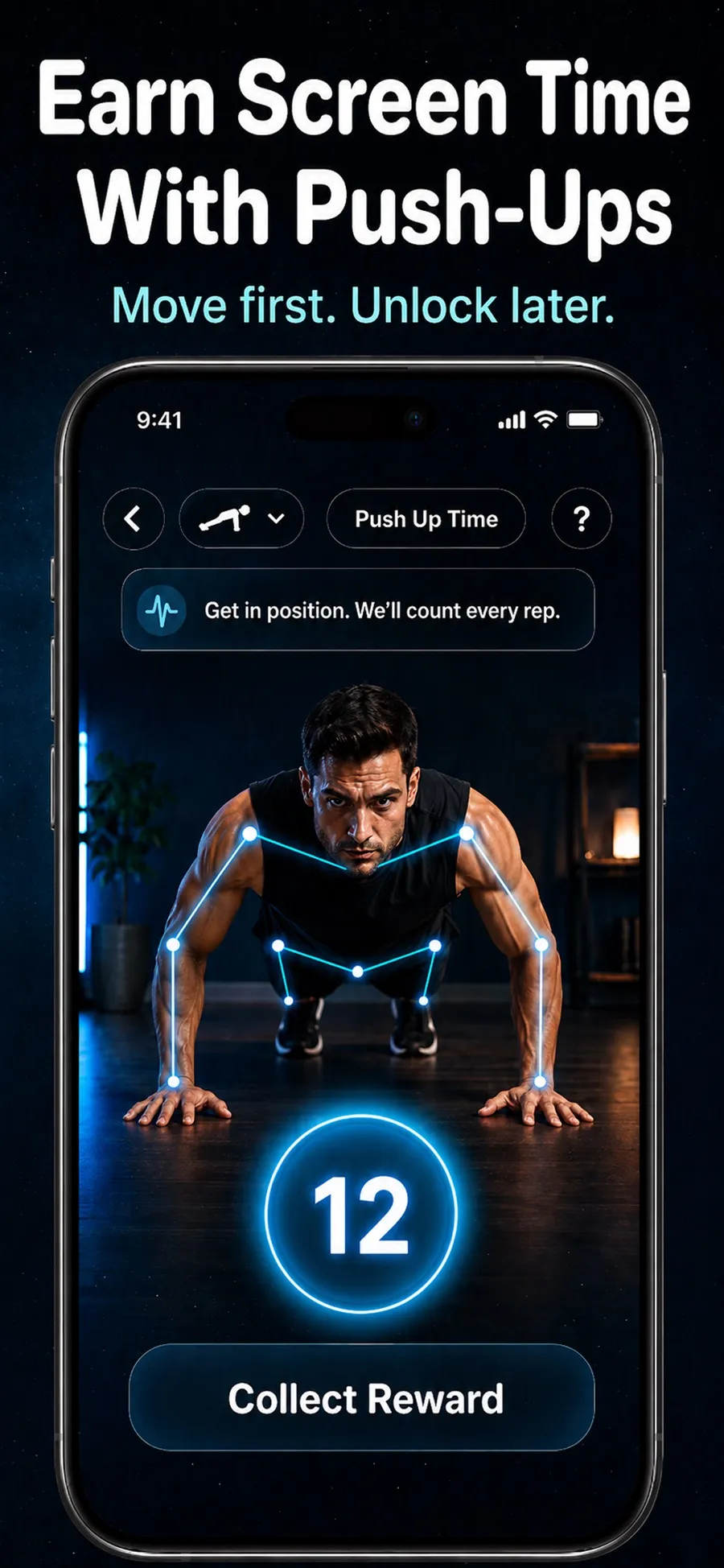
When you open a blocked app, you see how many minutes are left in your balance. When an unlock session ends, the app is blocked again.
Levels and streaks
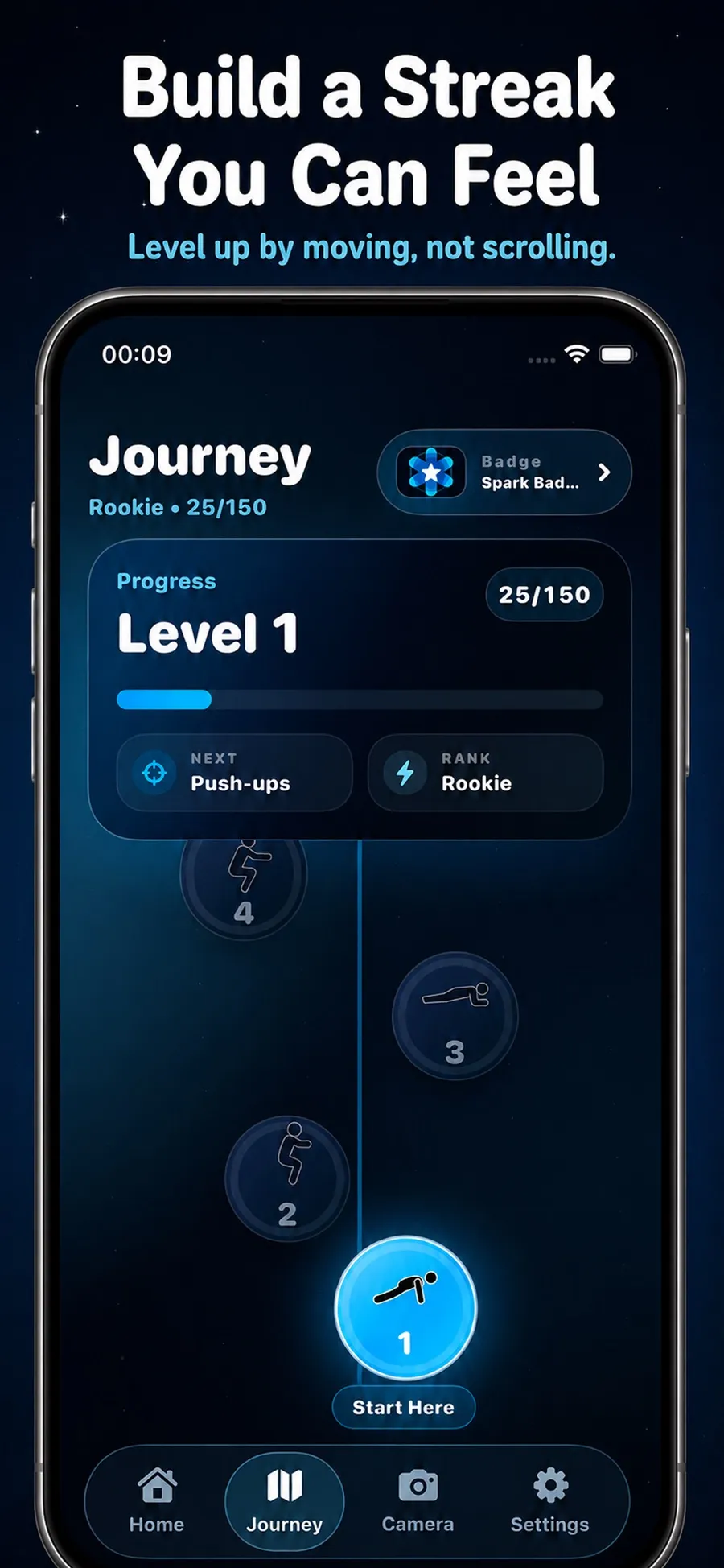
Push Up Time also has a journey with levels, badges and a streak. It’s there to make the routine easier to come back to day after day, not to set training targets.
If your reps aren’t counted
Place your iPhone so the camera can see you, make sure there’s enough light, and follow the on-screen prompt to get in position. A stable spot, like propping the phone against something on the floor or a low shelf, makes it easier to stay in frame.
What the camera sees, and what it keeps
Letting an app use your camera while you exercise is a fair thing to think twice about. In Push Up Time, the camera is used only to detect movement and count reps or hold time. Video isn’t recorded, stored or uploaded.
You also stay in control of the blocking. You can change which apps and websites are blocked in the app, or revoke its Screen Time permission in iOS Settings, at any time. The App Store privacy label lists the data the app does collect, such as fitness data, purchase history, usage data and diagnostics.
Set realistic expectations
Earning screen time with exercise is a habit tool. A few things are worth knowing before you start:
- It adds friction, it doesn’t remove choice. You can always change your blocked apps or turn off the permission. That’s by design, and it means the habit still depends on you.
- Start with the apps that matter most. Block the one or two apps you open on autopilot, rather than everything at once. A setup you actually keep using beats a strict one you switch off after a day.
- Leave the essentials alone. Keep the apps you need for work, travel or staying in touch out of your blocked list, so a quick message never has to wait for a set.
- It isn’t a fitness coaching app. Push Up Time doesn’t give workout plans or form advice. It uses short bursts of movement as a way back into your apps.
If the urge to scroll is the main problem, pair this with the tips in how to stop doomscrolling.
Push Up Time is a free download with in-app purchases, for iPhone.
Quick answers
Can iPhone give you screen time for exercising?
Not on its own. Screen Time can block apps with limits and schedules, but there’s no built-in way to earn time back. An app such as Push Up Time adds that by unlocking blocked apps after a short workout.
Does Push Up Time record video of me?
No. The camera only detects movement to count reps or hold time. Video isn’t recorded, stored or uploaded.
Which exercises earn screen time in Push Up Time?
Push-ups, squats and planks. The camera counts your push-ups and squats, and times your plank.
Can I stop blocking an app later?
Yes. You can change your selection in the app at any time, or revoke Push Up Time’s Screen Time permission in iOS Settings.
