How to delete screenshots on iPhone and keep the ones you need
Updated
To delete screenshots on iPhone in bulk, open Photos, tap Collections, scroll down to Media Types, and tap Screenshots. Tap Select, tap the screenshots you don’t need, then tap the delete button. Screen recordings have their own Screen Recordings collection in the same place.
The hard part isn’t deleting. It’s spotting the few screenshots you still need, like a boarding pass or a receipt, in a long grid of tiny thumbnails. This guide covers both.
iOS steps below were checked against Apple’s iPhone User Guide for iOS 26 and iOS 27.
Before you start
Know what iCloud Photos does. If iCloud Photos is on, deleting a screenshot on your iPhone also deletes it on your other devices signed in to the same Apple Account.
Deleting isn’t instant. Deleted screenshots stay in Recently Deleted for 30 days, so you can recover anything you remove by mistake.
See how much space photos use. Open Settings, tap General, then iPhone Storage. Photos appears in the list with its size.
Find all your screenshots and screen recordings
Every screenshot you save goes to your photo library, mixed in with your camera photos. The Photos app also groups them for you.
- Open Photos and tap Collections.
- Scroll down to Media Types.
- Tap Screenshots, or tap Screen Recordings for videos of your screen.
Screen recordings are saved as videos, so even a few long ones can take up more space than a lot of screenshots. Check that collection too.
Delete screenshots in bulk with the Photos app
- In Photos, open Collections > Media Types > Screenshots.
- Tap Select.
- Tap each screenshot you want to remove. Leave the ones you want to keep unselected.
- Tap the delete button, then confirm.
Repeat the same steps in Screen Recordings.
This works well when most of your screenshots are obvious clutter. With a few hundred or more, it gets harder: the thumbnails are small, many look alike, and it’s easy to select a ticket or a receipt along with the memes.
Keep the screenshots you still need
Before you select anything, think about what tends to hide in a screenshot folder:
- Tickets and boarding passes for trips and events that haven’t happened yet.
- Receipts and order confirmations you might need for a return or a warranty.
- Booking details, addresses and confirmation codes.
- Account or setup info you saved on purpose, like a Wi-Fi network name or a settings screen.
Most other screenshots have done their job once you’ve looked at them: a funny post, a map you already followed, a ticket for a show that’s over.
Check Utilities for receipts. In Photos, tap Collections, scroll down, then tap Utilities. Photos groups some pictures there by what’s in them, such as receipts, handwriting and QR codes. A quick look can remind you which receipts are in your library before you start deleting.
Look closely when you’re unsure. Before you tap Select, open a screenshot to see it full size. Doing that for every one is slow, which is why going through screenshots one at a time can be easier.
Sort screenshots one at a time with Swipe Wipe
Swipe Wipe has a Screenshots category that puts your screenshots in one stack. You see each one full size and decide: keep it or select it for deletion.
- Open Swipe Wipe and allow access to your photo library.
- Tap Screenshots on the home screen.
- Swipe right to keep a screenshot. Swipe left to add it to your selection. If you change your mind, tap Undo.
- When you’re done, look over your selection and tap any screenshot you want to keep after all.
- Confirm. iOS asks you to allow the deletion before anything is removed.
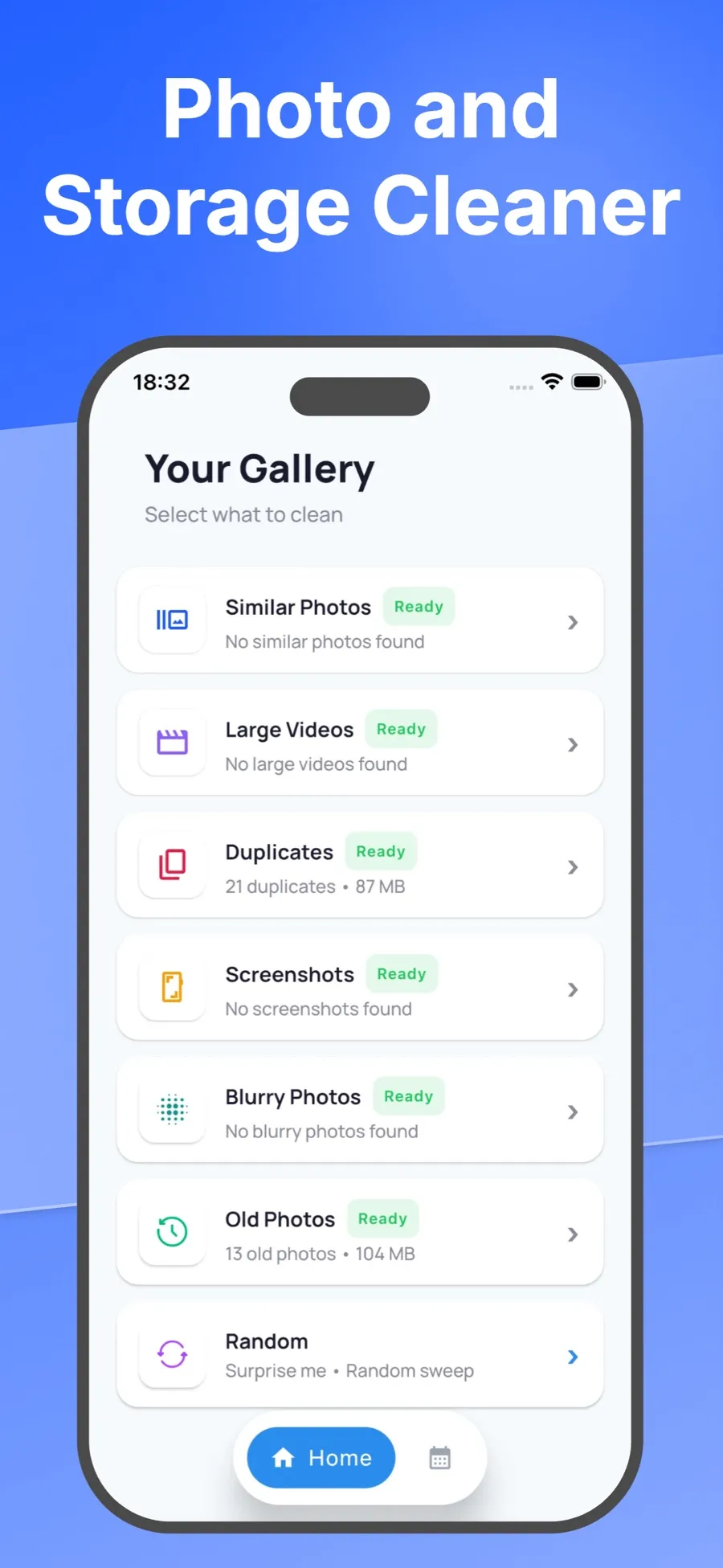
Swiping left only marks a screenshot. Nothing is deleted until you check your selection and confirm, so a boarding pass you swiped past too quickly can still be put back.
The Screenshots category covers screenshots only. Screen recordings are videos, so larger ones show up with your other big clips in Large Videos.
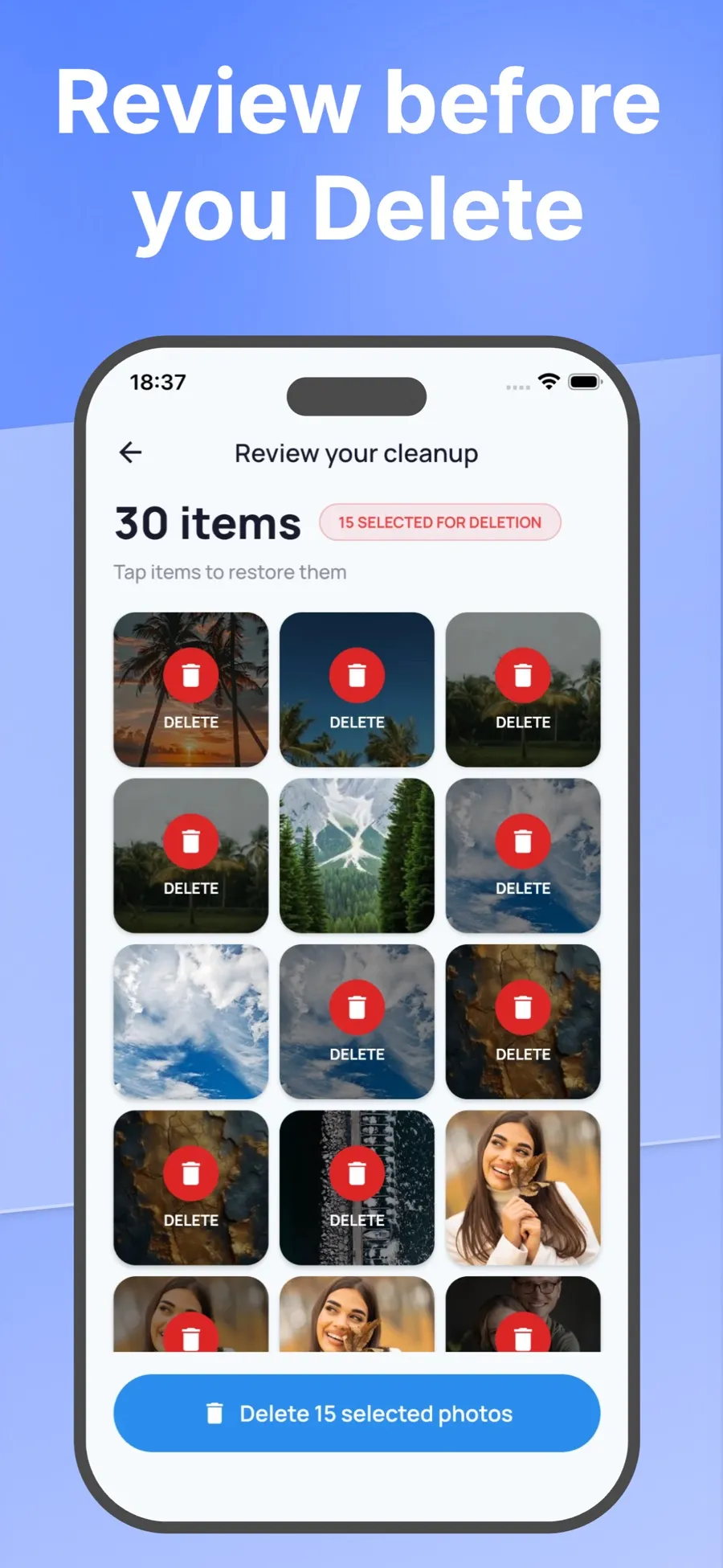
Deleted screenshots go to Recently Deleted in the Photos app, just like when you delete them in Photos. Swipe Wipe analyzes your photos on your iPhone. They aren’t uploaded to a server.
If you’d rather clean up more than screenshots, see how to swipe through and delete unwanted photos.
Get back a screenshot you deleted by mistake
- Open Photos and tap Collections.
- Tap Recently Deleted (below Utilities), tap View Album, then unlock with Face ID, Touch ID or your passcode.
- Tap Select, choose the screenshots, tap the More button, then tap Recover.
Items stay in Recently Deleted for 30 days. After that, they’re gone from your iPhone and iCloud.
Keep screenshots from piling up
- Delete one-off screenshots right away. If a thumbnail appears in the corner after you take a screenshot, you can tap it and delete the screenshot from there instead of keeping it.
- Clear screenshots once a month. A month’s worth is small enough to sort in a few minutes.
- Clear out after a trip. Once you’re home, the boarding passes and booking screenshots can usually go.
Quick answers
Does deleting screenshots free up space right away?
Not completely. Deleted screenshots stay in Recently Deleted for 30 days. To remove them sooner, open Recently Deleted, tap Select, choose the items, tap the More button, then tap Delete.
Will deleting screenshots on my iPhone delete them from iCloud?
Yes, if iCloud Photos is on. The screenshots are deleted on every device signed in to the same Apple Account, and they stay in Recently Deleted for 30 days first.
Where are screen recordings saved on iPhone?
In your photo library. In Photos, tap Collections, scroll down to Media Types, then tap Screen Recordings.
Can I delete all my screenshots at once?
In Photos, open the Screenshots collection, tap Select and tap each one you want to remove. If you have a lot to get through, reviewing them one at a time in a swipe app such as Swipe Wipe makes it easier to keep the few you still need.
