How to find and delete duplicate photos on iPhone
Updated
To find duplicate photos on iPhone, open Photos, tap Collections, then tap Utilities and Duplicates. Tap Merge on a set to keep one copy and move the rest to Recently Deleted. Similar shots that aren’t exact copies, like several frames of the same moment, won’t show up there, so you sort those yourself.
iOS steps below were checked against Apple’s iPhone User Guide for iOS 26 and iOS 27.
Before you start
Know what iCloud Photos does. If iCloud Photos is on, deleting a photo on your iPhone also deletes it on your other devices signed in to the same Apple Account. Download anything you want to keep elsewhere first.
Deleting isn’t instant. Deleted photos and videos stay in Recently Deleted for 30 days before they’re removed for good, so a mistake can be undone.
See how much space photos use. Open Settings, tap General, then iPhone Storage. Photos appears in the list with its size, so you can check it again after you clean up.
Merge duplicates in the Photos app
The Photos app looks for duplicate photos and videos on its own and gathers them in the Duplicates collection.
- Open Photos and tap Collections.
- Tap Utilities, then tap Duplicates.
- Tap Merge on a set of duplicates.
- Tap Merge [number] Items to confirm.
Repeat for each set you want to clean up. Take a quick look at each set before you merge, especially if the copies came from different places, such as a photo you saved from a message and the original you took.
What Merge does
Merging doesn’t just delete the extras. According to Apple, your iPhone combines the highest image quality and relevant data into one photo that stays in your library. The other copies move to Recently Deleted, where they stay for 30 days.
That makes Merge the safest first step for exact copies: you end up with one photo, and nothing is gone for good right away.
When Duplicates doesn’t appear
If you don’t have any duplicate photos or videos, the Duplicates collection doesn’t appear in Utilities. Apple also notes that duplicate detection runs automatically and may take some time, so if you’ve just imported a lot of photos, check back later.
What Duplicates won’t catch
Duplicates is built for copies of the same photo or video. Photos that only look alike are a different problem:
- Similar shots. Five frames of the same group photo, or a dozen tries at the same sunset.
- Bursts and near-repeats. Photos taken a second apart, where only one is worth keeping.
- Slightly different versions. A crop or edit you saved as a separate photo, next to the original.
These usually aren’t treated as duplicates, and you probably don’t want them merged anyway. Picking the best shot is a judgment call: whose eyes are open, which one is sharp, which framing you like. That part is up to you.
You can do it in Photos: open your library, tap Select, tap the photos you don’t want, then tap the delete button. It works, but in a big library it’s easy to lose track of which near-identical photo you picked.
Sort duplicates and similar photos with Swipe Wipe
Swipe Wipe groups your library so you can review copies and lookalikes one photo at a time. Two of its categories are made for this:
- Duplicates brings up exact copies of the same photo.
- Similar Photos brings up shots that look alike, so you can keep the one you like and select the rest.
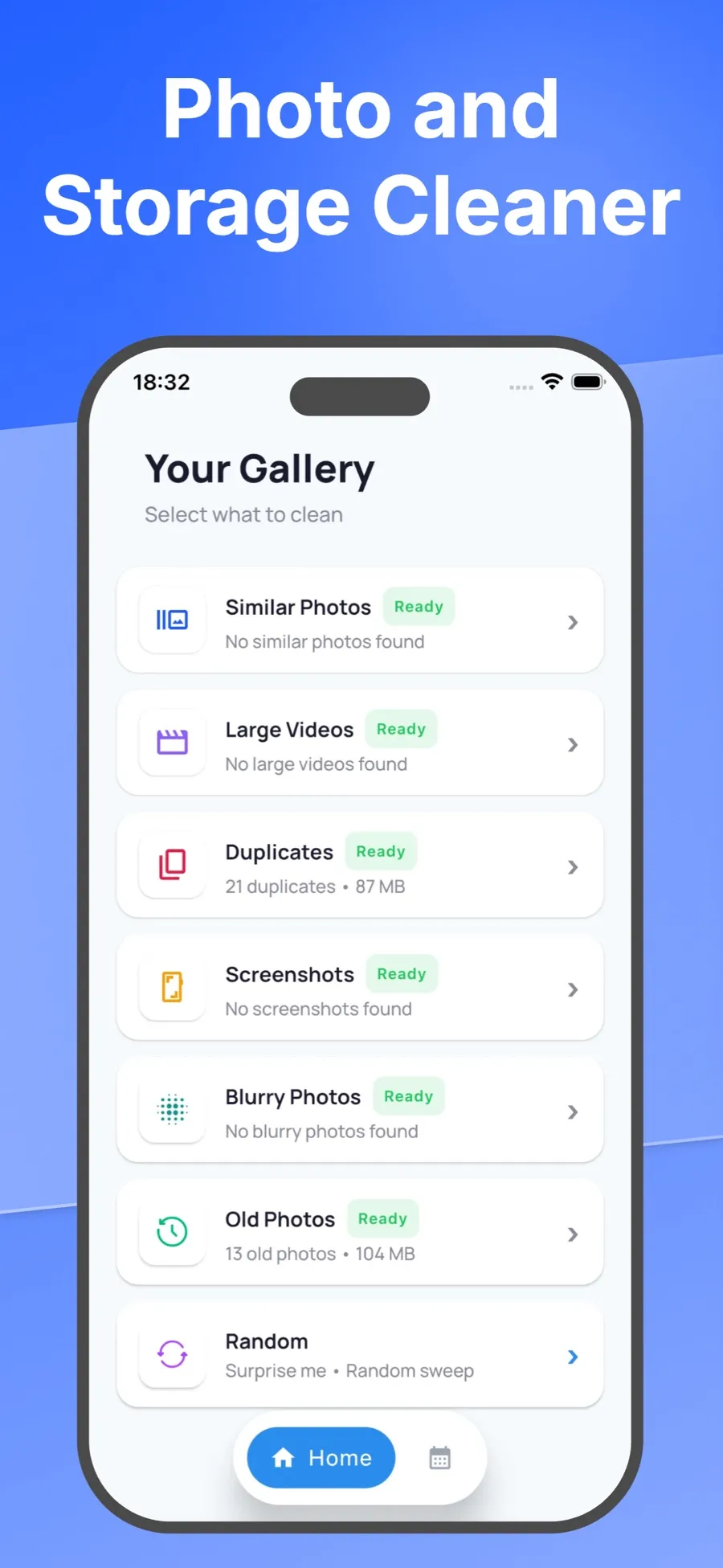
- Open Swipe Wipe and allow access to your photo library.
- Tap Duplicates or Similar Photos.
- Swipe right to keep a photo. Swipe left to add it to your selection. If you change your mind, tap Undo.
- When you’re done, look over your selection and tap any photo you want to keep after all.
- Confirm. iOS asks you to allow the deletion before anything is removed.
Swiping left only marks a photo. Nothing is deleted until you check your selection and confirm. Deleted photos go to Recently Deleted in the Photos app, just like photos you delete there.
One difference to keep in mind: Swipe Wipe deletes the photos you select. It doesn’t combine data from several copies into one, the way Merge does. For exact copies, a good order is to run Merge in Photos first, then use Swipe Wipe’s Similar Photos to sort the lookalikes Photos leaves behind.
Swipe Wipe analyzes your photos on your iPhone. They aren’t uploaded to a server. It’s a free download with in-app purchases, for iPhone and iPad. For a broader cleanup, see how to swipe through and delete unwanted photos.
Get back a photo you deleted by mistake
Whether you merged it or deleted it, the photo waits in Recently Deleted for 30 days.
- Open Photos and tap Collections.
- Tap Recently Deleted (below Utilities), tap View Album, then unlock with Face ID, Touch ID or your passcode.
- Tap Select, choose the photos, tap the More button, then tap Recover.
After 30 days, items are removed from your iPhone and from iCloud.
Quick answers
Does merging duplicates delete photos on iPhone?
Yes, but not right away. Merge keeps one photo in your library and moves the other copies to Recently Deleted, where you can recover them for 30 days.
Why can’t I find Duplicates in the Photos app?
The Duplicates collection only appears when Photos has found duplicates in your library. Detection runs on its own and can take a while after you add a lot of new photos.
Does Duplicates find similar photos?
Usually not. Duplicates is for copies of the same photo or video. Shots that only look alike, like several frames of one moment, stay in your library for you to sort.
Is it safe to delete duplicate photos if I use iCloud Photos?
With iCloud Photos on, deletions sync to your other devices on the same Apple Account. Because deleted items stay in Recently Deleted for 30 days, you still have time to recover something you removed by mistake.
