Similar vs duplicate photos on iPhone, and how to pick the best
Updated
A duplicate is a copy of the same photo, like an image you saved twice. A similar photo is a separate shot of the same moment, like the five frames you took to get one group picture right. The Photos app’s Duplicates collection is built to merge copies, so near-identical shots stay in your library until you choose the one to keep.
iOS steps below were checked against Apple’s iPhone User Guide for iOS 26 and iOS 27.
What’s the difference between duplicate and similar photos?
Duplicates are the same picture more than once. They usually come from saving an image you already have, importing the same photos twice, or saving a photo someone sent back to you. Keeping more than one copy adds nothing, so merging them is an easy call.
Similar photos are different pictures that look almost the same. You pressed the shutter several times, held it down for a burst, or took the same view from a slightly different angle. Each frame is its own photo. One might be sharp and another a little soft. Someone might blink in one and smile in the next.
That difference matters when you clean up. With duplicates, any copy will do. With similar photos, someone has to look and decide which frame is best.
Why the Duplicates collection skips similar shots
Apple describes Duplicates as the place where Photos identifies duplicate photos and videos so you can merge them. When you merge a set, one photo stays where the set was, and the extra copies go to Recently Deleted.
That works because the copies are interchangeable. Similar shots aren’t. Choosing between two frames of the same moment depends on things only you can judge, like whose expression you like best. So separate shots of the same scene generally aren’t grouped in Duplicates, and they’re left for you to sort.
Merge true duplicates first
Clearing out copies first means you won’t have to compare the same photo twice later.
- Open Photos and tap Collections.
- Tap Utilities, then Duplicates.
- Tap Merge on a set, then tap Merge [number] Items.
If you have no duplicates, the Duplicates collection doesn’t appear.
Sort burst photos in the Photos app
Bursts are the most common source of similar shots, and the Photos app has a built-in way to pick frames from them.
- In Photos, open a burst, then tap Burst with the number of shots.
- Look for the gray dots below the thumbnails. They mark the photos Photos suggests keeping.
- Tap the circle in the lower-right corner of each photo you want to save as its own photo, then tap Done.
On iOS 27, you can also rate photos. In Photos, tap Collections, tap your Apple Account profile at the top, and turn on Show Ratings Controls. Then you can give photos 1 to 5 stars and filter your library by rating. It’s a handy way to mark keepers before you delete the rest.
How to pick the keeper from a set of similar photos
When the frames look the same at thumbnail size, open each one full screen and go through the same checks in the same order. Most sets are decided by the first two.
1. Focus. Zoom in on the part that matters most, usually a face or the main subject. Pick the frame where it’s sharp. A little blur that’s easy to miss on a small screen will show on a bigger one or in a print.
2. Eyes. In photos of people, check that everyone’s eyes are open and looking roughly the right way. In group shots, this rules out most frames on its own.
3. Expression. Of the sharp, eyes-open frames, choose the most natural face: a real smile, a relaxed look, nobody mid-word or mid-sneeze.
4. Framing. Check that nothing important is cut off at the edges, the horizon is level, and nobody is half out of the shot. Small framing problems can often be fixed with a crop, so treat this as a tiebreaker.
5. Light and motion. Prefer the frame with the fewest blown-out highlights or dark faces, and no one blurred because they moved.
If two frames are equally good, keep one. Pick the one you’d share and let the other go. If you can’t decide, keeping two is fine. That still beats keeping eight.
Sort similar photos one set at a time with Swipe Wipe
Going through similar shots set by set takes a while in a big library. Swipe Wipe gathers near-identical shots into a Similar Photos category, so you can go through them in one place and keep only the frame you want.
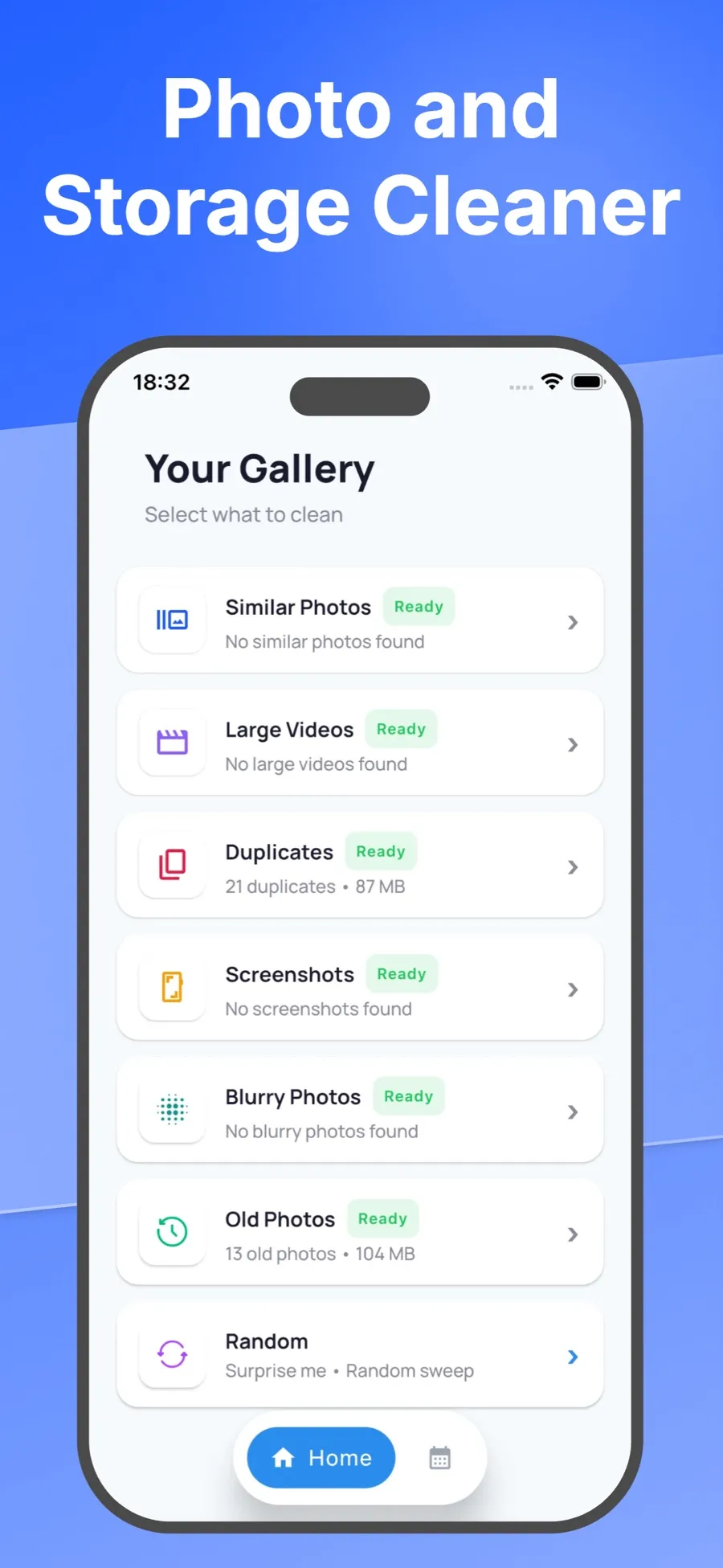
- Open Swipe Wipe and tap Similar Photos.
- Photos from the same set come up one after another. Swipe right on the keeper.
- Swipe left on the other frames to add them to your selection. If you change your mind, tap Undo.
- When you’re done, look over your selection and tap any photo you want to keep after all.
- Confirm. iOS asks you to allow the deletion before anything is removed.
Swipe Wipe finds the sets, but you choose the keeper, using the checks above. Swiping left only marks a photo, and deleted photos go to Recently Deleted, where they stay for 30 days.
Swipe Wipe also has a Duplicates category for exact copies, and you can review your library month by month. It analyzes your photos on your iPhone, and they aren’t uploaded to a server. For a full walkthrough of swiping through your library, see how to swipe through and delete unwanted photos.
Quick answers
Does iPhone detect similar photos?
The Duplicates collection in Photos finds duplicate photos and videos so you can merge them. Separate shots of the same moment are left for you to sort. Bursts have their own picker that suggests frames to keep.
Is merging duplicates safe?
Merging keeps one photo from the set, and the removed copies go to Recently Deleted. You can recover them from there for 30 days.
Should I keep more than one similar photo?
Usually one is enough. Keep a second only if it shows something different, like another person’s best expression.
If I delete similar photos on my iPhone, are they deleted from iCloud too?
Yes, if iCloud Photos is on. Photos you delete are removed from your other devices signed in to the same Apple Account.
