How to swipe through and delete unwanted photos on iPhone
Updated
The quickest way to clean up an iPhone photo library is to look at one small batch at a time, decide keep or delete for each photo, and confirm the deletions at the end. You can do this in the Photos app with Select, or with a swipe app that shows one photo at a time.
iOS steps below were checked against Apple’s iPhone User Guide for iOS 26 and iOS 27.
Before you start
See how much space photos use. Open Settings, tap General, then iPhone Storage. Photos appears in the list with its size.
Know what iCloud Photos does. If iCloud Photos is on, deleting a photo on your iPhone also deletes it on your other devices signed in to the same Apple Account. Download anything you want to keep elsewhere first.
Deleting isn’t instant. Deleted photos and videos stay in Recently Deleted for 30 days before they’re removed for good, so a mistake can be undone.
Clean up with the Photos app
Merge duplicates
The Photos app finds exact duplicates for you.
- Open Photos and tap Collections.
- Tap Utilities, then Duplicates.
- Tap Merge on a set, then confirm.
If you have no duplicates, the Duplicates collection doesn’t appear. Duplicates looks for copies of the same photo. Similar shots, like several frames of the same moment, are left for you to sort.
Find screenshots and videos
Screenshots and long videos are usually the easiest wins. In Photos, tap Collections, scroll down, and tap Media Types. Open Screenshots or Videos, tap Select, tap the items you don’t need, then tap the delete button.
Delete in bulk
Open your library or any collection, tap Select, then tap each photo you want to remove. Tap the delete button when you’re done.
Bulk selection is fast, but it’s easy to lose track of what you picked when you’re scrolling through thousands of photos. That’s where reviewing one photo at a time helps.
Swipe through photos one at a time
Swiping turns cleanup into a series of small decisions: look at the photo, keep it or set it aside, move on. Swipe Wipe works this way.
- Open Swipe Wipe and allow access to your photo library.
- Pick what to review: a month, or a group such as duplicates, similar photos, screenshots, blurry photos, large videos or old photos.
- Swipe right to keep a photo. Swipe left to add it to your selection. If you change your mind, tap Undo.
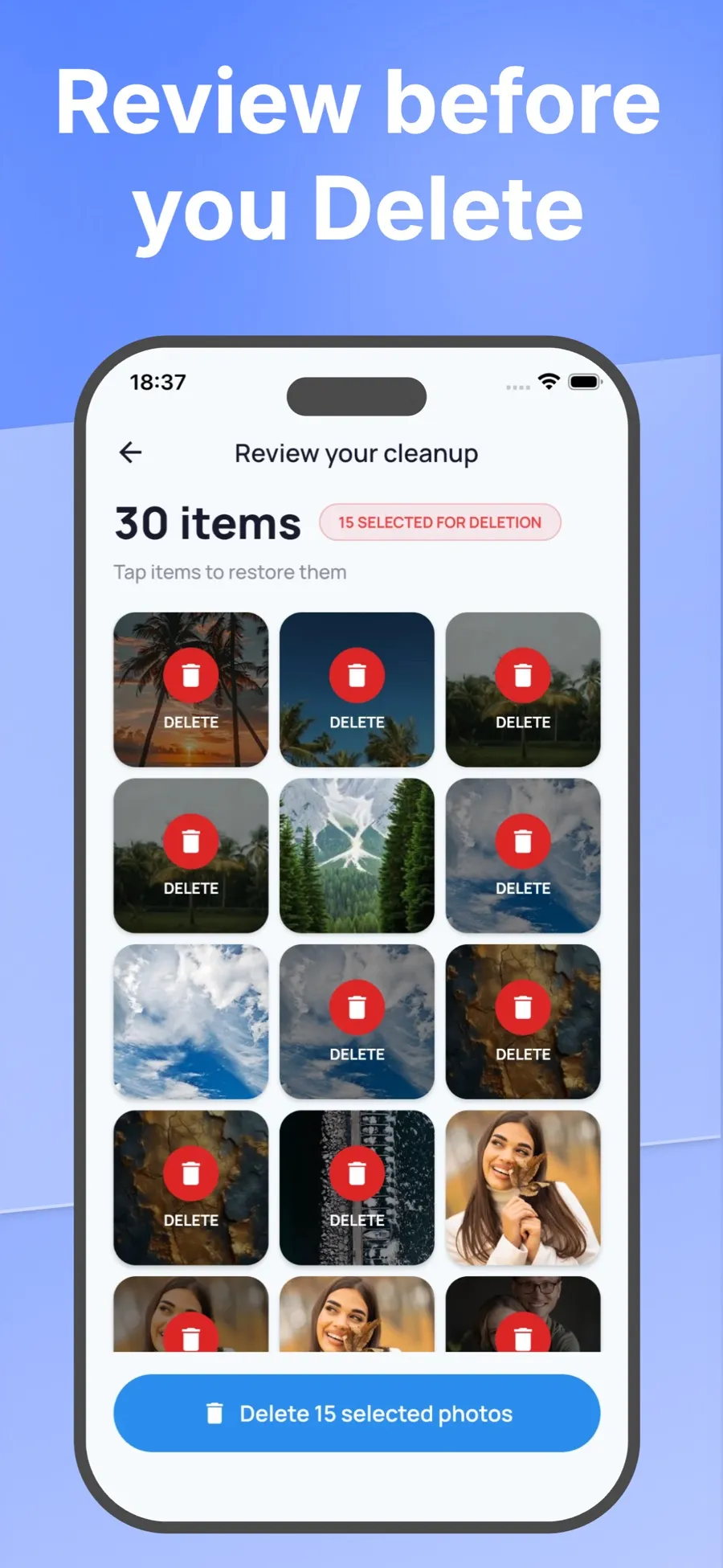
- When you’re done, look over your selection and tap any photo you want to keep after all.
- Confirm. iOS asks you to allow the deletion before anything is removed.
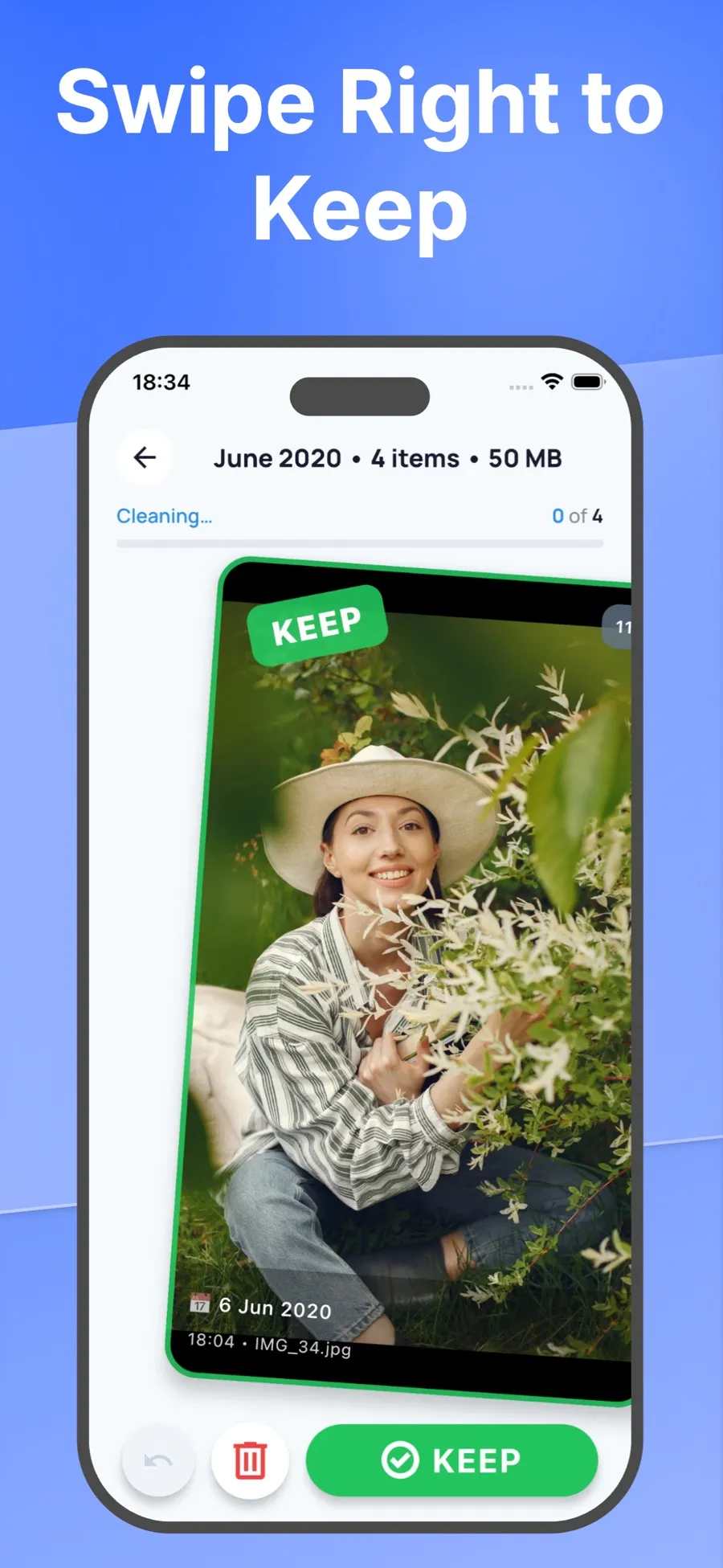
Swiping left only marks a photo. Nothing is deleted until you check your selection and confirm, so you can move quickly without worrying about one wrong swipe.
Swipe Wipe analyses your photos on your iPhone. They aren’t uploaded to a server.
Get back a photo you deleted by mistake
- Open Photos and tap Collections.
- Tap Recently Deleted (below Utilities), tap View Album, then unlock with Face ID, Touch ID or your passcode.
- Tap Select, choose the photos, tap the More button, then tap Recover.
Items stay in Recently Deleted for 30 days. After that, they’re gone from your iPhone and iCloud.
Tips for a faster cleanup
- Start where the clutter is obvious. Screenshots, duplicates and bursts are easy calls.
- Work one month at a time. A month is small enough to finish in one sitting.
- Keep the best shot, not every shot. In a set of similar photos, pick your favorite and let the rest go.
- Look at large videos. One long video can take as much space as a large batch of photos.
