iPhone storage full? What to delete first in Photos
Updated
When your iPhone storage is full, start with large videos, then screenshots, then duplicates and similar shots, then blurry photos. Videos usually free the most space per item, and the rest are easy calls. When you’re done, remove what you deleted from Recently Deleted, because deleted photos stay on your iPhone for 30 days.
iOS steps below were checked against Apple’s iPhone User Guide for iOS 26 and iOS 27.
See what’s using your storage
Open Settings, tap General, then tap iPhone Storage. The available storage is shown at the top of the screen, with a list of apps and how much space each one uses. Photos appears in that list with its size.
Your iPhone may also show recommendations above the list. Tap Show All to see them, then read each one: tap Enable to turn a recommendation on, or tap it to review what you could delete.
If Photos isn’t near the top, your space is going elsewhere: the same screen lets you offload or delete apps, and System is space used by iOS itself. The rest of this guide is about photos and videos.
Why deleting photos doesn’t free space right away
When you delete a photo or video, it moves to Recently Deleted and stays there for 30 days before it’s permanently removed from your iPhone, iCloud and your other devices. Until then, it’s still on your iPhone. So if you delete a few gigabytes of videos and check iPhone Storage straight away, you may not see much change.
Recently Deleted is your safety net, so empty it last, after you’re sure about what you removed.
- Open Photos and tap Collections.
- Tap Recently Deleted (below Utilities), tap View Album, then unlock with Face ID, Touch ID or your passcode.
- Tap Select and choose the items you want to remove for good.
- Tap the More button, tap Delete, then confirm.
Items you delete from Recently Deleted can’t be recovered.
If you use iCloud Photos, anything you delete is deleted on all your devices signed in to the same Apple Account. Save a copy elsewhere first if you want to keep it.
Turn on Optimize iPhone Storage
If you use iCloud Photos, Optimize iPhone Storage keeps your full-resolution photos and videos in iCloud and stores space-saving versions on your iPhone. It’s on by default, but it’s worth checking.
- Open Settings, tap your name, then tap iCloud.
- Tap Photos and make sure Sync this iPhone is on.
- On iOS 27, tap iPhone Storage. On iOS 26, stay on the Photos screen.
- Make sure Optimize iPhone Storage is selected, not Download and Keep Originals.
It depends on having enough iCloud storage for your library. iCloud includes 5 GB of free storage, and you can upgrade to iCloud+ for more. If your iCloud storage is full, deleting what you don’t need helps both your iPhone and iCloud.
What to delete first
1. Large videos
Videos are usually the biggest files in your library, so a few long clips can free more space than a lot of photos. In Photos, tap Collections, scroll down, tap Media Types, then tap Videos. To see how big a video is, open it and swipe up. The details include the file size.
Look for long clips you recorded by accident, videos you’ve already shared or saved somewhere else, and several takes of the same moment.
2. Screenshots
Screenshots pile up fast: tickets, receipts, directions, codes you needed once. In Photos, tap Collections, scroll down to Media Types, then tap Screenshots. Tap Select, tap the ones you no longer need, then tap the delete button.
3. Duplicates and similar shots
The Photos app finds duplicates for you.
- Open Photos and tap Collections.
- Tap Utilities, then tap Duplicates.
- Tap Merge on a set, then confirm.
Merging keeps one copy and moves the others to Recently Deleted. If you have no duplicates, the Duplicates collection doesn’t appear.
Similar shots are different: five frames of the same sunset aren’t duplicates, so Photos leaves them for you. Pick the best one and let the rest go.
4. Blurry photos
Shaky, out-of-focus and pocket shots rarely get looked at again. In Photos, you find them by scrolling through your library, tapping Select and picking them one by one.
Let Swipe Wipe bring the clutter to you
Large videos, screenshots, similar shots and blurry photos are spread across your whole library. Swipe Wipe gathers them into groups, so you can work through the same order without hunting.
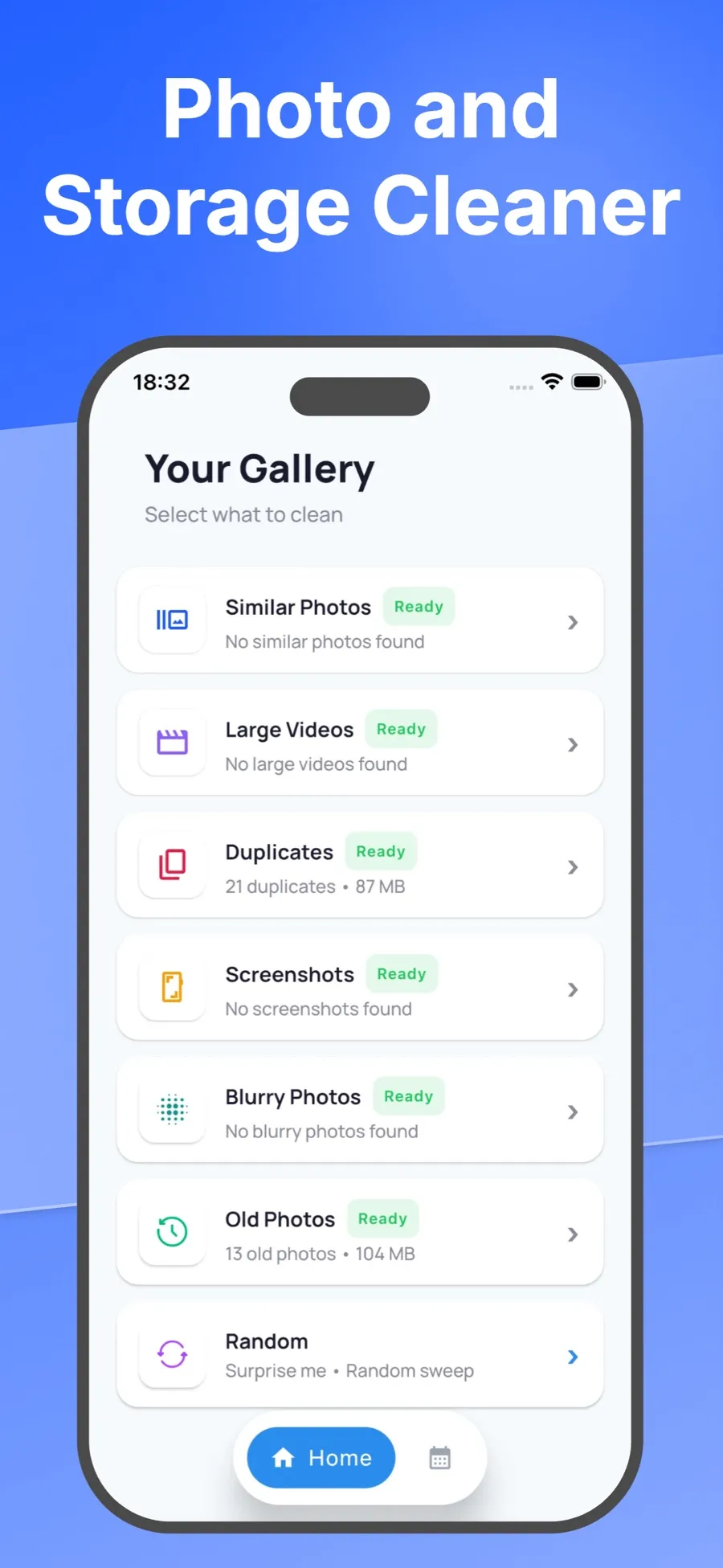
- Open a group, starting with Large Videos.
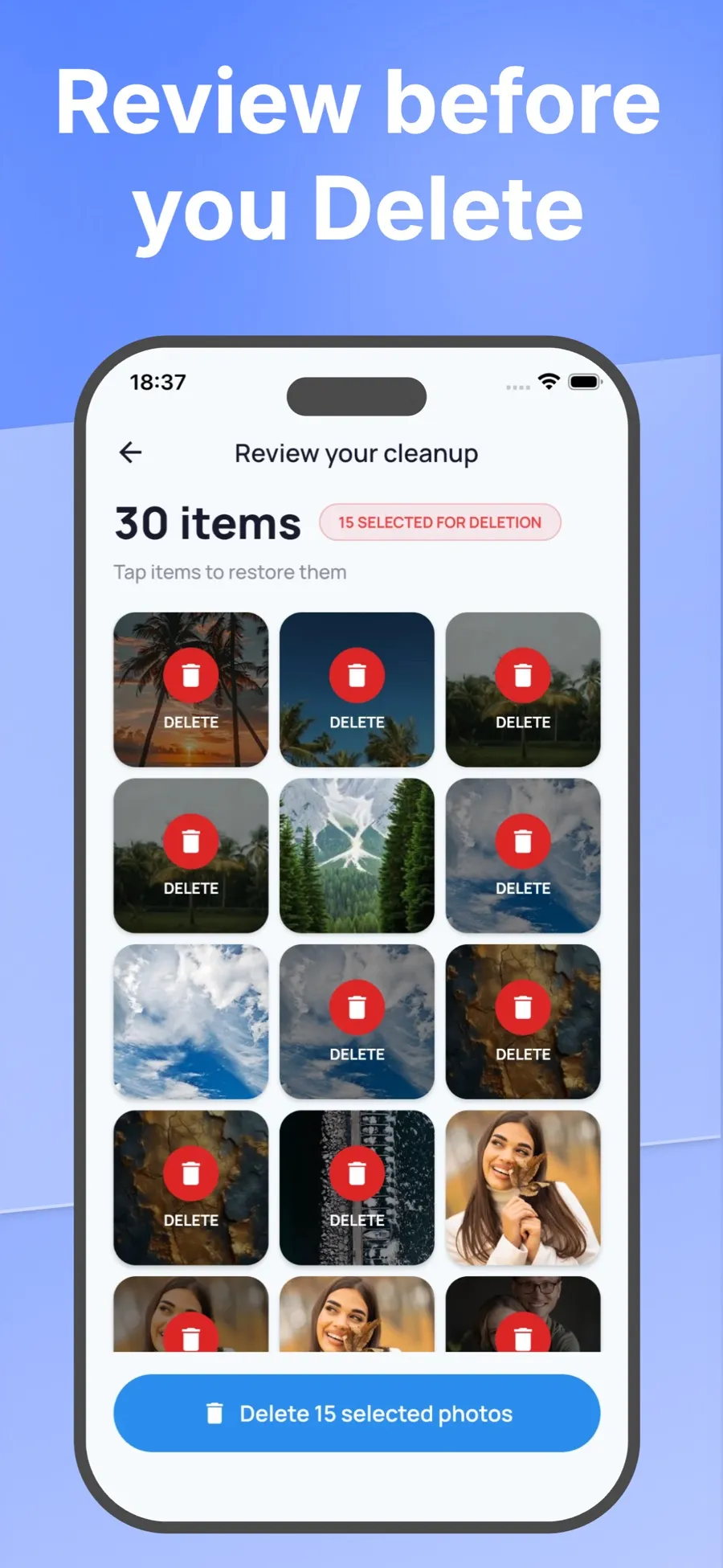
- Swipe right to keep a photo or video. Swipe left to add it to your selection. Tap Undo if you change your mind.
- Look over your selection and tap anything you want to keep after all.
- Confirm. iOS asks you to allow the deletion before anything is removed.
Then move on to Screenshots, Duplicates, Similar Photos and Blurry Photos. If you’d rather go through your library in order, review it month by month.
Swipe Wipe analyzes your photos on your iPhone, and they aren’t uploaded to a server. Items it deletes go to Recently Deleted like any other deletion, so empty that collection when you’re done to get the space back. For more on the swipe approach, see how to swipe through and delete unwanted photos.
Quick answers
I deleted lots of photos. Why is my storage still full?
They’re still in Recently Deleted, where they stay for 30 days. Open Photos, tap Collections, then Recently Deleted, and delete the items you’re sure about.
Does deleting a photo on my iPhone delete it from iCloud?
Yes, if iCloud Photos is on. The photo moves to Recently Deleted on all your devices signed in to the same Apple Account, and it’s removed from iCloud after 30 days, or sooner if you delete it from Recently Deleted.
Should I delete photos or turn on Optimize iPhone Storage?
If you use iCloud Photos, check that Optimize iPhone Storage is on first. Deleting what you don’t need still helps, especially when your iCloud storage is full too.
What takes up more space, photos or videos?
Videos. They’re usually the biggest files in your library, which is why large videos are the best place to start. To check one, open it in Photos and swipe up to see its file size.
