How to find large videos taking up space on iPhone
Updated
To find large videos on iPhone, open Photos, tap Collections, scroll down to Media Types and tap Videos. Photos can’t sort that list by file size or length, so open a video and swipe up to see its file size. To have your biggest videos gathered for you, use an app that groups them, such as Swipe Wipe’s Large Videos category.
iOS steps below were checked against Apple’s iPhone User Guide for iOS 26 and iOS 27.
Check how much space photos and videos use
Open Settings, tap General, then iPhone Storage. Your available storage is at the top, and Photos appears in the list with its size. Videos count toward that number, so if Photos is near the top of the list, your videos are a good place to start.
Find your videos in the Photos app
- Open Photos and tap Collections.
- Scroll down to Media Types.
- Tap Videos. If you don’t see it, tap Media Types to see the full list.
You may also find Videos in the Pinned collection at the top of Collections. You can also filter the main library so it shows only videos, using the sort and filter button.
Can Photos sort videos by size?
No. In iOS 26 and iOS 27, the library sorts by the date items were added or the date they were taken, and a collection sorts by newest or oldest first. There’s no option to sort or filter by file size or by video length.
That means you’ll need to judge size another way: long clips, 4K recordings and slow-motion videos tend to be the big ones. To check a specific video, look at its details.
Check a video’s file size
- Open a video in Photos.
- Swipe up, or tap the Info button.
- Look for the file size in the camera details, next to things like the lens.
Swipe down to close the details and move on to the next video.
Keep a copy before you delete
A video you deleted can’t be brought back after the Recently Deleted window ends, so save the ones that matter before you clear them out.
Know what iCloud Photos does. If iCloud Photos is on, deleting a video on your iPhone also deletes it on your other devices signed in to the same Apple Account. That means iCloud Photos alone isn’t a backup for something you’re about to delete.
Copy it somewhere else first. Move videos you want to keep to a computer, an external drive or another storage service you trust, and check that the copy plays before you delete the original.
Consider Optimize iPhone Storage. If you use iCloud Photos, this setting keeps your full-resolution photos and videos in iCloud and storage-saving versions on your iPhone. It’s on by default, so check your iCloud Photos settings if you turned it off.
You have 30 days to change your mind. Deleted videos stay in Recently Deleted for 30 days before they’re removed for good.
Find large videos with Swipe Wipe
Scrolling through every video and checking each file size takes a while. Swipe Wipe has a Large Videos category that brings your big videos together, with the ones taking up the most room first.
- Open Swipe Wipe and allow access to your photo library.
- Tap Large Videos on the home screen.
- Swipe right to keep a video. Swipe left to add it to your selection. If you change your mind, tap Undo.
- When you’re done, look over your selection and tap any video you want to keep after all.
- Confirm. iOS asks you to allow the deletion before anything is removed.
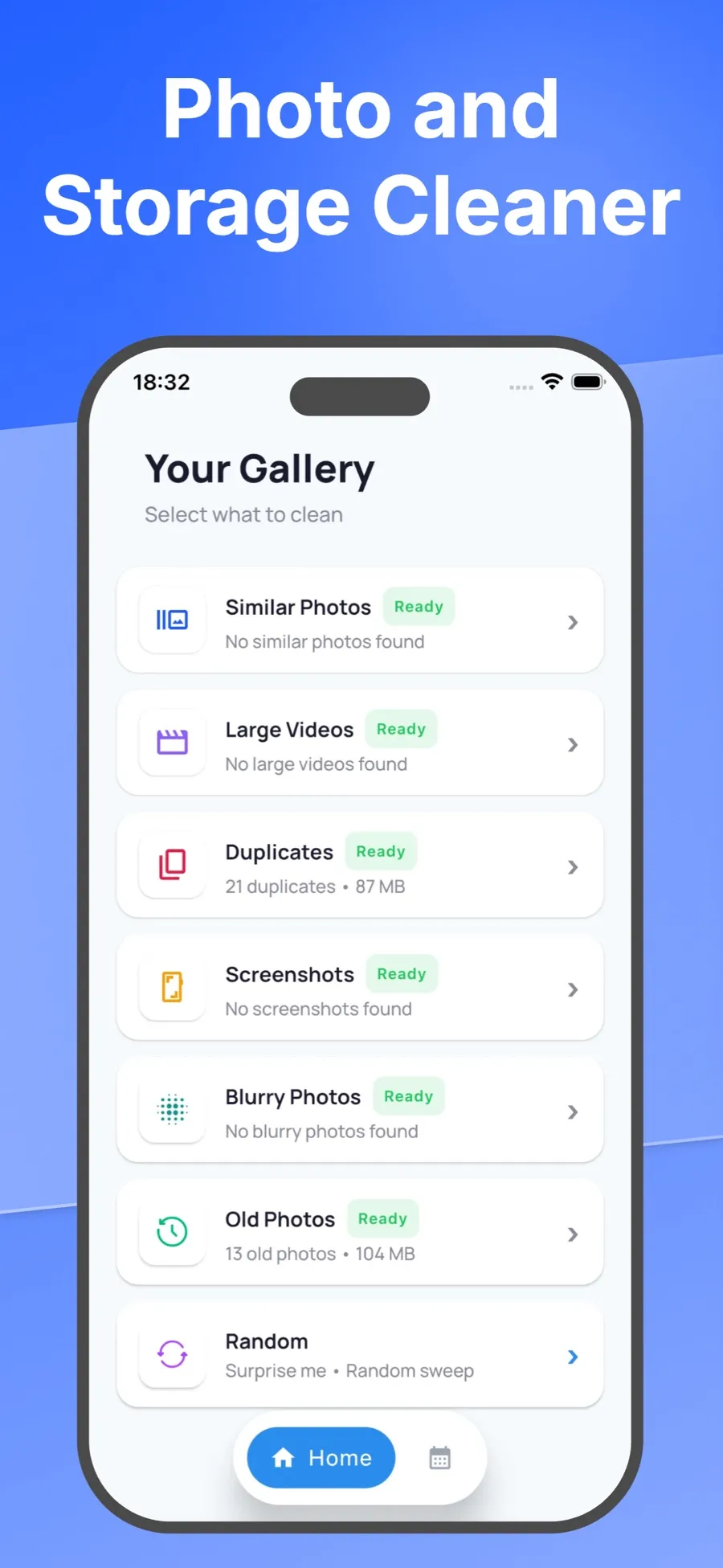
Swiping left only marks a video. Nothing is deleted until you check your selection and confirm, and deleted videos go to Recently Deleted in the Photos app like any other deletion.
Swipe Wipe analyzes your library on your iPhone. Your photos and videos aren’t uploaded to a server. If you’d rather sort photos the same way, see how to swipe through and delete unwanted photos.
Record smaller videos from now on
Your camera settings decide how much space each new video takes. Apple notes that faster frame rates and higher resolutions result in larger video files.
Choose your default format. Open Settings, tap Camera, then tap Record Video, and pick from the formats and frame rates your iPhone supports. A lower resolution or frame rate gives you smaller files. A higher one gives you more detail for the moments you care about.
Switch format for one video. In the Camera app, select Video mode and tap the resolution and frame rate values at the top of the screen. This is handy if you usually record at a lower setting but want more detail for a special occasion.
Leave ProRes off unless you need it. On supported models, ProRes offers higher color fidelity and less compression, and Apple notes that ProRes videos result in larger file sizes. It’s under Settings > Camera > Formats > Apple ProRes.
Check slow motion and Cinematic settings. Slo-mo and Cinematic mode have their own settings, under Record Slo-mo and Record Cinematic in Settings > Camera.
Get back a video you deleted by mistake
- Open Photos and tap Collections.
- Tap Recently Deleted (below Utilities), tap View Album, then unlock with Face ID, Touch ID or your passcode.
- Tap Select, choose the videos, tap the More button, then tap Recover.
Items stay in Recently Deleted for 30 days. After that, they’re gone from your iPhone and iCloud.
Quick answers
Can I sort videos by size in the Photos app?
No. Photos sorts by date only. Open a video and swipe up to see its file size, or use an app that groups large videos for you.
Does deleting a video on my iPhone delete it from iCloud?
Yes, if iCloud Photos is on. The video is deleted on every device signed in to the same Apple Account, so copy it somewhere else first if you want to keep it.
Will changing my camera settings shrink videos I already have?
No. The settings in Record Video change how new videos are recorded. Videos already in your library stay the same size.
Where do deleted videos go?
To Recently Deleted in the Photos app, where they stay for 30 days. You can recover them during that time.
