How to delete burst photos on iPhone and keep the best ones
Updated
To clean up a burst on iPhone, open it in Photos, tap Burst (with the number of photos), tap the circle on each frame you want to keep, then tap Done. Your picks are saved as individual photos. Once they show up in your library, you can delete the whole burst to get rid of the frames you didn’t pick.
iOS steps below were checked against Apple’s iPhone User Guide for iOS 26 and iOS 27.
What a burst is
Burst mode takes many photos in rapid succession, so you have a range of shots of a moving subject to choose from. You take a burst by swiping the Shutter button to the left in the Camera app and holding it; the burst stops when you lift your finger. If Use Volume Up for Burst is on, pressing and holding the volume up button takes a burst too.
In Photos, a burst is kept together under a single thumbnail. That makes it easy to forget how many frames are inside. A few seconds of holding the shutter can leave you with dozens of nearly identical photos, and you usually want only one or two.
Keep your favorite frames from a burst
- Open Photos and tap the burst’s thumbnail.
- Tap Burst (the label shows how many photos it contains).
- Swipe through the frames. Gray dots below the thumbnails mark the photos iOS suggests keeping.
- Tap the circle in the lower-right corner of each photo you want to save as an individual photo.
- Tap Done.
The suggestions are a starting point, not a rule. Look closely at faces and focus: the frame where everyone’s eyes are open may not be the one iOS marked.
Delete the rest of the burst
After you’ve saved your favorites, the frames you didn’t pick are still taking up space as part of the burst. To remove them, delete the burst itself.
- Check that the photos you picked appear as separate photos in your library.
- Tap the burst’s thumbnail.
- Tap the delete button.
This deletes the entire burst, so do step 1 first. If a burst has nothing worth keeping, you can skip straight to deleting it.
Know what iCloud Photos does. If iCloud Photos is on, deleting a burst on your iPhone also deletes it on your other devices signed in to the same Apple Account.
Stop taking bursts by accident
Many bursts are accidental: a slide of the thumb on the Shutter button, or holding the volume button a moment too long. If you don’t use the volume button for bursts, turn it off: open Settings, tap Camera, then turn off Use Volume Up for Burst.
Near-identical photos that aren’t bursts
Not every pile of lookalike photos is a burst. If you tap the shutter over and over, or take a few tries to get a group shot right, each photo is saved on its own. Photos doesn’t group those into a burst, and the Duplicates collection (in Collections → Utilities) only finds copies of the same photo, not different shots of the same moment.
You can sort these by hand in Photos: tap Select, tap the extra shots, then tap the delete button. That works well when the shots are next to each other in your library. It’s harder when similar shots are spread across months, or when you have to compare one photo against another at thumbnail size.
Review similar shots one at a time with Swipe Wipe
Swipe Wipe has a Similar Photos category that brings up groups of near-identical shots so you can choose which to keep. Swipe Wipe doesn’t have a separate tool for bursts. Use the Photos steps above for those, and Swipe Wipe for the lookalikes that were saved as separate photos.
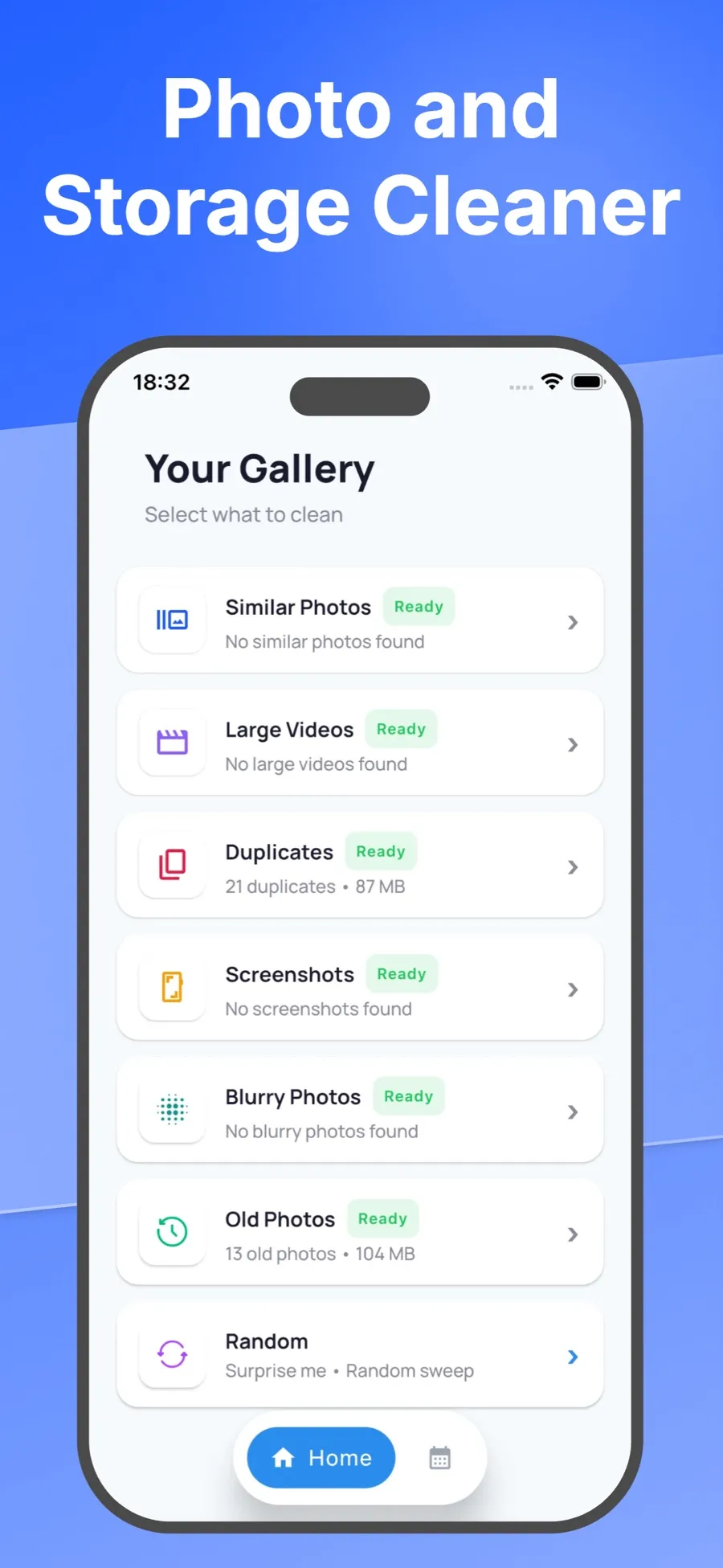
- Open Swipe Wipe and allow access to your photo library.
- Tap Similar Photos.
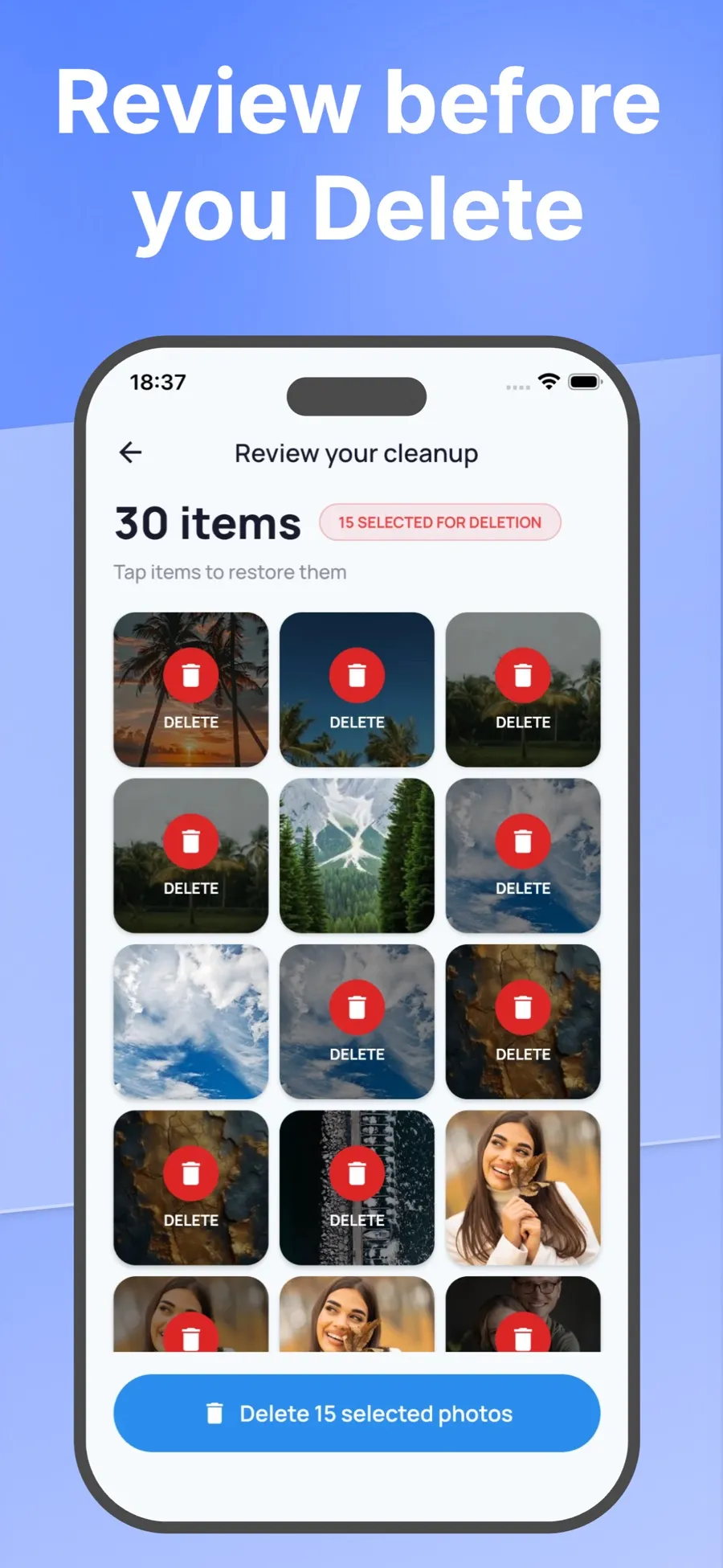
- Swipe right on the shot you want to keep. Swipe left on the ones you don’t need. If you change your mind, tap Undo.
- When you’re done, look over your selection and tap any photo you want to keep after all.
- Confirm. iOS asks you to allow the deletion before anything is removed.
Swiping left only marks a photo. Nothing is deleted until you check your selection and confirm, and deleted photos go to Recently Deleted in the Photos app, just like photos you delete there.
Swipe Wipe analyzes your photos on your iPhone. They aren’t uploaded to a server. If you’d rather work through your whole library a month at a time, see how to swipe through and delete unwanted photos.
Get back a photo you deleted by mistake
- Open Photos and tap Collections.
- Tap Recently Deleted (below Utilities), tap View Album, then unlock with Face ID, Touch ID or your passcode.
- Tap Select, choose the photos, tap the More button, then tap Recover.
Items stay in Recently Deleted for 30 days. After that, they’re removed from your iPhone, iCloud and your other devices.
Quick answers
Does deleting a burst delete the photos I saved from it?
The photos you saved with Done are kept as individual photos, separate from the burst. Check that they’re in your library before you delete the burst, since deleting the burst removes every frame inside it.
Why can I only see one photo from my burst?
Photos keeps a burst under a single thumbnail. Tap it, then tap Burst to see every frame.
Can I turn off burst mode?
You can turn off Use Volume Up for Burst in Settings → Camera, so holding the volume button no longer takes a burst. The setting doesn’t change the Shutter button, so swiping it to the left still takes a burst.
Does Swipe Wipe clean up bursts?
No. Swipe Wipe doesn’t have a burst tool. Use the Photos app for bursts, and Swipe Wipe’s Similar Photos category for near-identical shots that were saved as separate photos.
