How to sort through thousands of photos on iPhone
Updated
Don’t try to sort thousands of photos in one go. Work through your library one month at a time in short sessions, and clear the obvious clutter, like duplicates and screenshots, first. A few simple keep-or-delete rules make each decision quick, and you only need to remember which month you finished last.
iOS steps below were checked against Apple’s iPhone User Guide for iOS 26 and iOS 27.
Why one month at a time works
A library of thousands of photos has no natural stopping point, so a cleanup can feel endless. A single month does. It’s small enough to finish in one sitting, the photos in it belong together, and when you’re done you can see your progress: one more month checked off.
Months also help you decide. You remember the trip, the birthday or the ordinary week the photos came from, so it’s easier to tell which shots matter and which were just tries.
Before you start
Know what iCloud Photos does. If iCloud Photos is on, deleting a photo on your iPhone also deletes it on your other devices signed in to the same Apple Account.
Deleting isn’t instant. Deleted photos and videos stay in Recently Deleted for 30 days, so you can undo a mistake.
See where you’re starting. Open Settings, tap General, then iPhone Storage to see how much space Photos uses.
Clear the obvious clutter first
Some photos are easy calls no matter which month they’re from. Clearing them first makes every month smaller before you start.
- Open Photos and tap Collections.
- Tap Utilities, then Duplicates.
- Tap Merge on a set, then confirm.
If you have no duplicates, the Duplicates collection doesn’t appear. Next, go back to Collections, scroll down, and tap Media Types. Open Screenshots, tap Select, tap the ones you don’t need, then tap the delete button. Old screenshots of receipts, directions and codes you’ve already used are usually safe to let go.
Sort a month in the Photos app
The Photos library can show your photos by year and month. One thing to know: the Years and Months views are curated to show your best shots, so similar photos, screenshots, whiteboards and receipts aren’t shown there. For a cleanup, you want to see everything.
- Open Photos and swipe down on the photo library grid.
- Tap Years or Months to get your bearings and find the period you want to start with.
- Tap All to see every photo and video, then scroll to that month.
- Tap Select, tap the photos you don’t want, then tap the delete button.
You can also tap the search button and type a month and year, such as “June 2023,” to bring up photos from that month.
When you finish a month, make a note of it, for example in the Notes app. Next time, you start at the next month instead of scrolling around to find your place.
Rules of thumb for keep or delete
Clear rules save you from thinking hard about every photo.
- Keep the best shot, not every shot. In a run of similar photos, pick your favorite and let the rest go.
- Delete what was only useful once. Parking spots, menus, price tags, screenshots of directions or codes.
- Delete the failed tries. Blurry, dark, accidental pocket shots and photos of the floor.
- Keep people. When in doubt about a photo with someone you care about, keep it. These are the ones that are hard to replace.
- Check the long videos. One long video can take as much space as a large batch of photos. Keep the clip you’d actually watch again.
- If you can’t decide in a few seconds, keep it. You can always come back to it later. Momentum matters more than perfection.
Keep sessions small
Burnout comes from long sessions, not big libraries. Set yourself one month per session, or a short time limit, and stop when it’s done, even if you feel like going on. A cleanup you come back to tomorrow beats one you abandon halfway through tonight.
It doesn’t matter much which end you start from. Recent months are fresh in your mind, so decisions are easy. Older months can be easier in a different way: with some distance, it’s clearer which photos still matter to you.
Review month by month with Swipe Wipe
In the Photos app, you keep track of your place yourself. Swipe Wipe has a month-by-month review that does this for you: it shows a month one photo at a time and remembers where you left off.
- Open Swipe Wipe and allow access to your photo library.
- Choose to review by month, then pick a month.
- Swipe right to keep a photo. Swipe left to add it to your selection. If you change your mind, tap Undo.
- Stop whenever you like. When you open that month again, the photos you already swiped are skipped, so you continue where you stopped.
- When you’re done, look over your selection and tap any photo you want to keep after all, then confirm. iOS asks you to allow the deletion before anything is removed.
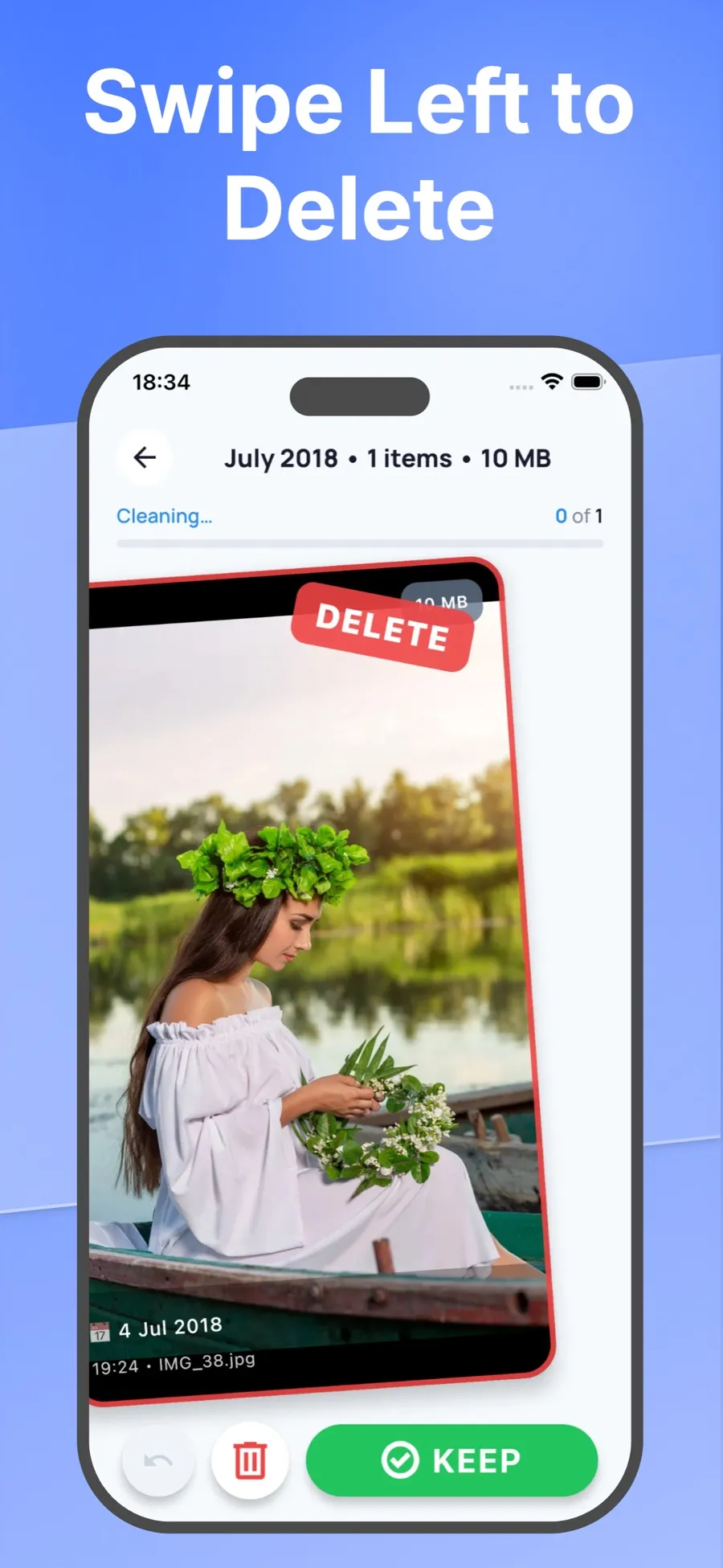
Because a swipe only marks a photo, you can move quickly through a month and make the final call at the end. Deleted items go to Recently Deleted in the Photos app, like any other photo you delete.
Swipe Wipe can also bring up groups across your whole library, such as duplicates, similar photos, screenshots, blurry photos, large videos and old photos. These are a good way to clear the obvious clutter before you start on the months. For more on swiping through photos, see how to swipe through and delete unwanted photos.
Swipe Wipe analyzes your photos on your iPhone. They aren’t uploaded to a server.
Get back a photo you deleted by mistake
- Open Photos and tap Collections.
- Tap Recently Deleted (below Utilities), tap View Album, then unlock with Face ID, Touch ID or your passcode.
- Tap Select, choose the photos, tap the More button, then tap Recover.
Items stay in Recently Deleted for 30 days. After that, they’re gone from your iPhone and iCloud.
Quick answers
Where should I start with thousands of photos?
Start with the easy wins: merge duplicates and clear old screenshots. Then pick one month, either your most recent or one you know is full of clutter, and finish it before moving on.
Why don’t I see all my photos in the Months view?
The Years and Months views are curated and leave out similar photos, screenshots, whiteboards and receipts. Tap All to see every photo and video in your library.
How long should a cleanup session be?
As long as one month takes, or a short time limit you set yourself. Stopping while it still feels easy makes it more likely you’ll come back for the next month.
Will I lose my place if I stop in the middle of a month?
In the Photos app, make a note of where you stopped. In Swipe Wipe’s month-by-month review, the photos you already swiped are skipped when you open that month again.
