How to find and delete blurry photos on iPhone
Updated
The Photos app on iPhone doesn’t have a built-in filter for blurry photos. To find them, look through your library a month at a time, zoom in on anything that looks soft, then select and delete the ones you don’t need. If you’d rather have shaky and out-of-focus shots gathered in one place, a cleanup app like Swipe Wipe can group them so you only have to decide what stays.
iOS steps below were checked against Apple’s iPhone User Guide for iOS 26 and iOS 27.
Does the Photos app find blurry photos?
No. In iOS 26 and iOS 27, Utilities in the Photos app gathers things like duplicates, receipts, QR codes and recently edited photos, and Media Types sorts your library by type, such as Portrait photos or time-lapse videos. Neither includes a collection for blurry or out-of-focus shots.
So with the built-in tools, finding blurry photos is a manual job. The good news is that blur is easy to spot once you know where to look.
How to spot blurry photos yourself
- Zoom in before you decide. Thumbnails hide blur. Open the photo and pinch to zoom in on a face, eyes or text. Smeared or doubled edges mean the camera or the subject moved. A sharp background behind a soft subject means the focus missed.
- Check the usual suspects. Blur shows up most in dim rooms, at night, at concerts, with moving kids and pets, from moving cars, and in shots taken by accident.
- Look at runs of similar shots. When you take several photos of the same moment, often only one or two are sharp. Keep the best and let the rest go.
- Work one month at a time. A month is small enough to check properly in one sitting.
Delete blurry photos in the Photos app
To delete a single photo, open it and tap the delete button. To clear several at once:
- Open Photos and view your library, or open a collection.
- Tap Select, then tap each blurry photo or video you want to remove.
- Tap the delete button.
If iCloud Photos is on, deleting a photo on your iPhone also deletes it on your other devices signed in to the same Apple Account. Deleted items stay in Recently Deleted for 30 days, so a wrong pick can be undone.
Keep only the sharp frames from a burst
Burst mode takes many photos in quick succession, and some frames are usually blurry. To keep just the good ones, tap the burst’s thumbnail, then tap Burst (it shows the number of shots). Gray dots under the thumbnails mark the frames iOS suggests keeping. Tap the circle on each sharp frame you want to save as its own photo, then tap Done and choose what to do with the rest.
When a soft photo is still worth keeping
Not every blurry photo belongs in the trash. Before you delete, ask whether you have a sharper version of the same moment.
- It’s the only photo of that moment. A slightly blurry photo of a first step or a family member you don’t see often is still worth more than no photo at all.
- The blur is on purpose. Portrait mode softens the background by design, and the Long Exposure effect on a Live Photo blurs motion to look like a slow shutter. Panning shots and light trails are meant to be soft too.
- It’s a Live Photo. A sharper frame may be hiding inside. Open the Live Photo, tap the Edit button, then tap the Live Photo button. Move the white frame to a sharper moment, tap Make Key Photo, then tap Done.
- It looks fine at the size you view it. If it holds up full screen on your phone and you don’t plan to print it, it may be good enough.
A simple rule: if it’s the only one, keep it. If a sharper shot of the same moment exists, delete the blurry one.
Gather blurry photos with Swipe Wipe
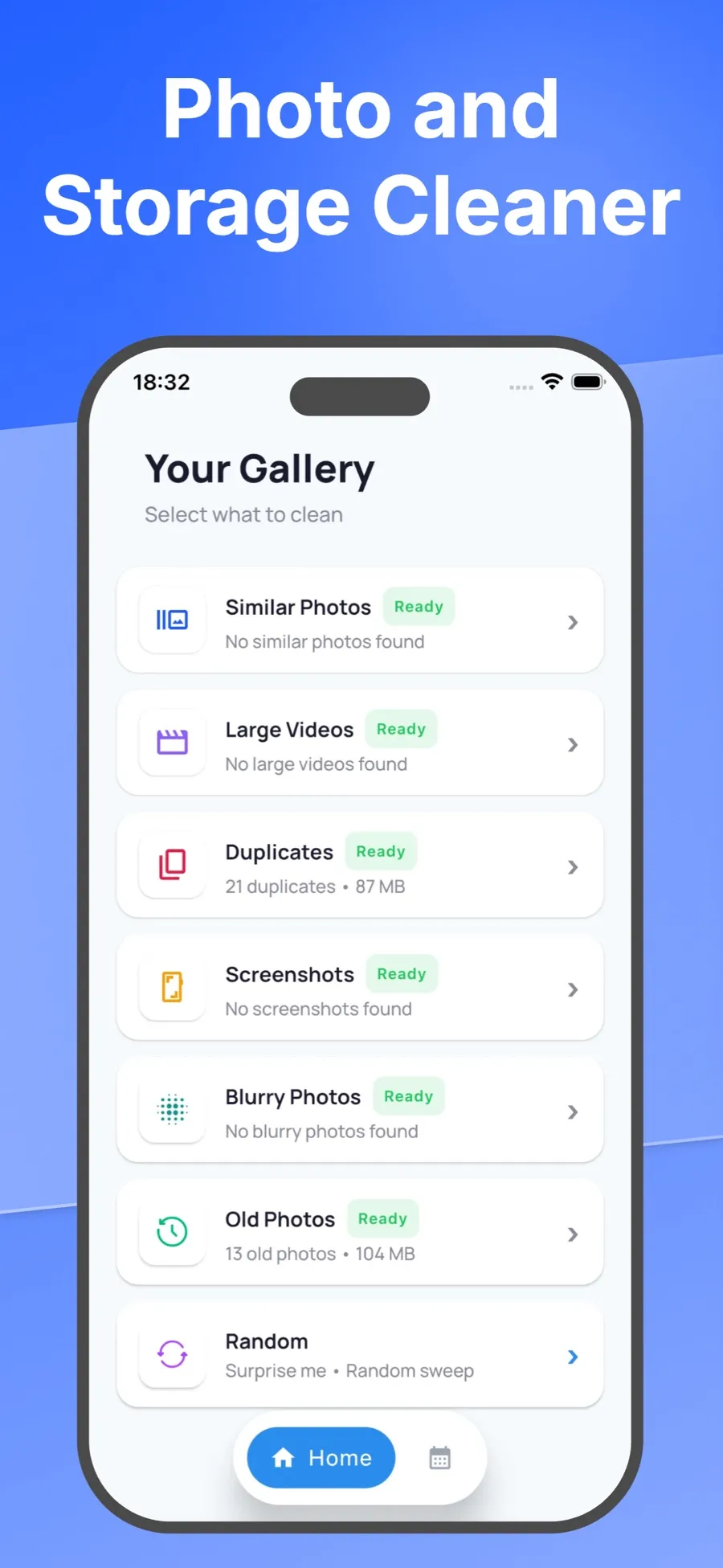
Swipe Wipe has a Blurry Photos group on its home screen. It brings shaky and out-of-focus shots together, so you can review them without scrolling through your whole library. Detection isn’t perfect: the group may include photos that are soft on purpose, and it may miss some blurry ones. You still make every call.
- Open Swipe Wipe and allow access to your photo library.
- Tap Blurry Photos on the home screen.
- Swipe right to keep a photo. Swipe left to add it to your selection. If you change your mind, tap Undo.
- When you’re done, look over your selection and tap any photo you want to keep after all.
- Confirm. iOS asks you to allow the deletion before anything is removed.
Swiping left only marks a photo, so you can move quickly and still change your mind at the review step. Deleted photos go to Recently Deleted in the Photos app. Swipe Wipe analyzes your photos on your iPhone. They aren’t uploaded to a server.
For more on reviewing photos one at a time, see how to swipe through and delete unwanted photos.
Get back a photo you deleted by mistake
- Open Photos and tap Collections.
- Tap Recently Deleted (below Utilities), tap View Album, then unlock with Face ID, Touch ID or your passcode.
- Tap Select, choose the photos, tap the More button, then tap Recover.
After 30 days, items are removed from your iPhone and iCloud for good.
Take fewer blurry photos
- Wipe the lens. A smudged lens makes every shot look hazy.
- Tap to focus. Tap your subject on the screen before you take the photo, and hold still for a moment after.
- Use Burst for moving subjects. Then keep the sharp frames and let the others go.
Quick answers
Can iPhone automatically find blurry photos?
Not in the Photos app. In iOS 26 and iOS 27 there’s no blurry photos collection in Utilities or Media Types, so you either find them by eye or use an app that groups them for you.
Can I fix a blurry photo on iPhone?
Editing can adjust light and color, but it can’t add back detail the camera never captured. If it’s a Live Photo, try choosing a sharper key photo.
Does deleting blurry photos free up space?
It can, but the space isn’t freed until the photos leave Recently Deleted, either after 30 days or when you delete them from there. How much you get back depends on how many photos you remove.
Will deleting blurry photos on my iPhone delete them from iCloud?
Yes, if iCloud Photos is on. Deleting a photo removes it from every device signed in to the same Apple Account.
